Theme styles
A theme style is a ready set of theme settings: color schemes, fonts, corner radius, product card options and badge colors. Alpha Start comes in three styles. They share every section and feature, and differ only in how the store looks, so you can start with the style closest to your brand and adjust it from there.
The three styles
Section titled “The three styles”The screenshots show the demo store of each style. The header layout and the home page sections in them are set up in the sections, not by the style, so you can build the same pages with any style.
Alpha Start
Section titled “Alpha Start”A clean, neutral look: white and light gray backgrounds, near-black text and buttons, and a dark graphite scheme for footers and accents. It suits almost any catalog and lets product photos stand out.
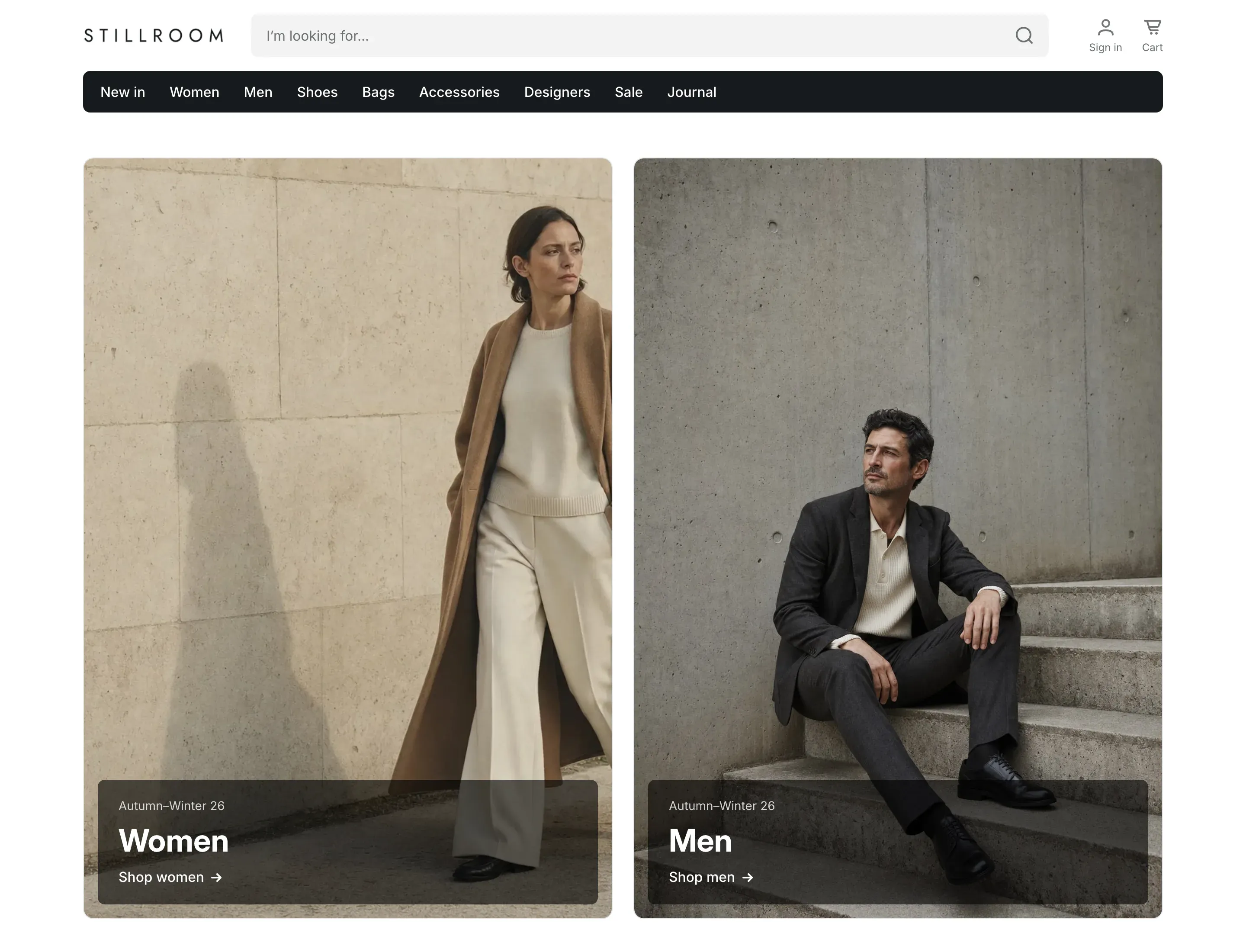
| What the style sets | Value |
|---|---|
| Color schemes | Scheme 1 white with near-black text and buttons, Scheme 2 light gray, Scheme 3 dark graphite, Scheme 4 blue, Scheme 5 near-black. |
| Fonts | Inter for headings and body text. |
| Corners | Rounded: 12px for cards, 8px for buttons and inputs. |
| Product cards | Portrait (3:4) images on a gray background, brand and color swatches shown, stock status and rating hidden. |
| Product badges | Black Sale badge with white text, beige New badge. |
| Logo width | 170px. |
The demo store uses the Category band header layout.
Morrowell
Section titled “Morrowell”A soft, natural look: warm white and beige backgrounds, deep green buttons and accents, and a sage green scheme. Headings use a serif font, and buttons are fully rounded. It suits beauty, wellness and other calm, premium catalogs.
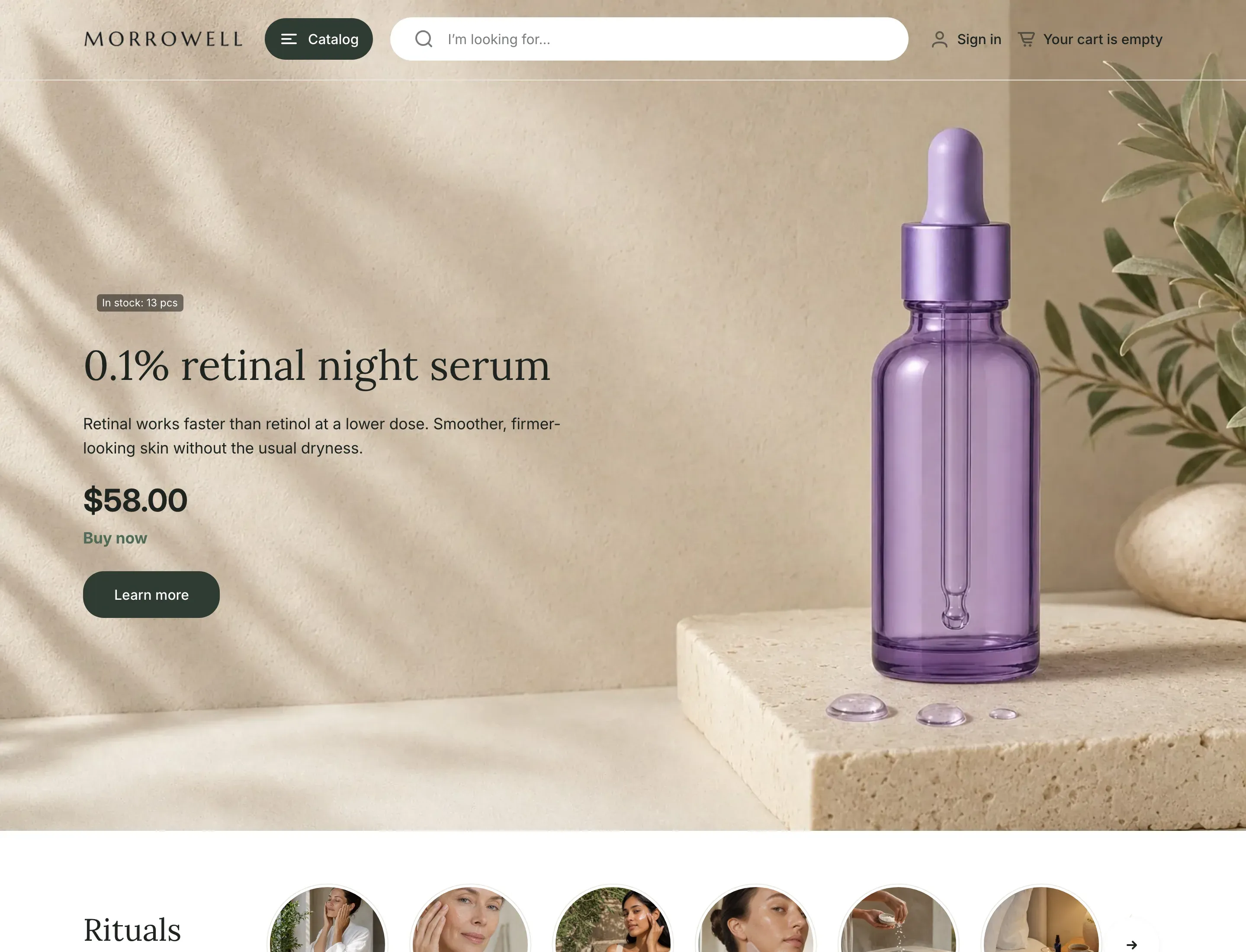
| What the style sets | Value |
|---|---|
| Color schemes | Scheme 1 white with deep green buttons, Scheme 2 warm beige, Scheme 3 deep green, Scheme 4 sage green, Scheme 5 dark green-black. |
| Fonts | Lora for headings, Inter for body text. |
| Corners | 12px for cards, 24px for buttons (fully rounded), 8px for inputs. |
| Product cards | Portrait (3:4) images without a gray background, brand and color swatches shown, stock status and rating hidden. |
| Product badges | Terracotta Sale badge and dark green New badge, both with white text. |
| Back to top button | Circle, light. |
| Logo width | 190px. |
The demo store uses the Featured product header layout.
Brackenmoor
Section titled “Brackenmoor”A warm, crafted look: off-white and sand backgrounds, rust-colored buttons and accents, and a dark brown scheme. Corners are square everywhere. It suits home, garden, tools and other handmade or outdoor goods.
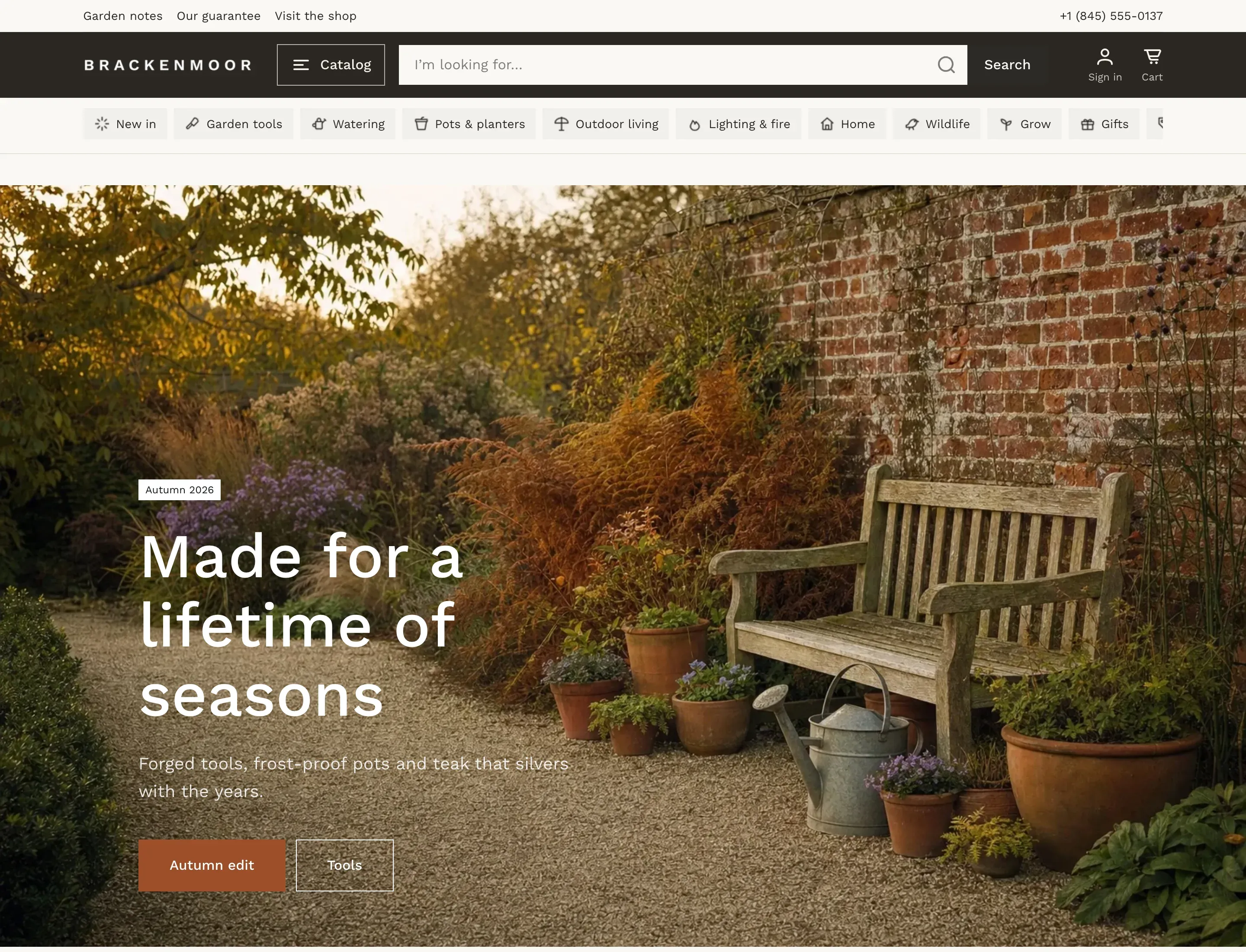
| What the style sets | Value |
|---|---|
| Color schemes | Scheme 1 off-white with rust buttons, Scheme 2 light sand, Scheme 3 dark brown, Scheme 4 rust, Scheme 5 sand. |
| Fonts | Work Sans for headings (medium weight) and body text. |
| Corners | Square: 0px for cards, buttons and inputs. |
| Product cards | Square (1:1) images without a gray background, color swatches shown, brand, stock status and rating hidden. |
| Product badges | Rust Sale badge and olive New badge, both with white text. |
| Back to top button | Square, accent. |
| Logo width | 200px. |
The demo store uses the Accent header layout.
What a style changes
Section titled “What a style changes”A style changes theme settings only:
- color schemes and badge colors in Colors;
- fonts in Typography;
- corner radius in Layout and corners;
- options in Product cards;
- the logo width and the back to top button style.
It doesn’t change your sections, templates, header or footer settings, or your content. Every style starts with the same home page sections and the same header and footer setup. To make your store look like a demo store, set up the sections yourself, for example choose the header Layout in Header.
Choose a style
Section titled “Choose a style”You choose a style when you add Alpha Start to your store. On the Alpha Start page in the Shopify Theme Store, pick a style, preview its demo store, and click Try theme or buy the theme. The theme is added to your theme library with the settings of that style. See Install the theme.
Switch to another style
Section titled “Switch to another style”- In your Shopify admin, open Online Store → Themes and click Customize next to Alpha Start.
- In the left sidebar, click the Theme settings icon.
- Click Theme style.
- Select the style you want, then click Change style.
- Click Save.
Styles and the defaults in this documentation
Section titled “Styles and the defaults in this documentation”The Default column in the settings tables of this documentation shows the value built into each setting, not the value of a style. For example, the default Image ratio of product cards is Square (1:1), while the Alpha Start and Morrowell styles set Portrait (3:4). If your store started with a style, your settings can differ from the defaults listed here.