Collection filters
Give customers filters by price, color, brand and other properties on collection pages and in search results.
You need: the free Shopify Search & Discovery app · products with the data you want to filter by (vendor, type, options, tags or metafields) · about 15 minutes.
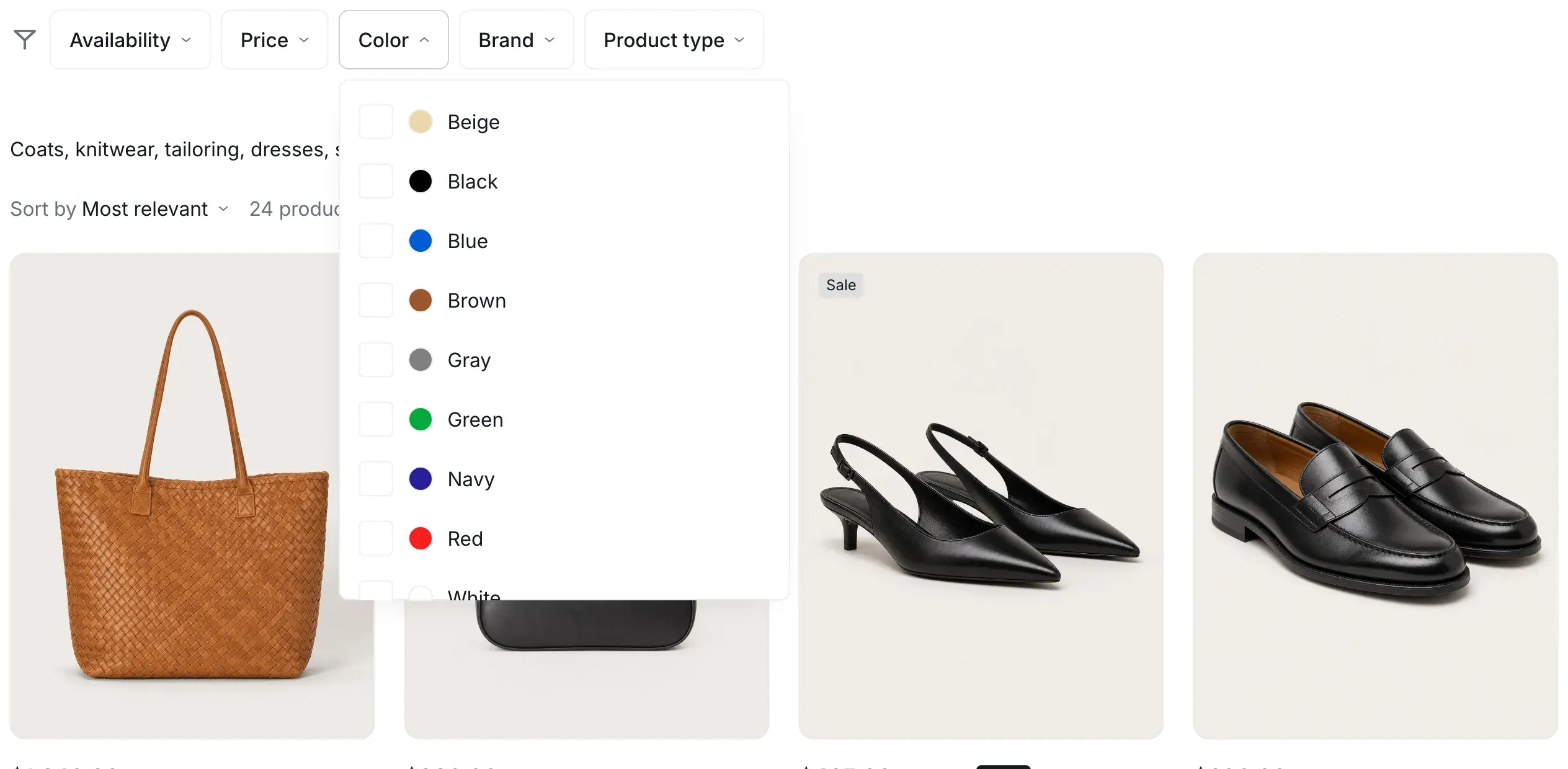
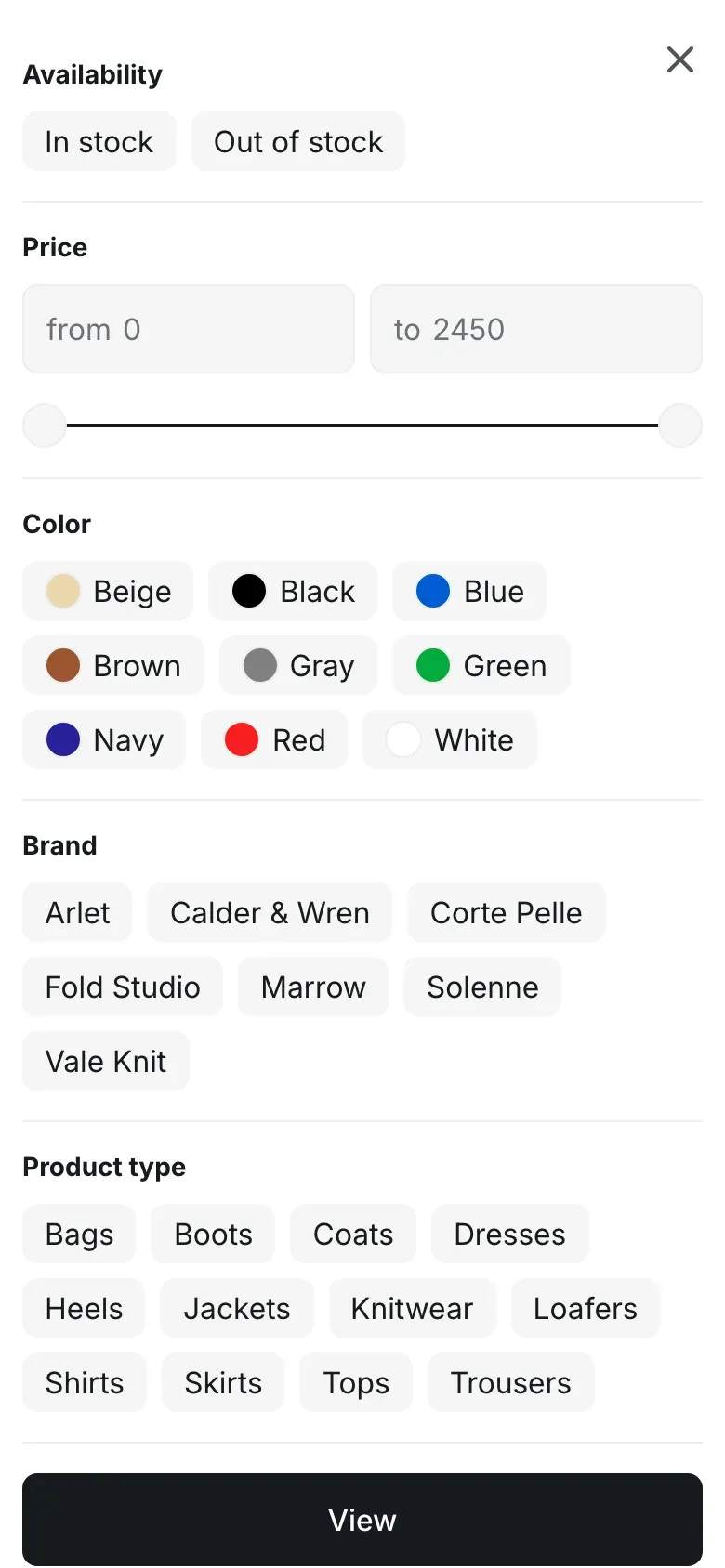
How filters work in Alpha Start
Section titled “How filters work in Alpha Start”Alpha Start doesn’t create filters itself. It shows the filters you set up in the Search & Discovery app, in the order you set there, with the names you give them.
The theme shows each type of filter in its own way:
| Filter | How customers see it |
|---|---|
| Price | Two fields, from and to, with a slider under them. The slider ends at the highest price in the collection, rounded up. |
| Any other filter: availability, product type, vendor, tags, options, metafields | A list of values with checkboxes. Customers can tick several values. Values with no matching products are dimmed and can’t be chosen. |
| A filter with swatches | The same list, with a round swatch (a color or an image) before each value name. |
Chosen filters appear as chips above the products, each with a cross to remove it, and a Reset filters link next to them.
Step 1. Set up filters in Shopify admin
Section titled “Step 1. Set up filters in Shopify admin”- Install the Search & Discovery app from the Shopify App Store, if it isn’t installed yet.
- In your Shopify admin, open Apps → Search & Discovery → Filters.
- Click Add filter, choose a Source, for example Price, Vendor or a product option such as Color, and click Save.
- Add the other filters you need and drag them into the order you want customers to see.
- For a color filter with swatches, open the filter, click Manage values and turn on Include swatch (or Use images when available for pattern images). Swatches work for colors set through the Color category metafield. See Color swatches.
Step 2. Choose the filter layout in the theme editor
Section titled “Step 2. Choose the filter layout in the theme editor”- In the theme editor, choose Collections → Default collection in the page selector at the top.
- Click the Collection products section.
- Make sure Enable filtering is on. Info in the editor: “Customize filters with the Search & Discovery app.”
- Choose the Filter layout: Sidebar or Above products.
- Click Save.
- Repeat for the search page: choose Search in the page selector, click the Search section and set the same settings there.
The two layouts look like this on screens wider than 1024px:
| Filter layout | How it works |
|---|---|
| Sidebar | Filters sit in a column on the left, under the catalog menu when Show catalog menu is on. Each filter is a group that opens and closes. The price group and groups with chosen values start open. When a customer ticks a value, a badge next to the group shows how many products match, and the Show button below the filters loads them. Reset filters clears all filters. |
| Above products | A row of buttons above the products, one for each filter. Each button opens a dropdown with its own Show button. The button shows the number of chosen values. A Reset filters link appears at the end of the row when filters are chosen. With the catalog menu turned on, a Categories button at the start of the row opens it. |
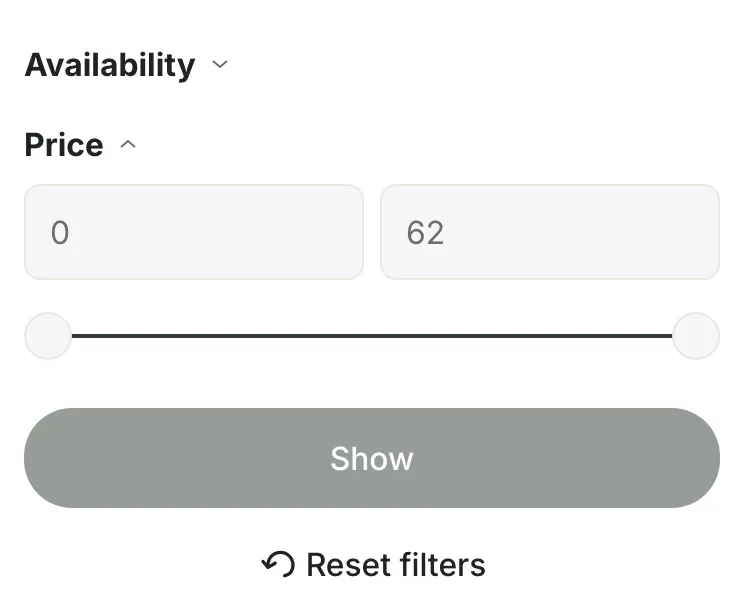
On phones and tablets
Section titled “On phones and tablets”On screens up to 1024px wide, both layouts give way to a row of buttons above the products: Categories (when you have a catalog menu), a sort button and a filter button. The filter button shows the number of chosen filters. It opens a full-screen panel where every filter is open, values are pills that customers tap to choose, and a View button shows the results.
Results load without reloading the page, and the page address changes, so customers can share or bookmark a filtered list.
Check the result
Section titled “Check the result”Open a collection on your storefront that has products with different prices and values. Tick a value: the number of matching products appears, and after Show only those products are listed. Then check the same collection in the mobile preview of the theme editor.
Why are there no filters on my collection page?
Section titled “Why are there no filters on my collection page?”Filters appear when Enable filtering is on and the Search & Discovery app has at least one filter. Shopify also hides filters on collections with more than 5,000 products.
Why is a filter value grayed out?
Section titled “Why is a filter value grayed out?”No product in the current list has that value, for example after other filters are applied. The value becomes available again when the other filters change.
Why don’t color values have swatches?
Section titled “Why don’t color values have swatches?”The filter needs a source that carries colors, such as the Color category metafield, with Include swatch turned on in the app. A filter on a plain option name shows text only.
Can I show filters on some collections only?
Section titled “Can I show filters on some collections only?”Filters are a setting of the collection template. Create a second collection template with Enable filtering turned off and assign it to those collections. See Alternate templates.