Image with text
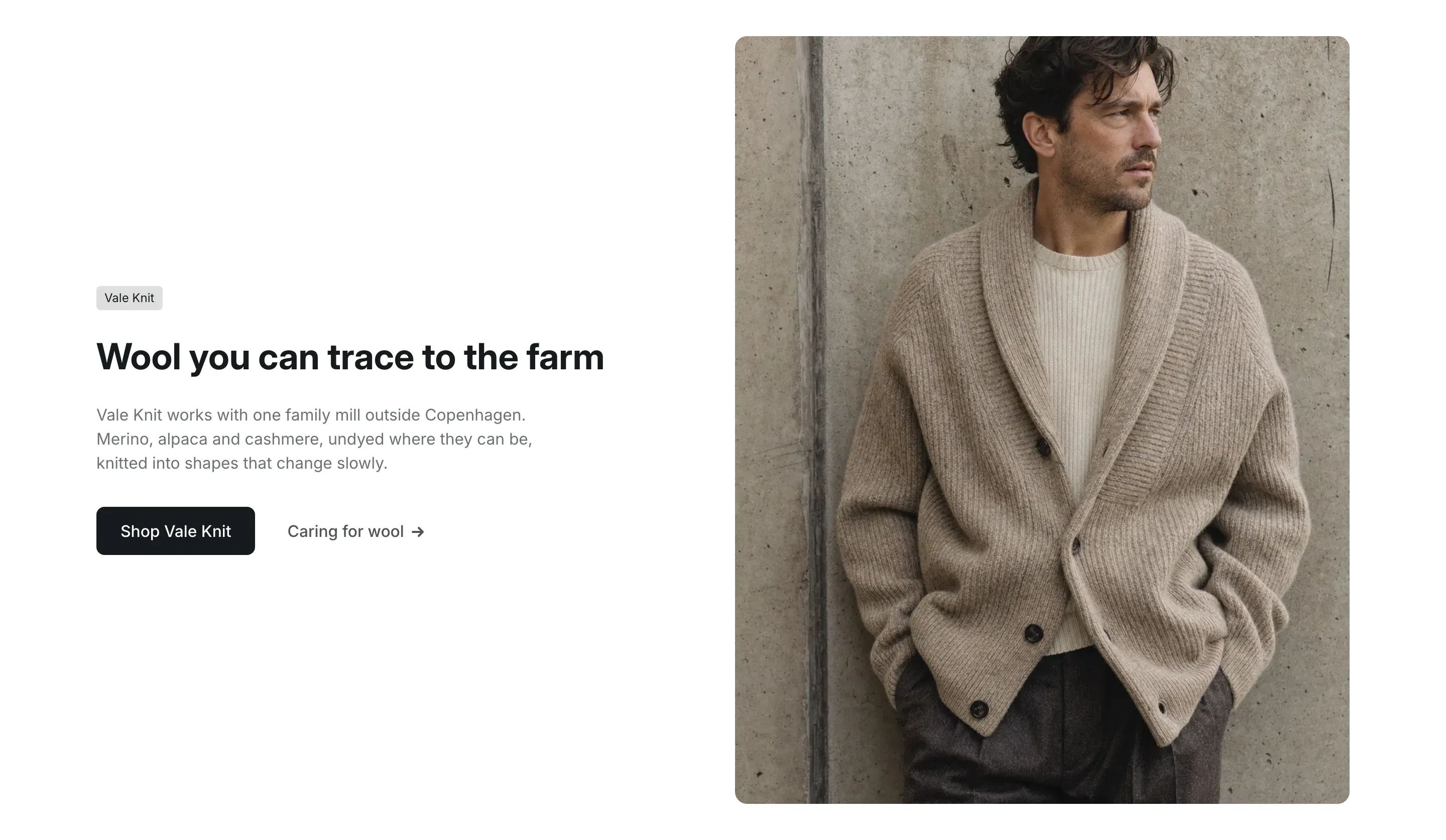
Image with text puts a photo next to a short story: a label, a heading, a few paragraphs, a button and a text link. Use it to introduce a brand, explain a material or lead customers to a collection.
Where to find it
Section titled “Where to find it”Theme editor → page → Add section → Image with text.
Set it up
Section titled “Set it up”- Add the Image with text section and upload an Image.
- Choose the Image position, the Image ratio and the Text alignment.
- Under Content, fill in Label, Heading and Text. Clear a field to hide it.
- Enter the button Label and choose a Button link.
- Optional: add a text link with an arrow. Fill in Link label and Link.
- Click Save.
The photo and the text column take half the width each. The photo keeps the ratio you choose and is cropped to fit it. Text alignment places the text at the top, middle or bottom of the photo’s height.
The text link shows only when both Link label and Link are filled in. The button shows whenever it has a label; without a Button link it doesn’t open anything.
On mobile
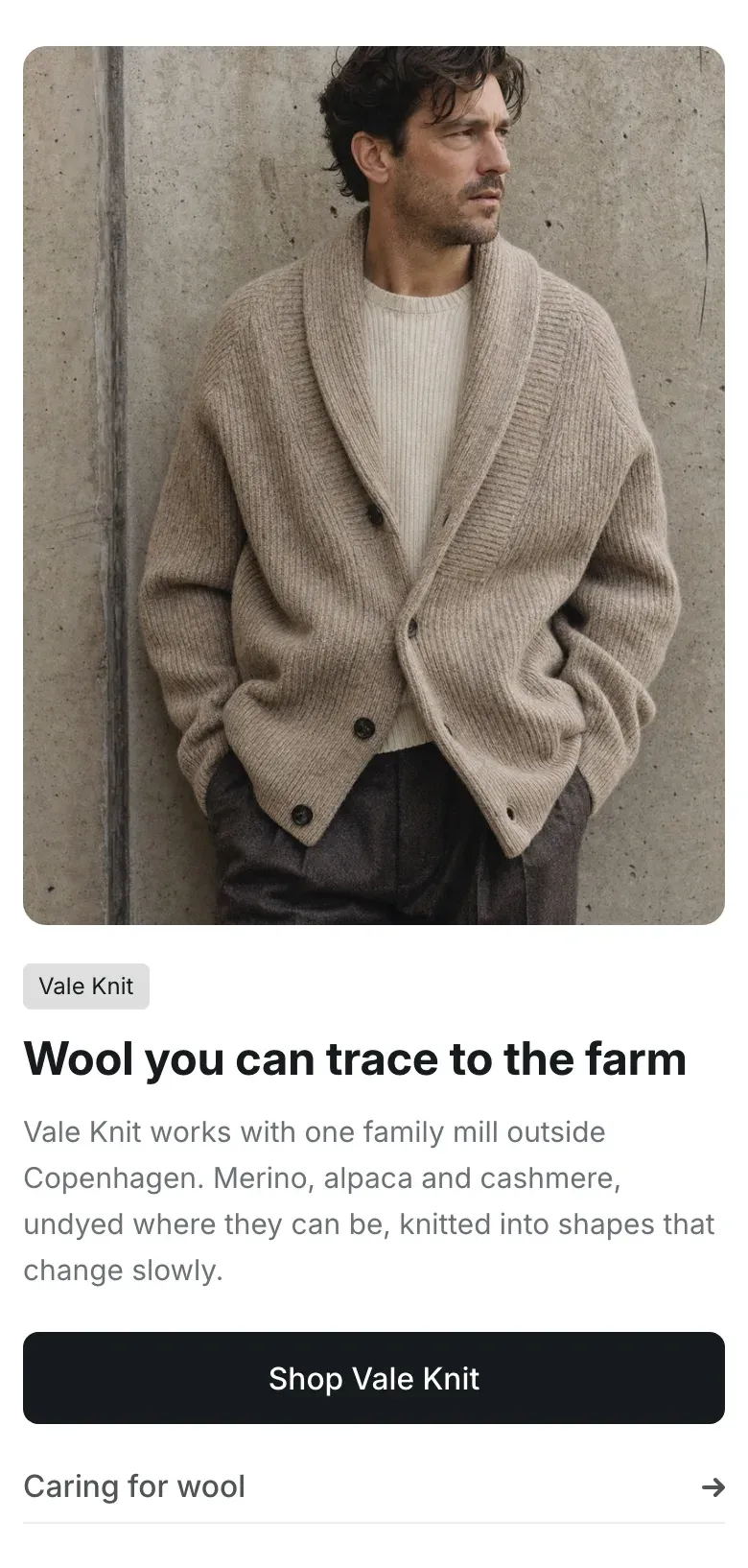
Section titled “On mobile”On screens up to 768px wide, the photo goes on top and the text follows, whatever the Image position. The button stretches to the full width, and the text link stretches to the full width above a thin line.
Settings reference
Section titled “Settings reference”| Setting | What it does | Default |
|---|---|---|
| Image | The photo. | Empty |
| Image position | Side of the photo on desktop. Options: Left, Right. | Left |
| Image ratio | Shape of the photo. Options: Portrait (4:5), Square (1:1), Landscape (4:3). | Portrait (4:5) |
| Text alignment | Where the text sits next to the photo. Options: Top, Middle, Bottom. | Middle |
| Label | Short text on a small badge above the heading. | Featured |
| Heading | Title of the section. | Image with text |
| Text | Paragraphs under the heading. | Pair a photo with a short story about a product, a material or the people who make it. |
| Label | Text of the button. | Shop now |
| Button link | Page that opens when customers click the button. | Empty |
| Link label | Text of the link next to the button. | Empty |
| Link | Page the text link opens. | Empty |
| Color scheme | Colors of the section. See Section basics. | Scheme 1 |