Blog posts
The Blog posts section shows the latest posts of one of your blogs, with images, categories, dates and short excerpts, and a link to the whole blog. Use it on the home page or a landing page to bring customers to your guides, news and stories.
This page is about the section you add to pages. The blog page itself and the post pages are described in Blog.
Where to find it: Theme editor → page → Add section → Blog posts.
Set up the section
Section titled “Set up the section”- Click Add section and choose Blog posts.
- Choose a Blog. Until you do, the theme editor shows placeholder cards, and customers don’t see the section.
- Choose the Layout and the Maximum posts to show.
- Enter a Heading and a Link label. The link goes to the chosen blog unless you set another Link.
- Turn the tag, date and excerpt on or off.
- Click Save.
Posts are shown newest first, as in your blog. The section is hidden from customers when the blog has no posts.
Layouts
Section titled “Layouts”| Layout | What it looks like |
|---|---|
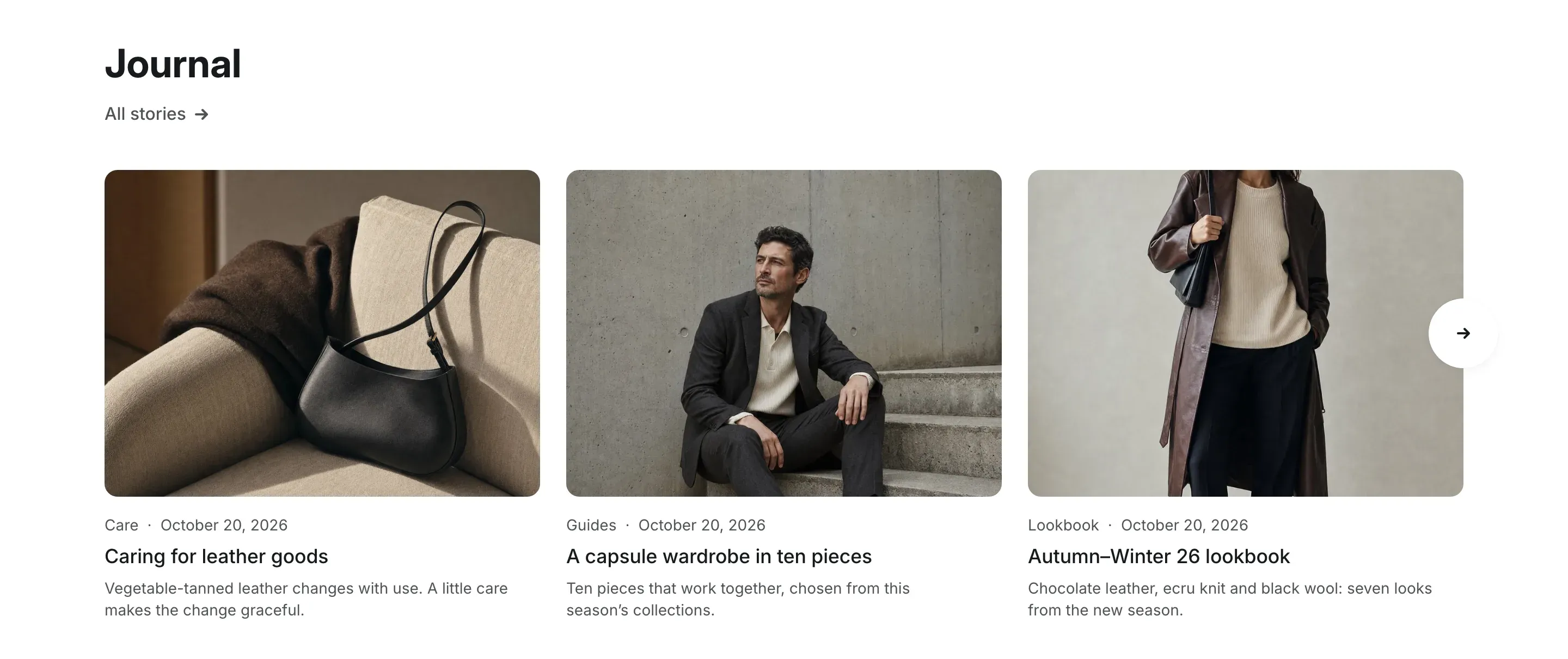
| Carousel | Three cards in a row with arrows to scroll to more posts. The heading and link align left. Each card has a 4:3 image, the tag and date, the title and the excerpt. On screens up to 1024px wide, customers swipe through narrower cards. |
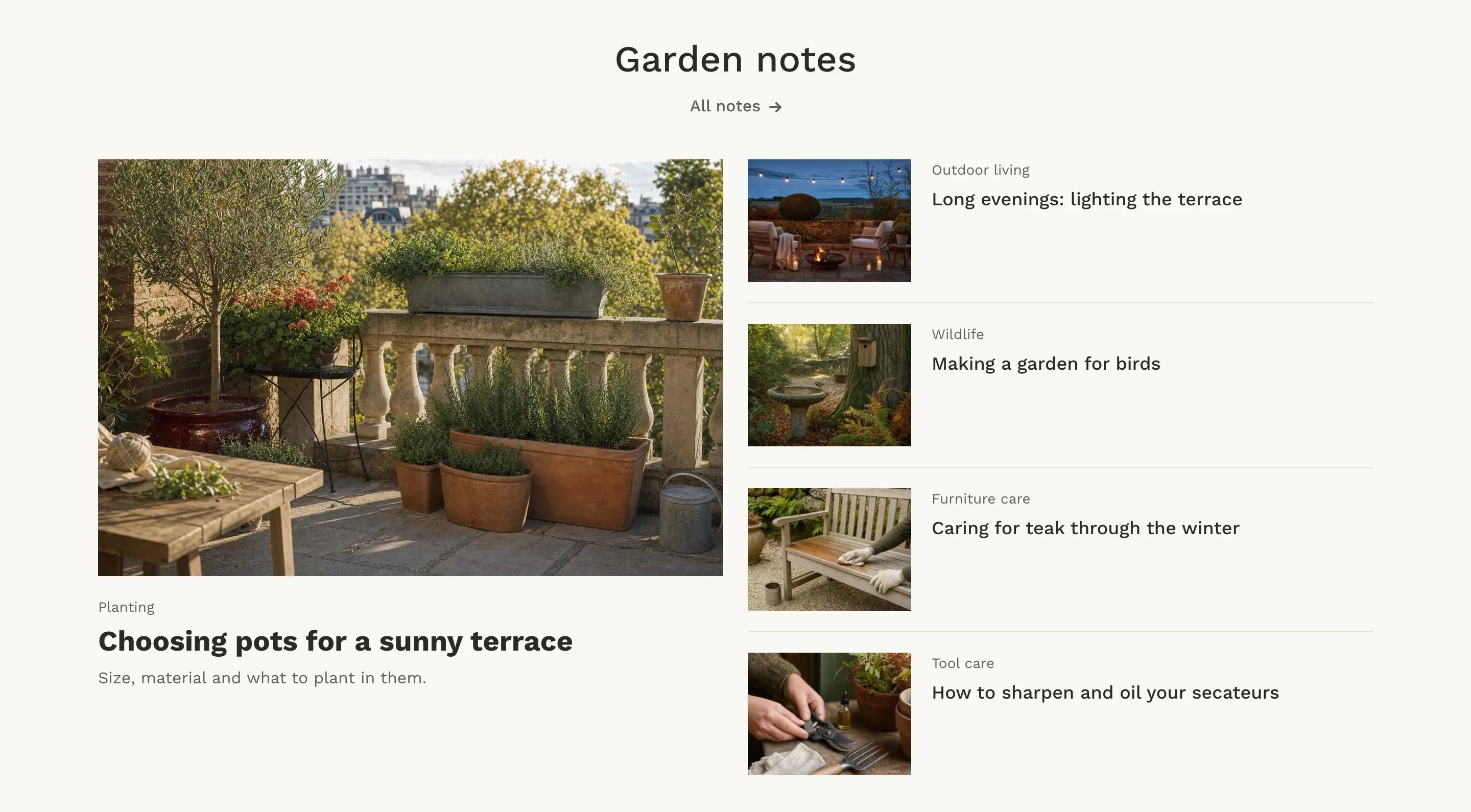
| Magazine | The latest post large on the left, with a 3:2 image, a big title and the excerpt. Up to four more posts are listed on the right as rows with a small thumbnail, the tag, date and title, without excerpts. The heading and link are centered. On screens up to 768px wide, the rows move under the large post. |
The magazine layout shows up to 5 posts, whatever you set in Maximum posts to show.
What a post card shows
Section titled “What a post card shows”- Image: the post’s featured image, cropped to fill the card. A post without an image keeps a gray area so the cards stay aligned. Use images at least 1300px wide and set a focal point in Shopify to keep the subject in view.
- Tag: the post category. Add a tag that starts with
category:to the post, for examplecategory:Guides, and the card shows Guides. Without such a tag, the card shows the first tag of the post. - Date: the publish date of the post.
- Excerpt: the post’s excerpt, or the start of the post when the excerpt is empty, cut to about 30 words and two lines.
The whole card is a link to the post. On desktop, hovering a card zooms the image slightly.
Settings reference
Section titled “Settings reference”| Setting | What it does | Default |
|---|---|---|
| Blog | Blog whose posts are shown. | Empty |
| Maximum posts to show | From 3 to 12 posts. Info in the editor: “The magazine layout shows up to 5 posts” | 9 |
| Layout | Options: Carousel, Magazine. Info in the editor: “The magazine layout shows the latest post large next to up to four more” | Carousel |
| Heading | Section heading. Supports bold, italic and links. See Section basics. | Our blog |
| Link label | Text of the link under the heading. | All posts |
| Link | Info in the editor: “Leave empty to link to the chosen blog” | Empty |
| Show tag | Info in the editor: “Shows the post category, a tag that starts with category:, or the first tag when there is no category” | On |
| Show date | Shows the publish date of each post. | On |
| Show excerpt | Info in the editor: “Uses the post excerpt, or the start of the post when the excerpt is empty”. Not shown in the small rows of the magazine layout. | On |
| Color scheme | Colors of the section. See Section basics. | Scheme 1 |