Section basics
Every page of your store is built from sections: a banner, a row of products, a list of questions, a blog feed. You choose which sections a page has, in which order, and what each one shows. Customers see the sections one after another, from top to bottom.
Add a section
Section titled “Add a section”- In the theme editor, choose the page in the page selector at the top, for example Home page.
- In the left sidebar, click Add section where you want the section to appear.
- Pick a section from the list, for example Advantages. The section is added with sample content.
- Click the section in the sidebar and change its settings and blocks.
- Click Save.
Sections you add to a template, such as the home page or a page template, appear on every page that uses this template.
Hide, reorder or remove a section
Section titled “Hide, reorder or remove a section”- Hide: hover the section in the sidebar and click the eye icon. A hidden section keeps its settings, and customers don’t see it until you show it again.
- Reorder: drag the section by its handle in the sidebar to a new place.
- Remove: click the section, scroll to the bottom of its settings and click Remove section. Removing deletes the section’s settings and content.
For details on the editor itself, see Sections and blocks in the Shopify Help Center.
Where a section can be added
Section titled “Where a section can be added”The sidebar has three areas: the header area at the top, the page template in the middle and the footer area at the bottom.
- Most sections, such as Hero banner, Featured collection, FAQ, Customer reviews, Text and Blog posts, can be added only to the page template, not to the header or footer area.
- A few compact sections can also be added to the header or footer area: Advantages, Logo list, About us, Collection list, Product tabs, Promotions, Stories and Custom Liquid.
- Some sections belong to one template and are not in the Add section list, for example the product information on product pages or the product grid on collection pages. See Page templates.
Blocks
Section titled “Blocks”Many sections are made of blocks: each advantage in Advantages, each logo in Logo list, each review in Customer reviews. Blocks are listed under their section in the sidebar.
- Expand the section in the sidebar.
- Click Add block under the section and pick a block.
- Click the block to change its settings.
- Drag blocks to change their order, use the eye icon to hide one, or click Remove block at the bottom of the block settings.
Some sections limit the number of blocks, for example 8 advantages or 24 logos. When a section reaches its limit, you can’t add more blocks to it.
Nested blocks
Section titled “Nested blocks”Some blocks hold blocks of their own. In the FAQ section, each Question group holds Question blocks. To add a question, expand the group in the sidebar and click Add block inside the group, not under the section.
Settings most sections share
Section titled “Settings most sections share”Color scheme
Section titled “Color scheme”Every section has a Color scheme setting. It sets the background, text, accent, border and button colors of the section. You set up the schemes once in Theme settings → Colors and then pick one per section. See Colors.
Heading and heading link
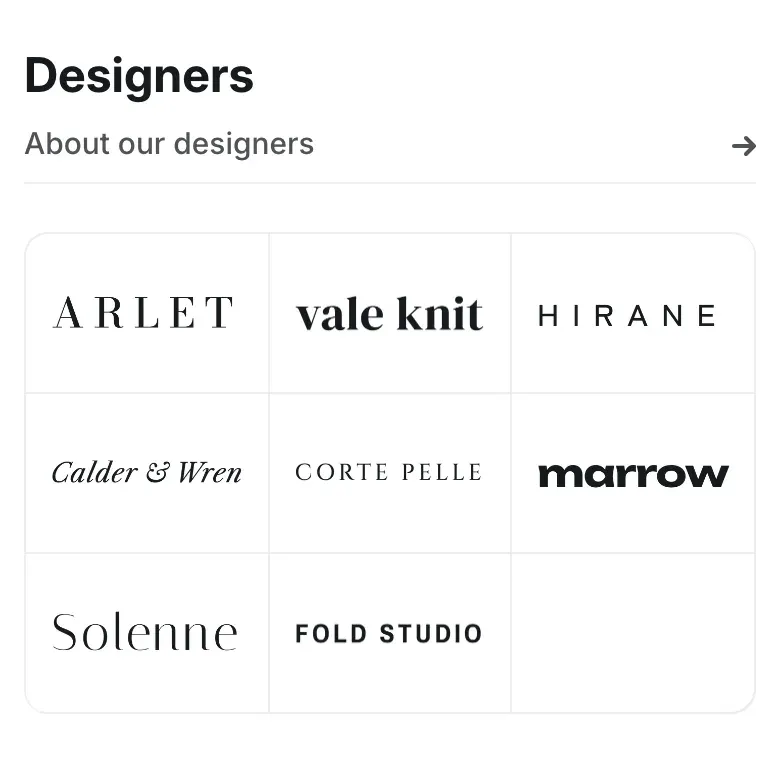
Section titled “Heading and heading link”Many sections start with a Heading. Sections such as Logo list, FAQ, About us, Blog posts, Collage, Product tabs, Video and Promotions also have a Link label and a Link. Together they add a link with an arrow under the heading, for example “All brands” or “All posts”.
- The link appears only when both Link label and Link are filled in.
- The heading and the link are centered on desktop. In carousel layouts some sections align them left.
- On phones the heading aligns left. In most sections the link then stretches to the full width, with the arrow on the right and a thin line underneath.
Formatting in headings
Section titled “Formatting in headings”Most section headings accept formatting: in the heading field, select text and use the Bold, Italic or Link buttons. For example, make one word bold or link a word to a page. A few short headings, such as the heading of Advantages, are plain text.
App blocks
Section titled “App blocks”Apps from the Shopify App Store can add their own blocks to the theme, such as a reviews widget or a size chart button. In Alpha Start you can add app blocks to the Customer reviews and Featured product sections, and to the main sections of the product, collection, search, cart and content page templates. To add one, click Add block in the section and open the Apps tab of the list. See Apps.