Collection page
The collection page shows the products of one collection. Customers see where they are in the catalog, jump to subcategories, narrow the products with filters and sort them. The page has two sections: Collection header with the title, banner and subcategory tiles, and Collection products with the products, filters and sorting.
Where to find it: Theme editor → page selector at the top → Collections → Default collection.
Collection header
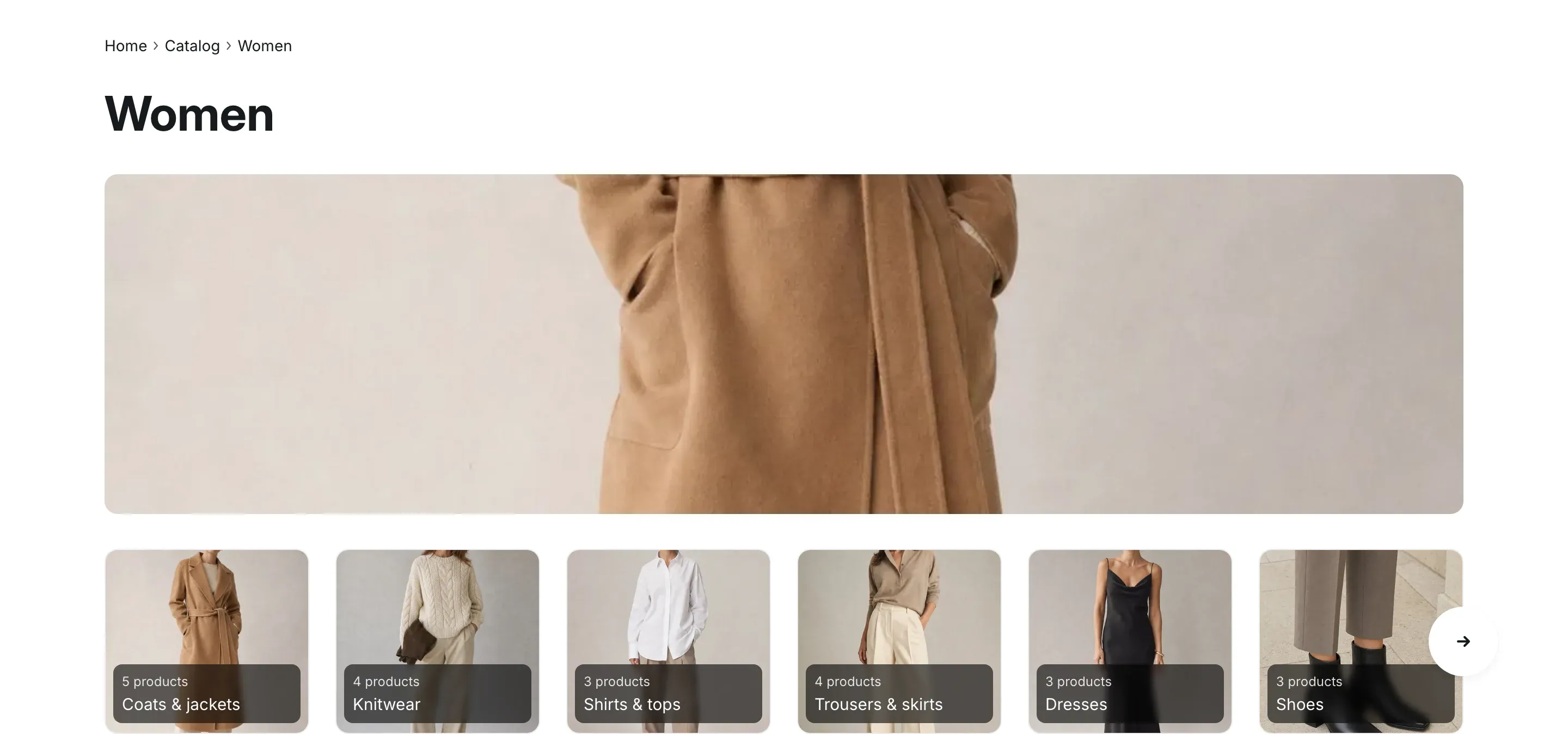
Section titled “Collection header”The header shows the breadcrumbs, the collection title, the collection image as a wide banner and a row of subcategory tiles.
- Breadcrumbs follow the catalog menu: the menu items above the current collection make up the trail.
- Banner: the collection image from the collection editor in your Shopify admin. It is cropped to a wide strip: 4:1 on desktop, 3:1 on tablets and 2:1 on phones. Use an image 3200 × 800px or larger, and set a focal point on the image so the important part stays in view. Collections without an image show no banner.
- Subcategory tiles: the collections nested under the current collection in the catalog menu, two levels deep, in menu order. Each tile shows the collection image (or its first product image), the product count and the title. Customers scroll the row with arrow buttons. The tiles are hidden on screens up to 1024px wide, where the Categories button of the product list opens the catalog menu instead.
To build the hierarchy, nest collection links in your catalog menu. See Catalog menu.
| Setting | What it does | Default |
|---|---|---|
| Show image | Info in the editor: “Shows the collection image from the admin as a wide banner under the title. Set a focal point on the image to control the crop.” | On |
| Show subcategories | Info in the editor: “Collections nested under this one in the catalog menu (Theme settings > Catalog).” | On |
| Color scheme | Colors of the section. See Section basics. | Scheme 1 |
Collection products
Section titled “Collection products”This section shows the products in a grid or a list, with filters, sorting, the product count and page navigation. Filtering, sorting and loading more products happen without reloading the page.
Grid and list view
Section titled “Grid and list view”Default view sets how products appear when a customer first opens the page:
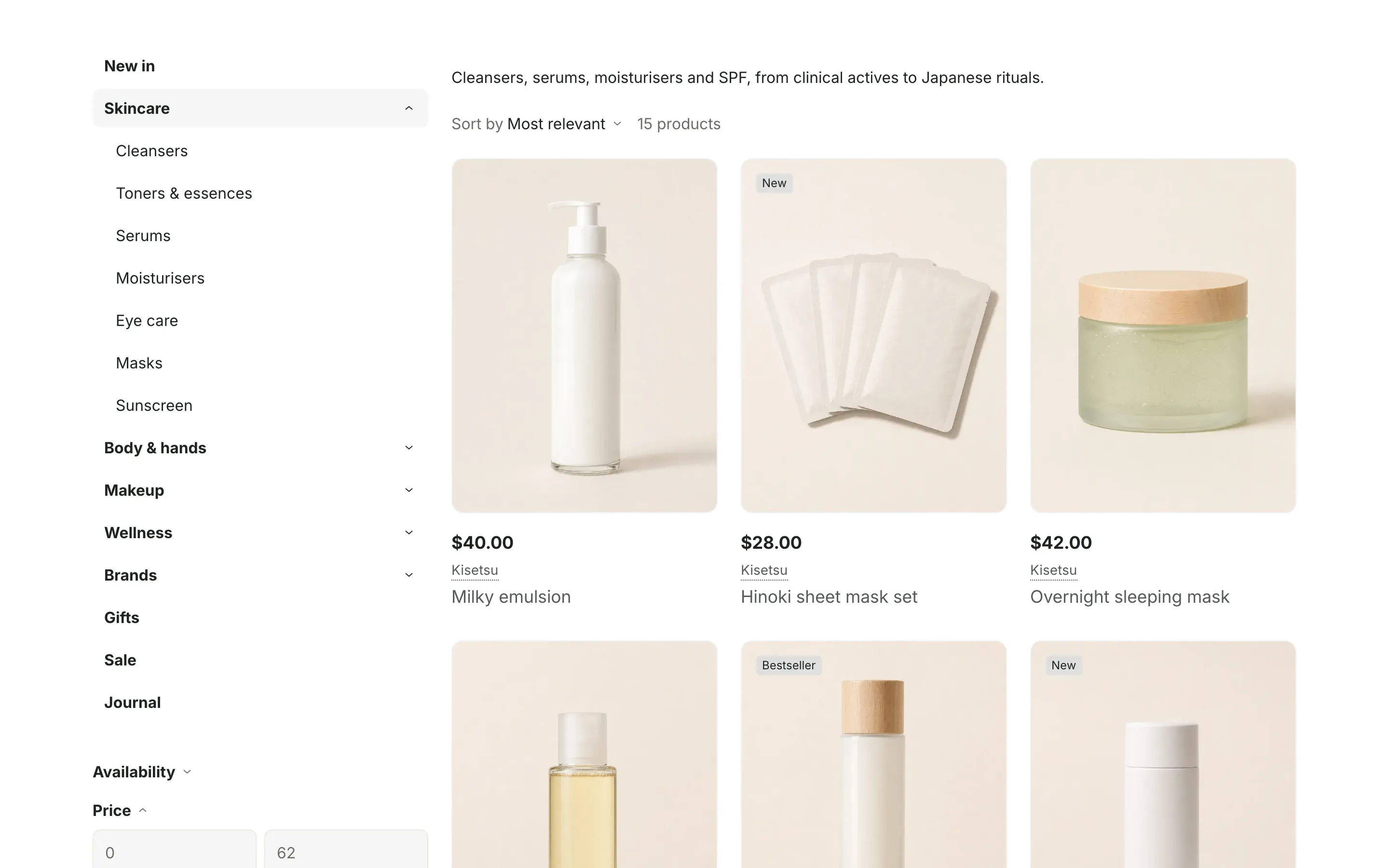
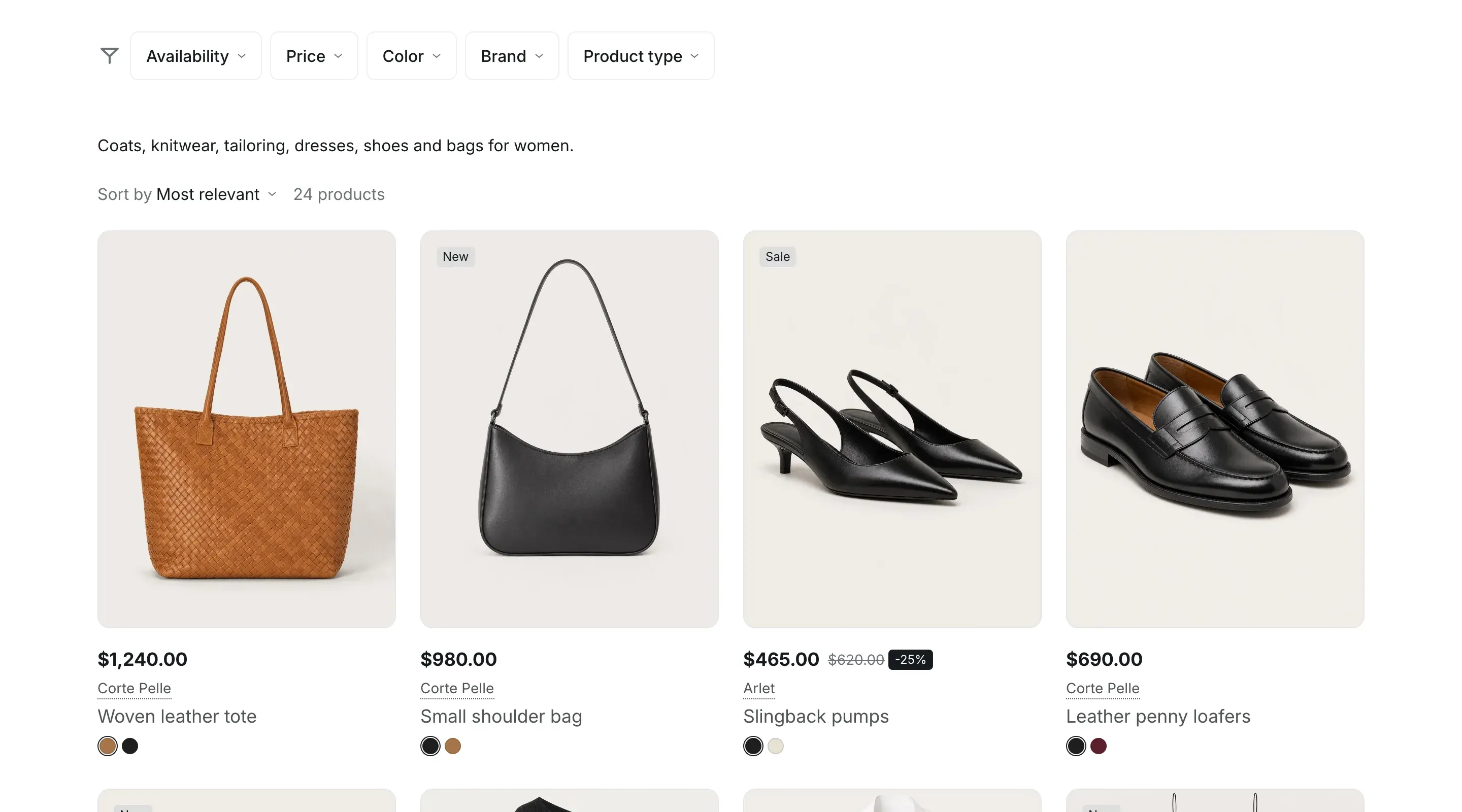
- Grid: product cards in columns. Columns on desktop and Columns on mobile set the number of columns. What the cards show is set in Product cards.
- List: one wide row per product with the image, title, labels, SKU, a short description and the variant choice, and the price, quantity and Add to cart button on the right.
With Show grid and list switch on, two buttons next to the product count switch between the views. The browser remembers the customer’s choice for every collection and search page.
The theme also includes a second collection template, list, that opens in list view. To use it for a collection, choose it as the theme template in the collection editor. See Alternate templates.
Filters
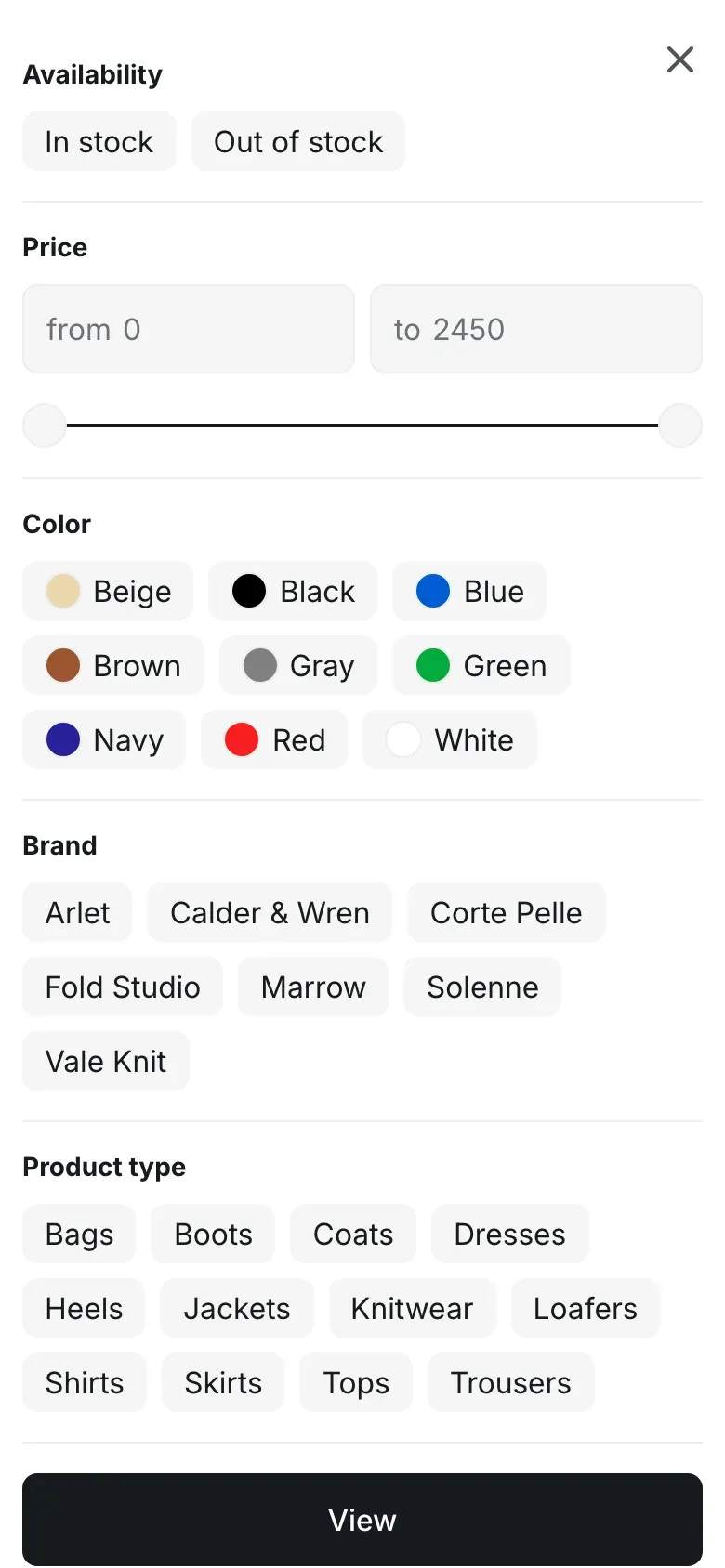
Section titled “Filters”Filters let customers narrow products by availability, price, color, brand, product type or other values. The theme shows them; which filters exist and in what order is set in the Shopify Search & Discovery app. See Filters.
Filter layout sets where filters appear on desktop:
- Sidebar: filters stacked in a column on the left, under the catalog menu. The price group and groups with selected values start open. When a customer changes a filter, a Found: badge with the number of matching products and a Show button appears next to it. The products update when the customer clicks Show.
- Above products: a row of dropdown buttons, one per filter, each with its own Show button.
Selected filters appear as chips above the products. Customers remove one by clicking its chip, or all of them with Reset filters.
On screens up to 1024px wide, a filter button opens a full-screen panel with all filters, and a badge on the button shows how many filters are selected.
Sorting
Section titled “Sorting”With Enable sorting on, a Sort by menu above the products offers the sort options of Shopify, such as price or date. On screens up to 1024px wide, a sort button opens the options in a panel. The sort order a collection starts with is set in the collection editor in your Shopify admin.
Catalog menu
Section titled “Catalog menu”Show catalog menu adds the catalog menu next to the products as an expandable list, with the branch of the current collection open. In the Sidebar layout it sits above the filters. In the Above products layout, a Categories button opens it in a side panel.
On screens up to 1024px wide, a Categories button opens the catalog menu one level at a time, starting with the subcategories of the current collection.
Popular searches
Section titled “Popular searches”Popular searches shows a row of links to collections you choose above the products, after the label “Popular searches:”. To show different links on each collection, connect the setting to a collection metafield of the “List of collections” type: click the Connect dynamic source icon next to the setting and choose the metafield.
Show more and page navigation
Section titled “Show more and page navigation”Products per page sets how many products load at a time. Page numbers appear under the products. With Show “Show more” button on, a Show more button above the page numbers adds the next page of products to the current list.
Collection description
Section titled “Collection description”Collection description shows the description from the collection editor Above products or Below products, or hides it.
App blocks
Section titled “App blocks”Apps that support theme app blocks can add their blocks under the products, for example a banner or a recently viewed list. Choose Add block → Apps under Collection products. The Custom Liquid block adds your own Liquid code in the same place.
Settings reference
Section titled “Settings reference”Collection products section:
| Setting | What it does | Default |
|---|---|---|
| Products per page | From 8 to 48, in steps of 4. | 12 |
| Columns on desktop | Options: 2, 3, 4. | 3 |
| Columns on mobile | Options: 1, 2. | 2 |
| Default view | Options: Grid, List. | Grid |
| Show grid and list switch | Shows buttons that switch between grid and list. | On |
| Enable filtering | Info in the editor: “Customize filters with the Search & Discovery app.” | On |
| Filter layout | Options: Sidebar, Above products. | Sidebar |
| Enable sorting | Shows the Sort by menu. | On |
| Show catalog menu | Info in the editor: “The catalog menu is set in Theme settings > Catalog. Up to 1024px it opens from the “Categories” button.” | On |
| Popular searches | Up to 20 collections. Info in the editor: “Links to related collections above the products. To set them for each collection, connect a collection metafield of the “List of collections” type.” | Empty |
| Show “Show more” button | Shows the button that adds the next page of products. | On |
| Collection description | Options: Above products, Below products, Hidden. | Below products |
| Color scheme | Colors of the section. See Section basics. | Scheme 1 |
Custom Liquid block:
| Setting | What it does | Default |
|---|---|---|
| Liquid code | Info in the editor: “Add app snippets or other Liquid code to create advanced customizations” | Empty |
Why are there no filters on my collection page?
Section titled “Why are there no filters on my collection page?”Filters come from the Search & Discovery app. Install it, add filters there, and make sure Enable filtering is on. Collections with no filterable products show no filters.
Why don’t I see subcategory tiles?
Section titled “Why don’t I see subcategory tiles?”Tiles show the collections nested under the current collection in the catalog menu, and only on screens wider than 1024px. Nest collection links under this collection in the menu chosen in Theme settings → Catalog.
A customer sees “There are no products in this category”. Why?
Section titled “A customer sees “There are no products in this category”. Why?”The collection is empty. Add products to it in your Shopify admin, or check that its conditions match some products. When a collection has products but none match the selected filters, customers see “No products match these filters” with a Reset filters button.