FAQ
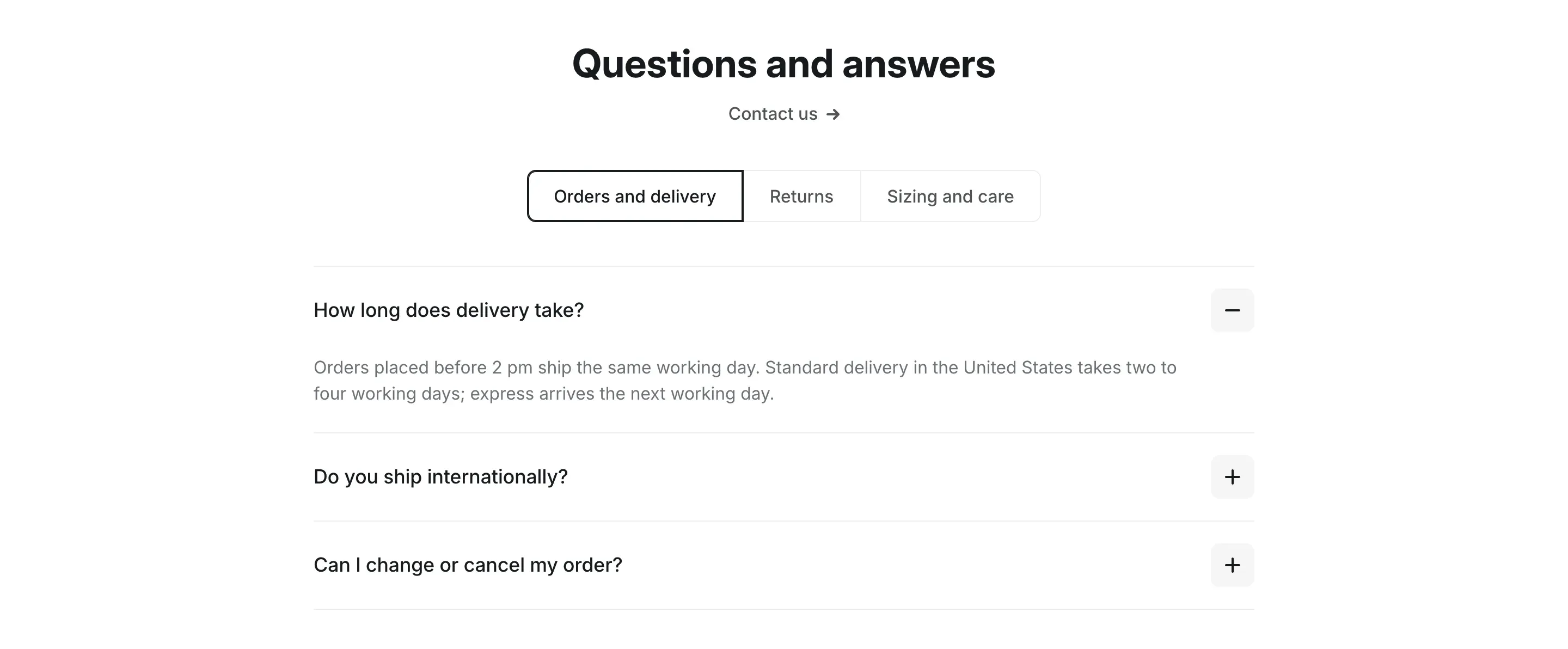
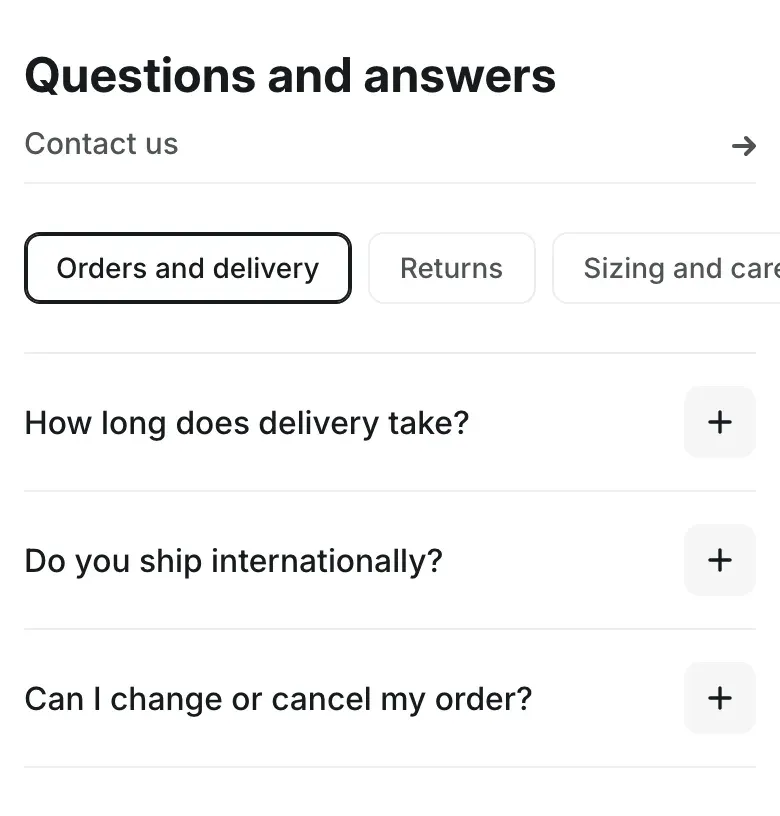
The FAQ section answers common questions before customers have to contact you. Questions are sorted into groups, such as “Orders and delivery” or “Returns”. Customers click a question to open its answer; opening another question closes the previous one. The section suits an FAQ page, a delivery or returns page, or the bottom of the home page.
Where to find it: Theme editor → page → Add section → FAQ.
How it is organized
Section titled “How it is organized”The section uses nested blocks:
- FAQ section: heading, link and display options.
- Question group blocks: one per topic, each with a Title.
- Question blocks inside each group: a Question and its Answer.
- Question group blocks: one per topic, each with a Title.
You can add up to 8 question groups to a section.
Set up the FAQ
Section titled “Set up the FAQ”- Open the page where you want the FAQ and click Add section → FAQ. The section comes with two sample groups.
- Click a Question group and enter its Title, for example
Returns. - Expand the group in the sidebar, click a Question and enter the Question and the Answer.
- To add a question, click Add block inside the group and choose Question.
- To add a topic, click Add block under the section and choose Question group.
- Click Save.
Answers support bold and italic text, links and lists. Keep answers short and link to a policy page when the details are long.
Tabs or one group after another
Section titled “Tabs or one group after another”The Groups setting chooses how groups are shown:
- Tabs: group titles become tabs above the questions, and customers switch between groups. On phones the tabs scroll sideways.
- One after another: all groups are shown in a column, each under its title.
Tabs need at least two groups with titles. With fewer, the section shows the groups one after another even when Tabs is selected. A group without a title doesn’t get a tab and stays visible under the tabbed groups.
In the theme editor, clicking a group or a question in the sidebar switches to its tab and opens the question, so you can see what you are editing.
Settings reference
Section titled “Settings reference”| Setting | What it does | Default |
|---|---|---|
| Heading | Section heading, centered above the questions. Supports bold, italic and links. See Section basics. | Questions and answers |
| Link label | Text of the link under the heading, for example to your contact page. | Contact us |
| Link | Page the link opens. The link shows when both the label and the link are filled in. | Empty |
| Groups | Options: Tabs, One after another. Info in the editor: “Tabs need at least two groups with titles.” | Tabs |
| Color scheme | Colors of the section. See Section basics. | Scheme 1 |
Question group block (up to 8 per section):
| Setting | What it does | Default |
|---|---|---|
| Title | Name of the topic. Used as the tab label, or as a heading above the questions in One after another. | Topic |
Question block:
| Setting | What it does | Default |
|---|---|---|
| Question | Text of the question. A question with an empty field is not shown. | Question |
| Answer | Answer text with formatting. | Write a short, specific answer. Link to a policy page when the details are long. |
For contact forms and page content around the FAQ, see Content pages.