Product page blocks
Blocks of the Product section add product information that helps customers decide: the description, a table of specifications, where to pick the product up, a size guide and products that go with it. This page covers these blocks. The purchase blocks (title, price, variant picker, buy buttons and others) are described on Product page.
Where to find it: Theme editor → Products → Default product → Product → Add block.
Add a block
Section titled “Add a block”- In the theme editor, open Products → Default product.
- Under Product in the left sidebar, click Add block and choose a block.
- Drag the block to change its position.
- Click the block to change its settings, then click Save.
Where the blocks appear
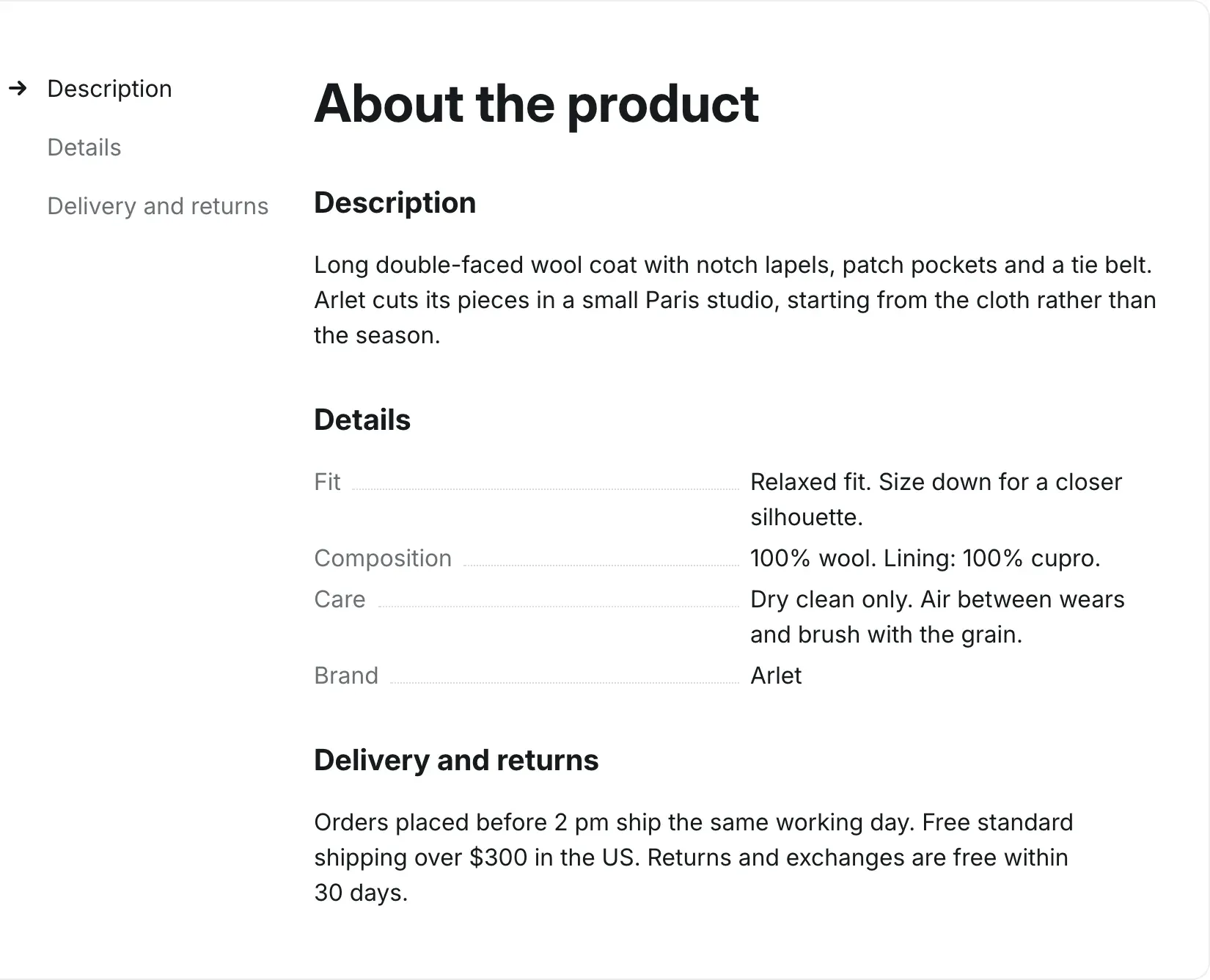
Section titled “Where the blocks appear”- Description, Specifications, Pickup availability and Custom content are information blocks. They are shown under the top part of the page, as sections with a list of links or as tabs, in the order of the blocks. Choose how with Product information in the section settings. A block with no content is hidden, together with its link or tab.
- Size guide adds a link next to the size option of the variant picker.
- Complete the look and app blocks go into the purchase column, in the order of the blocks.
Description
Section titled “Description”Shows the product description from the product editor in your Shopify admin. Hidden when the product has no description.
| Setting | What it does | Default |
|---|---|---|
| Heading | Title of the block, its link and its tab. | Description |
Specifications
Section titled “Specifications”Shows a table of product details. Rows come from three places, in this order:
- the product options and their values, such as Size XS / S / M;
- the Specification row blocks, in their order in the sidebar;
- the product vendor (as Brand), the product type and the SKU of the selected variant.
The block is hidden when it has no rows. For a step-by-step setup with metafields, see Product specifications.
| Setting | What it does | Default |
|---|---|---|
| Heading | Title of the block, its link and its tab. | Specifications |
| Show option values | Adds a row for each product option with all its values. Products without variants have no option rows. | On |
| Show vendor | Adds a Brand row with the product vendor. | On |
| Show product type | Adds a Type row with the product type. | Off |
| Show SKU | Adds an SKU row that follows the selected variant. | On |
Specification row
Section titled “Specification row”Adds one row to the Specifications block, for example Material or Care. Rows show only when the Specifications block is on the page.
To show a different value for each product, connect the Value to a product metafield: click the Connect dynamic source icon next to the field and choose the metafield. Products where the metafield is empty skip the row.
| Setting | What it does | Default |
|---|---|---|
| Name | Name of the row. Info in the editor: “Adds a row to the Specifications block. Rows with an empty value are hidden.” | Material |
| Value | Info in the editor: “Connect a product metafield to show each product’s own value.” | Empty |
Pickup availability
Section titled “Pickup availability”Lists the locations where the selected variant can be picked up, with a summary such as “Available at 2 of 3 stores”. Each location shows its name, address, phone number, the pickup time and whether the variant is in stock there. The list updates when the customer picks another variant.
The block is hidden when no location offers local pickup. To turn on local pickup for a location, see Local pickup in the Shopify Help Center.
The Pickup summary purchase block shows a one-line version under the buy buttons. When both blocks are on the page, the summary links to this list.
| Setting | What it does | Default |
|---|---|---|
| Heading | Title of the block, its link and its tab. Info in the editor: “Lists the locations with local pickup and the stock of the selected variant.” | Availability |
Size guide
Section titled “Size guide”Adds a Size guide link next to the size option. The link opens a panel from the right side of the screen (a sheet from the bottom on phones) with the size chart for the product.
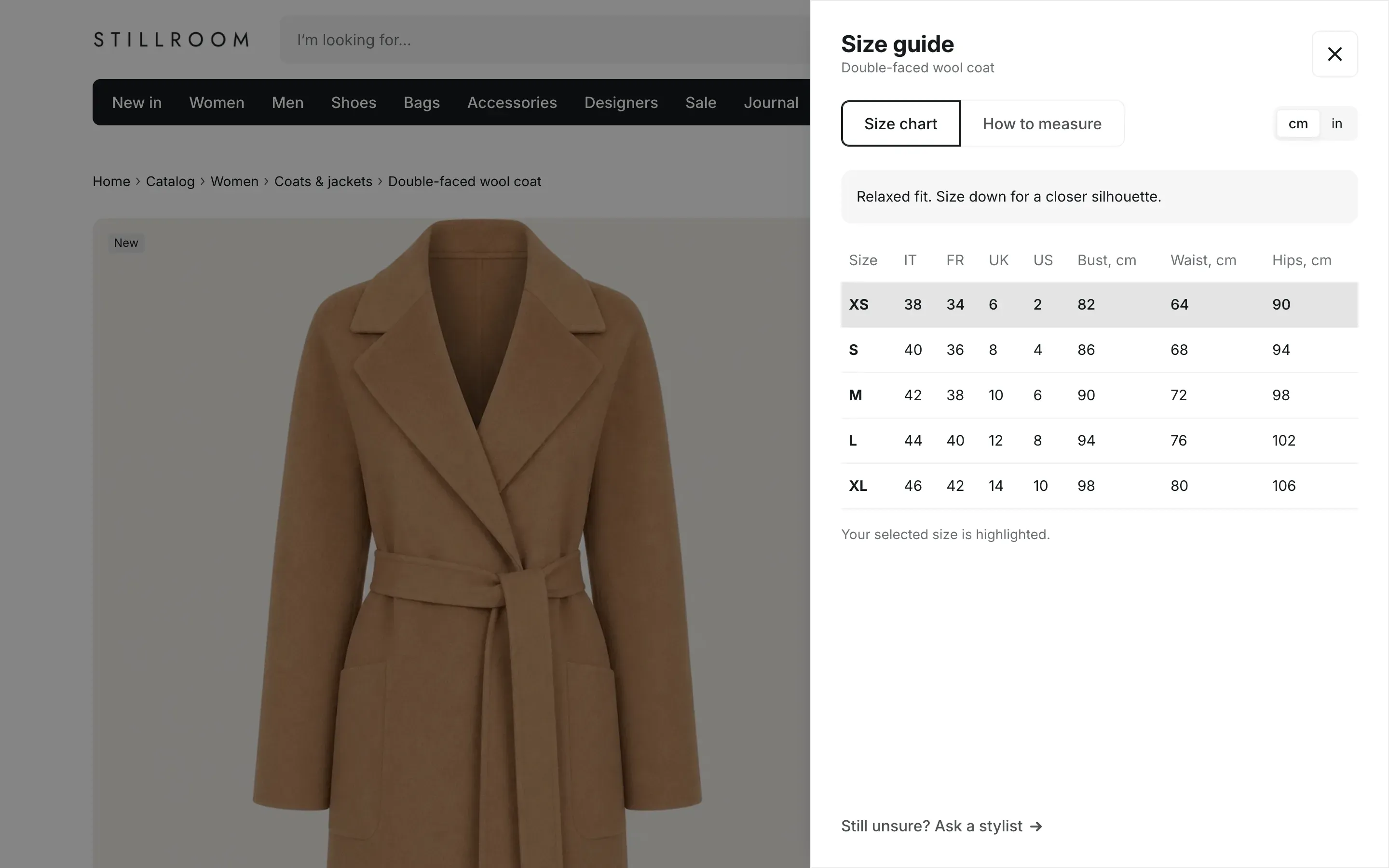
- The size chart is a page in your Shopify admin with a table. Put sizes in the first column.
- Columns with “cm” in the header get a cm / in switch that converts their numbers. The customer’s choice is remembered.
- The row that matches the size chosen on the product page is highlighted.
- When you add an image or text under How to measure, the panel gets a How to measure tab.
- The link appears only when the chosen page has content.
To use different charts for different products, connect Size chart page to a product metafield of the page reference type. For the full setup, see Size chart.
| Setting | What it does | Default |
|---|---|---|
| Size chart page | Page with the size table. Info in the editor: “Connect a product metafield of the page reference type to show a different chart for each product.” | Empty |
| Size option name | Info in the editor: “The link appears next to this option.” Letter case doesn’t matter. When no option matches, the link gets its own row under the variant picker. | Size |
| Link label | Text of the link. | Size guide |
| Fit note | Short note above the chart. Info in the editor: “For example: “Fits true to size. The model is 177 cm tall and wears size S.” Connect a product metafield to write it per product.” | Empty |
| Image | How to measure image. | Empty |
| Text | How to measure text. | Empty |
| Link label | Help link text at the bottom of the panel. | Still unsure? Contact us |
| Link | Page that opens from the help link. The link is hidden when this is empty. | Empty |
Info in the editor: “Adds a size guide link next to the size option. Create the size chart as a page with a table: put sizes in the first column and mention “cm” in the headers of columns that customers can switch to inches.”
Complete the look
Section titled “Complete the look”Shows products that go with this one as compact rows in the purchase column. Each row has the product image, brand, title, price and an Add button, with a variant menu for products that have variants, so customers can add the product without leaving the page.
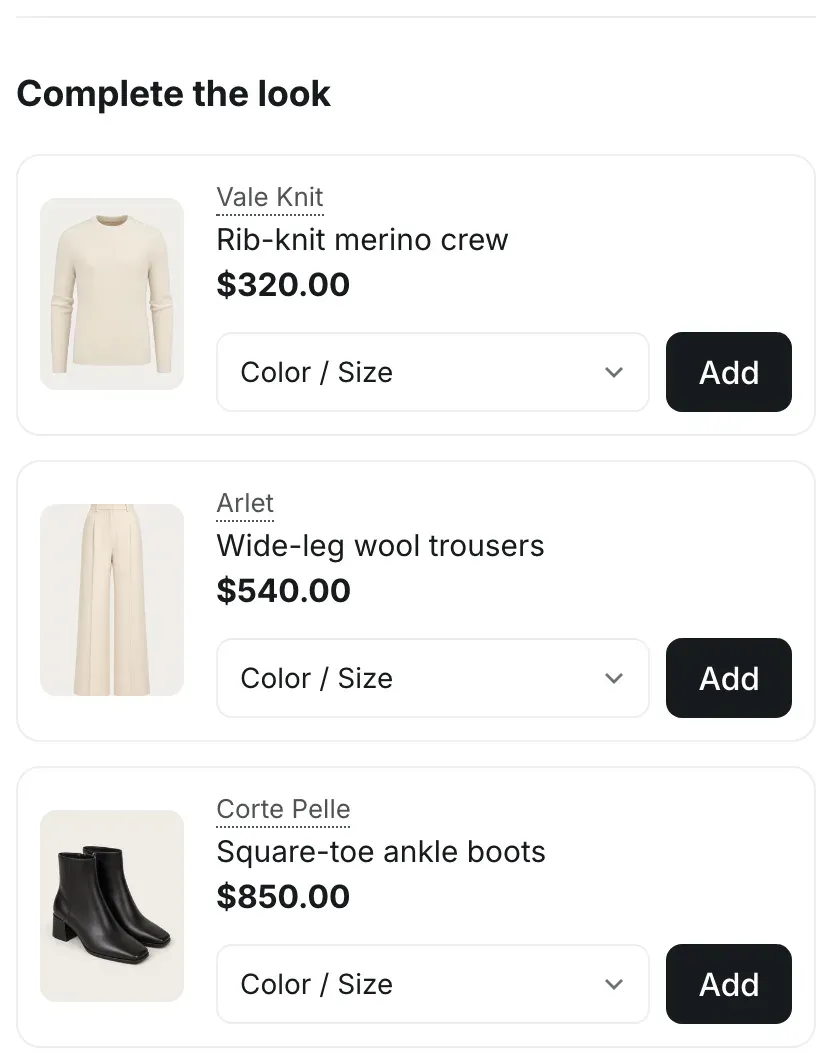
Products come from one of two sources:
- Products: products you choose. Connect this setting to a product metafield of the product list type to choose different products for each product.
- Use complementary products: when no products are chosen, complementary products that you set in the Search & Discovery app load as the customer scrolls to the block.
When neither gives products, the block is hidden on the storefront. In the theme editor it shows a hint instead. For the full setup, see Complete the look.
| Setting | What it does | Default |
|---|---|---|
| Heading | Heading above the products. | Complete the look |
| Products | Up to four products. Info in the editor: “Connect a product metafield of the product list type to choose products for each product.” | Empty |
| Use complementary products | Info in the editor: “Used when no products are chosen. Complementary products are set in the Search & Discovery app.” | On |
| Maximum products to show | From 2 to 4. | 3 |
Custom content
Section titled “Custom content”Adds an information block with your own text, for example delivery and returns terms. You can type the text in the block, take it from a page, or both. Add several Custom content blocks for several topics.
| Setting | What it does | Default |
|---|---|---|
| Heading | Title of the block, its link and its tab. | Delivery |
| Text | Text of the block. | Empty |
| Page | Info in the editor: “The page content is shown under the text.” | Empty |
App blocks
Section titled “App blocks”Apps that support theme app blocks, such as product reviews or wishlist apps, add their blocks under Add block → Apps. App blocks go into the purchase column in the order of the blocks. To place an app’s code that has no app block, use the Custom Liquid block. See Apps.