Header
The header holds your logo, the catalog navigation, the search field, the account button and the cart. To edit it, open the theme editor and click Header in the left sidebar.
Choose a layout
Section titled “Choose a layout”The Layout setting offers four designs:
| Layout | What it looks like |
|---|---|
| Featured product | Logo with a tagline, a Catalog button that opens the mega menu, a rounded search field and text labels next to the account and cart. On the home page, a featured product is shown under the header, with a background image that runs behind the header on wide screens. |
| Classic | The same header without the featured product. |
| Accent | The main row uses the Accent color scheme, with an outlined Catalog button and a search field with a button. Below it, top-level catalog items are shown as chips with icons. |
| Category band | A wide search field, with no Catalog button. Top-level catalog items are shown in a band below, on the Accent color scheme, with dropdowns for nested items. |

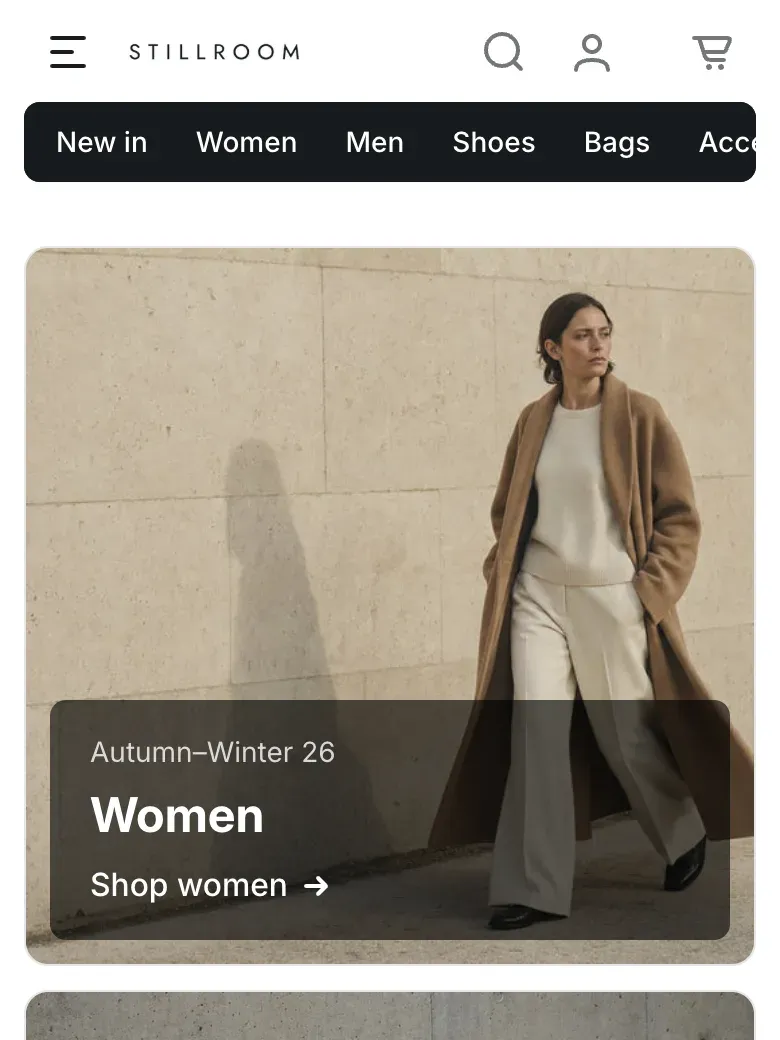
On screens up to 1024px wide, every layout switches to a compact row with a menu button. The menu opens as a full-height panel with the catalog menu and the secondary menu.
The catalog links in the header come from the catalog menu in theme settings. See Catalog menu.
Set up the featured product
Section titled “Set up the featured product”- Set Layout to Featured product.
- Under Featured product, choose a Product.
- Upload a Background image, 1920 × 810px or larger.
- Optional: upload a square Mobile image and add a short Text. Without text, the product description is used.
- Click Save.
The featured product shows the product title, price, stock status, a Buy now link that goes straight to checkout and a Learn more button. A New badge appears when the product has the tag new, and a Sale badge when it has a compare-at price.
Sticky header
Section titled “Sticky header”Sticky header keeps the main row of the header on screen while customers scroll. With On scroll up, the header hides when customers scroll down and comes back when they scroll up. With Always, it stays visible. The top bar and the category band are hidden while the header is stuck.
Add icons, banners and brands to the mega menu
Section titled “Add icons, banners and brands to the mega menu”Menu item blocks add extra content to top-level items of the catalog menu.
- Under Header in the left sidebar, click Add block and choose Menu item.
- In Menu item title, enter the title of a top-level catalog menu item exactly as it is in the menu, for example
Women. Letter case doesn’t matter. - Add an Icon, a Banner with a Banner link and up to eight Brands.
- Click Save.
The icon appears next to the item in the mega menu and in the chips of the Accent layout. The banner and brand logos appear in the mega menu panel of that item. Brands are collections, and the collection image is used as the logo.
Settings reference
Section titled “Settings reference”| Setting | What it does | Default |
|---|---|---|
| Layout | Options: Featured product, Classic, Accent, Category band. | Featured product |
| Tagline | Short text next to the logo. Shown in the Featured product and Classic layouts. | Online store for a confident start |
| Sticky header | Options: None, On scroll up, Always. | On scroll up |
| Secondary menu | Info in the editor: “Links in the top bar and at the bottom of the mobile menu. Hidden when it matches the catalog menu.” | Main menu |
| Account menu | Info in the editor: “Links in the account sheet that opens from the header. Use the same menu as in customer accounts to keep the links consistent.” | Customer account main menu |
| Show address | Shows the address from Contact information in the top bar. | On |
| Show phone numbers | Shows the phone numbers from Contact information in the top bar. | On |
| Show “Request a call” button | Info in the editor: “Opens a form that sends the customer name and phone number to the store email”. Shown when phone numbers are on. | On |
| Color scheme | Colors of the header. | Scheme 1 |
| Accent color scheme | Info in the editor: “Used for the main row in the accent layout and for the category band”. | Scheme 4 |
| Product | Product shown under the header on the home page. | Empty |
| Background image | Info in the editor: “Covers the whole block, header included. 1920 × 810px or larger works best.” | Empty |
| Mobile image | Info in the editor: “Square image for screens up to 1024px wide. The background image is used when empty.” | Empty |
| Text | Info in the editor: “Short text under the product title. The product description is used when empty.” | Empty |
Menu item block:
| Setting | What it does | Default |
|---|---|---|
| Menu item title | Title of the top-level catalog menu item to extend. | Empty |
| Icon | Info in the editor: “Shown next to the menu item in the mega menu and category chips. Square SVG or PNG, 24 × 24px.” | Empty |
| Banner | Promo image in the mega menu panel. | Empty |
| Banner link | Page that opens when customers click the banner. | Empty |
| Brands | Info in the editor: “Collections shown as brand logos under the banner. The collection image is used as the logo.” | Empty |
The top bar with the secondary menu, address and phones appears only when at least one of them has content. The Sign in button appears when customer accounts are turned on in your Shopify admin.