Stories
Stories show a strip of vertical photos next to a heading, like stories in social apps. When customers tap a story, it opens full screen and the stories play one after another. Each story can have a button that leads to a collection, a product or a blog post.

Where to find it
Section titled “Where to find it”Theme editor → page → Add section → Stories.
The section comes with five Story blocks and holds up to 12.
Add stories
Section titled “Add stories”- Add the Stories section, enter the Heading and choose the Card shape.
- Click a Story block and upload an Image. Vertical images work best, 1080 × 1920px (9:16).
- Optional: fill in Button label and Button link to show a button on the open story.
- To add more stories, click Add block under the section and choose Story.
- Click Save.
How stories play
Section titled “How stories play”Customers open the viewer by tapping a story card, or View all next to the heading to start from the first story.
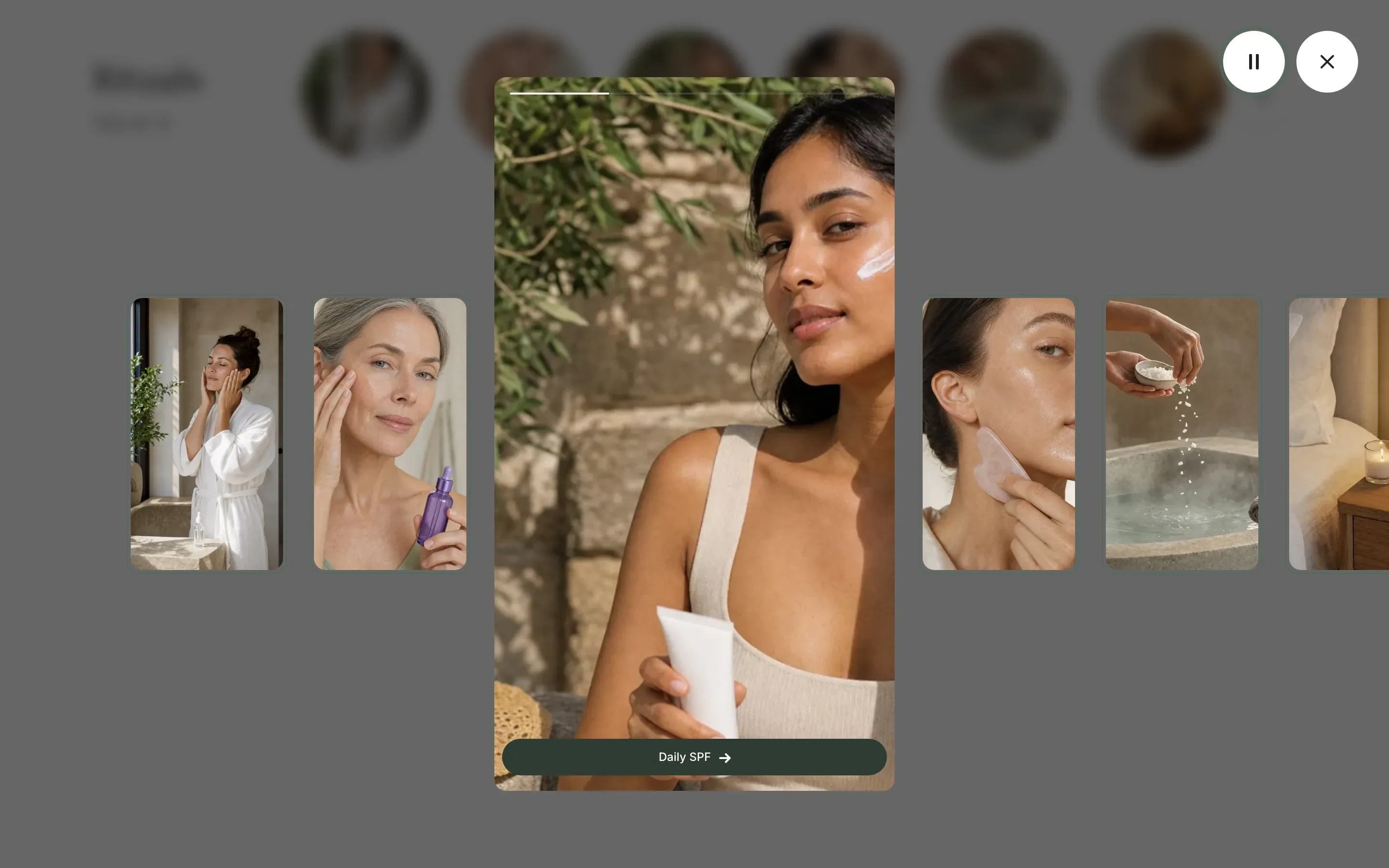
- The current story is shown large in the center, with the other stories smaller on both sides.
- A line at the top fills up, and after 7 seconds the next story opens. After the last story, the viewer stays on it.
- The pause button in the top-right corner stops and resumes playback. The close button, a click outside the stories or the Esc key closes the viewer.
- Customers go to another story by clicking it, swiping left or right, or pressing the arrow keys.
- In the viewer, stories that customers haven’t opened yet have a frame in the accent color.
- When customers turn on reduced motion in their device settings, stories don’t advance on their own.
The button of a story appears at the bottom of the open story when both Button label and Button link are filled in.
On mobile
Section titled “On mobile”Below 992px, the heading and View all sit above the strip, and the strip runs to the edge of the screen so customers can swipe it. On phones, an open story fills the whole screen, one story at a time.


Settings reference
Section titled “Settings reference”| Setting | What it does | Default |
|---|---|---|
| Heading | Title next to the strip. | Stories |
| Card shape | Shape of the story cards in the strip. Options: Cards, Circles. | Cards |
| Color scheme | Colors of the section and of the viewer buttons. See Section basics. | Scheme 1 |
Story block:
| Setting | What it does | Default |
|---|---|---|
| Image | Info in the editor: “Use a vertical image, 9:16 works best”. | Empty |
| Button label | Text of the button on the open story. | Empty |
| Button link | Info in the editor: “The button shows when both the label and the link are filled in”. | Empty |