Collection with products
Collection with products puts a photo tile of one collection on the left and a row of its products on the right. Customers can open the whole collection from the tile or add products straight from the row.
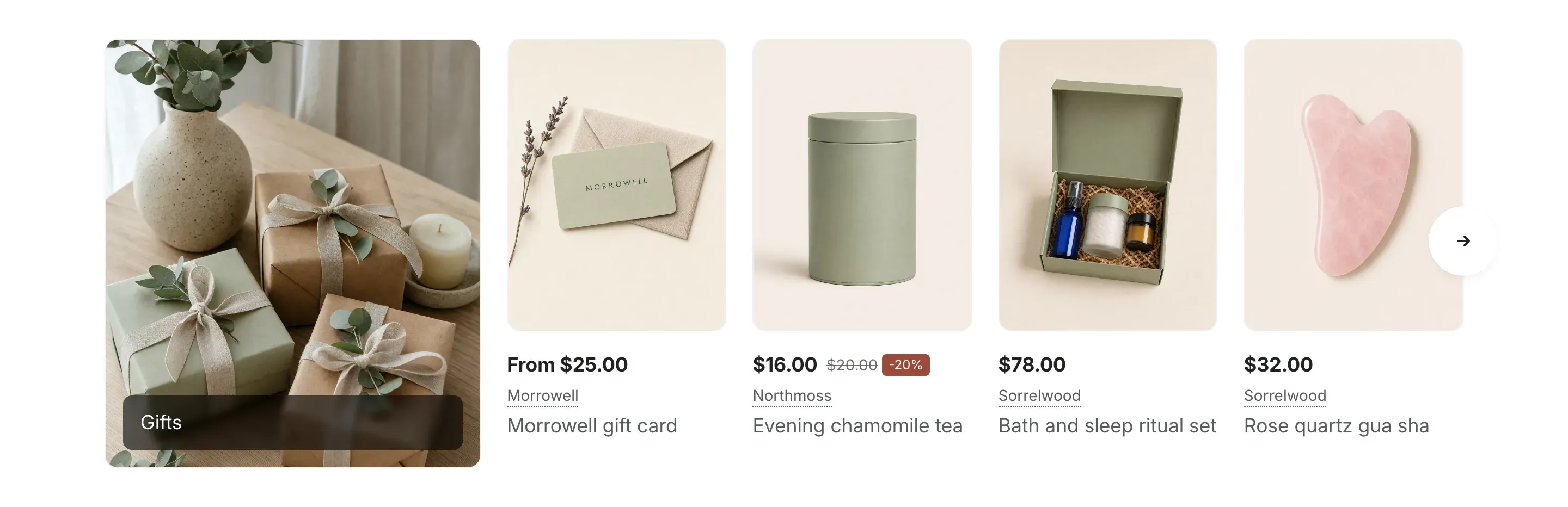
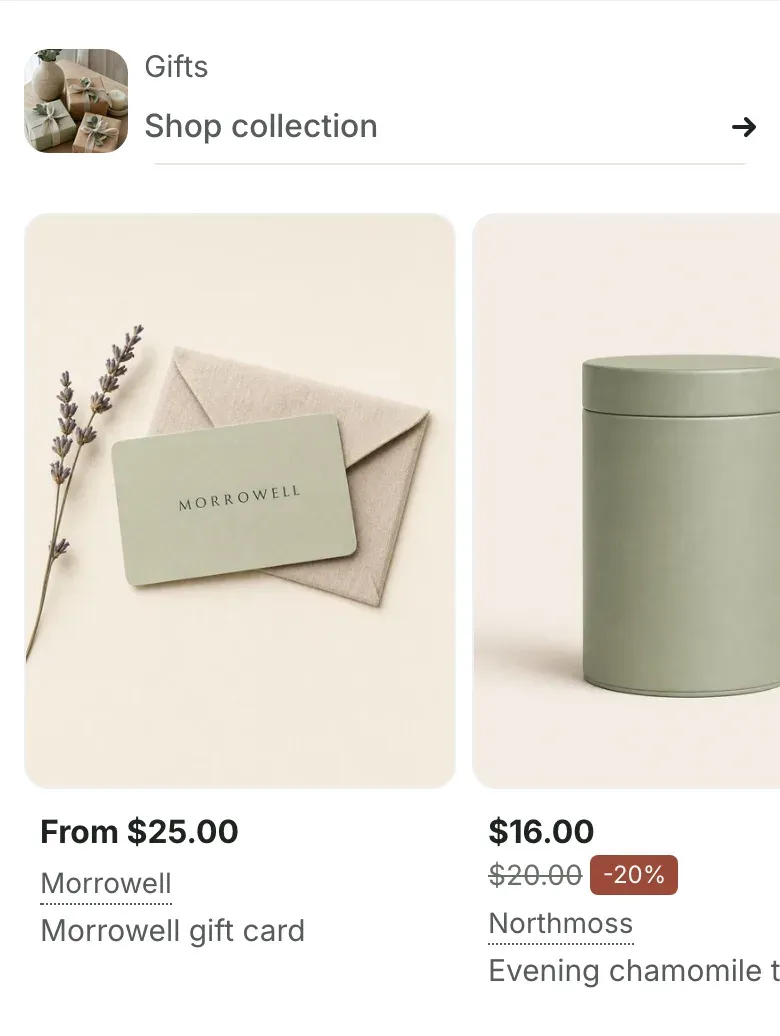
Where to find it: Theme editor → page → Add section → Collection with products
Set up the section
Section titled “Set up the section”- In the theme editor, click Add section and choose Collection with products.
- Choose a Collection.
- Optional: upload a Tile image. Without it, the collection image is used.
- Choose Products per view and set Maximum products to show.
- Click Save.
The collection tile
Section titled “The collection tile”The tile shows a photo with the collection title on a dark caption. On desktop, when customers point at the tile, the photo zooms in slightly and the caption opens to show the start of the collection description (up to 30 words) and a Shop collection link.
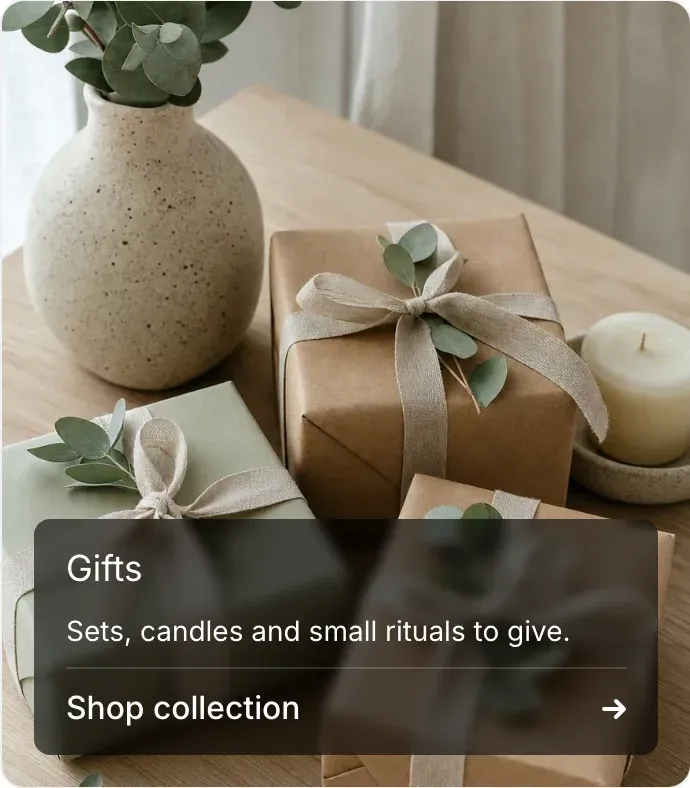
The photo comes from the first of these that is set:
- Tile image in the section settings;
- the collection image, set in the collection editor in your Shopify admin;
- the image of the first product in the collection.
On desktop, the tile is about a quarter of the content width and as tall as the product cards, so the photo is cropped to fit. A photo 960px wide or larger, with the subject in the center, works best. If you set a focal point on the image in Shopify, the crop keeps it in view.
On screens up to 1024px wide, the tile turns into a compact row above the products: a 52px thumbnail, the collection title and a Shop collection link.
The product row
Section titled “The product row”- Products per view sets how many cards fit the row on desktop: three, four or five. Arrow buttons scroll to the next products.
- On screens up to 1024px wide, the cards keep a fixed width and customers swipe the row sideways. The row runs to the edges of the screen.
- With Three or Five, and on screens up to 1024px wide, long product titles are cut to two lines.
- If the collection has no products, only the tile is shown.
- With no collection chosen, a placeholder tile and placeholder cards show the layout.
The product cards follow Theme settings → Product cards. See Product cards. In this section, the cards don’t show image labels from label: tags or the quantity selector in the quick add bar.
Settings reference
Section titled “Settings reference”| Setting | What it does | Default |
|---|---|---|
| Collection | Collection shown in the tile and the row. | Empty |
| Tile image | Info in the editor: “Fills the collection tile. If empty, the collection image is used.” | Empty |
| Maximum products to show | From 4 to 24. | 18 |
| Products per view | Options: Three, Four, Five. Info in the editor: “On desktop. On tablets and phones the products scroll sideways.” | Four |
| Color scheme | Colors of the section. See Section basics. | Scheme 1 |
Related pages
Section titled “Related pages”- Featured collection: a row of products with a heading and no tile.
- Collection list: cards that link to several collections.
- Product cards