Product labels and badges
Mark products with labels such as “New”, “Sale” or “Bestseller”, and understand every badge the theme shows on its own.
You need: product tags for your own labels, compare-at prices for discounts, inventory tracking for stock badges · no app · a few minutes per product.
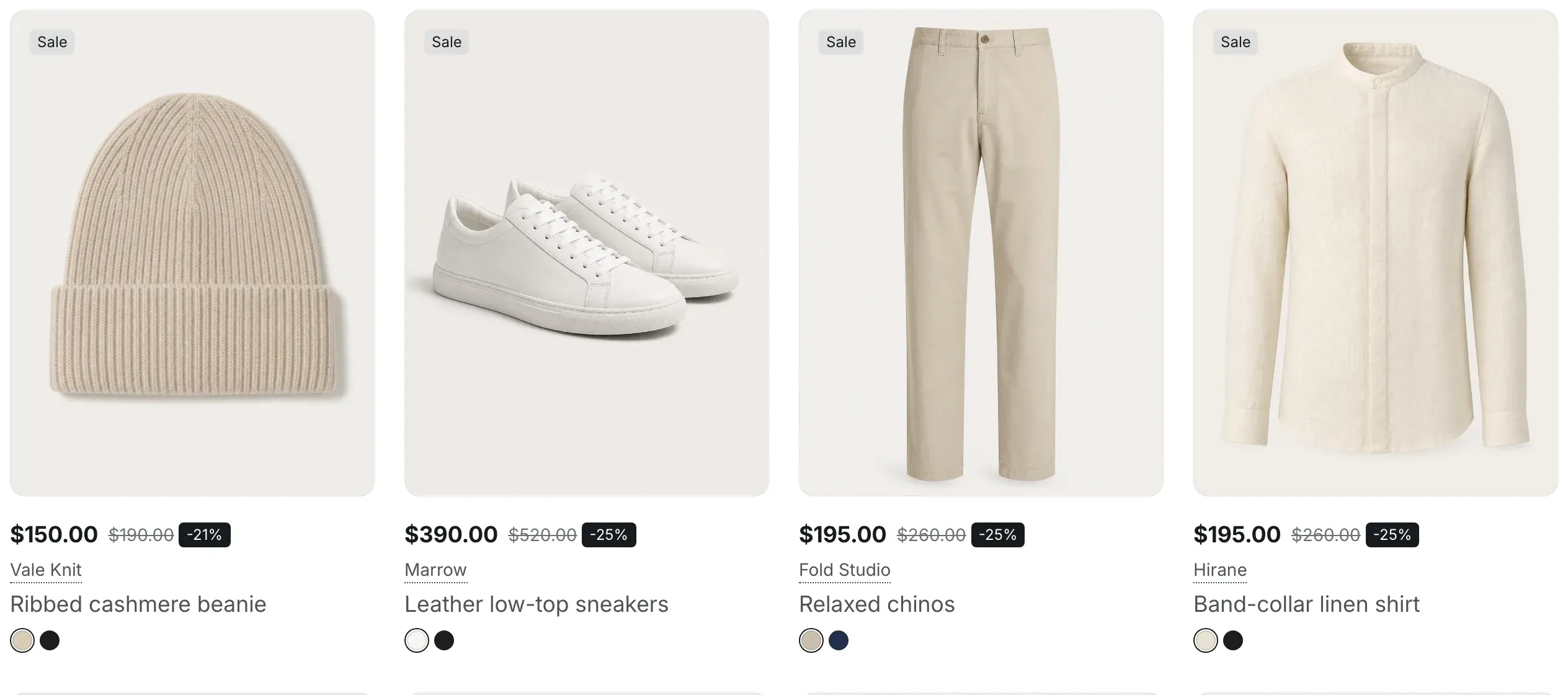
Every label and badge
Section titled “Every label and badge”| Label or badge | Where it appears | What makes it appear |
|---|---|---|
| Your labels, for example “New”, “Sale”, “Bestseller” | Top-left corner of the product image: on product cards, on the product page and in the Featured product section. | A product tag that starts with label:. The theme never adds these labels by itself. |
| Discount badge, for example “-25%” | Next to the price wherever a price is shown, with the regular price struck through. | A Compare-at price higher than the price. The percentage is counted for the selected variant, or for the lowest price on product cards. |
| Stock status: In stock, Low stock, Sold out | A dark badge on the product image of product cards, with the rating. On the product page, the Inventory status block. | The availability of the variant. Low stock shows when fewer than five items are left of a variant whose stock Shopify tracks and that can’t be sold when out of stock. |
| Sold out on buttons | The Add to cart button on the product page, the quick add bar of product cards and Complete the look. | No variant (or the selected variant) can be bought. The button is disabled. |
| New and Sale on the header’s featured product | The featured product under the header, in the Featured product header layout. | New: the product has the tag new or New. Sale: the product has a compare-at price higher than its price. The badge next to them shows the stock, for example “In stock: 12 pcs”, or Sold out. |
Step 1. Add tags and prices in Shopify admin
Section titled “Step 1. Add tags and prices in Shopify admin”Your own labels
- In your Shopify admin, open Products and open a product.
- In Tags, add a tag that starts with
label:, for examplelabel:Neworlabel:Bestseller. The text after the colon is the label, exactly as you write it. - Click Save.
A product can have several labels: they are stacked in the corner. To remove a label, remove the tag. To label many products at once, select them in the product list and choose Add tags.
Discount badge
- Open the product, or the variant, in your Shopify admin.
- Enter the regular price in Compare-at price and the sale price in Price.
- Click Save.
The discount badge doesn’t add a “Sale” label to the image. If you want both, add the tag label:Sale too.
Stock status
Low stock needs Shopify to track the quantity of the variant and to stop selling when it’s out of stock. Turn on Track quantity for the product and leave Continue selling when out of stock off.
Step 2. Set the colors and the badges in the theme editor
Section titled “Step 2. Set the colors and the badges in the theme editor”- Open Theme settings → Colors → Product badges.
- Set Sale background and Sale text for the discount badge. The same colors are used for the savings in the cart and for the “Sale” badge of the header’s featured product.
- Set New background and New text for the “New” badge of the header’s featured product.
- Open Theme settings → Product cards and turn Show stock status on or off.
- On a product page, add or remove the Inventory status block of the Product section.
- Click Save.
Your own labels from label: tags use a neutral color that follows the color scheme of the section, so they work on any background. They don’t use the badge colors.
Check the result
Section titled “Check the result”Open a collection that has a product with a label: tag and a product with a compare-at price. The first shows the label in the corner of its image; the second shows the reduced price, the old price and the discount badge.
Why don’t my products show “New” automatically?
Section titled “Why don’t my products show “New” automatically?”Alpha Start doesn’t decide which products are new. Add the tag label:New to the products you want to mark, and remove it when they stop being new. The header’s featured product is the only place that reads the plain tag new.
Why is there a “-25%” badge but no “Sale” label?
Section titled “Why is there a “-25%” badge but no “Sale” label?”The discount badge comes from the compare-at price. The label on the image comes from a tag. Add label:Sale to show both.
Why does a product show “In stock” but never “Low stock”?
Section titled “Why does a product show “In stock” but never “Low stock”?”Shopify doesn’t track the quantity of that variant, or the variant can be sold when out of stock. Without a tracked quantity, the theme can’t tell that stock is low.
Can a label have its own color?
Section titled “Can a label have its own color?”No. All labels from tags use the same neutral color, so many labels on one page stay calm.