Collections list page
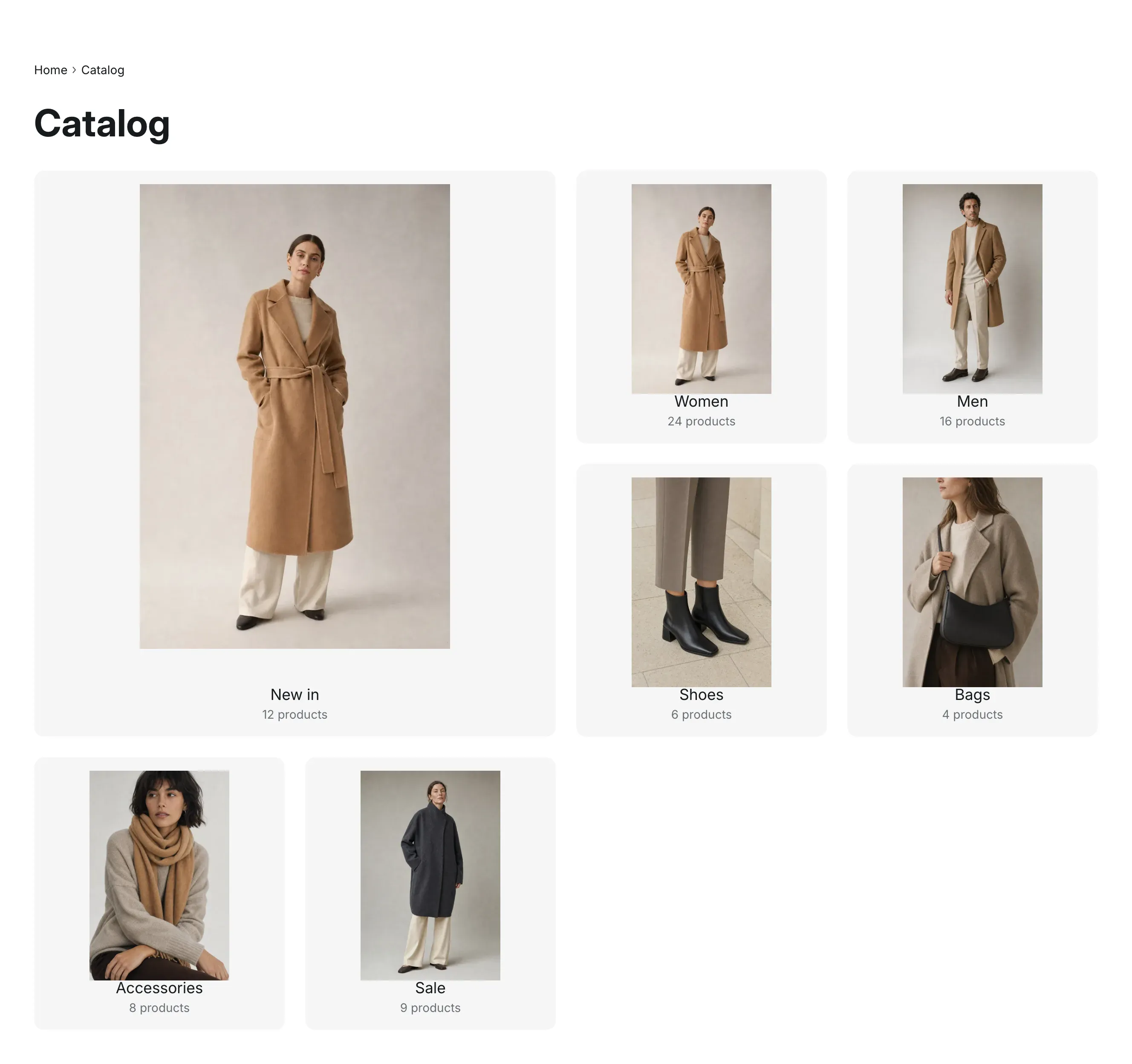
The collections list page, at /collections, is the entry point to your catalog. It shows your main collections as a grid of large tiles with their product counts, so customers can pick a category in one click. The breadcrumbs on collection and product pages link to it as Catalog.
Where to find it: Theme editor → page selector at the top → Collections list → Collections grid.
Which collections are shown
Section titled “Which collections are shown”The Collections grid section shows the collections linked from the top level of your catalog menu, in menu order. To change which collections appear, or their order, edit the top level of the menu chosen in Theme settings → Catalog. See Catalog menu.
When the top level of the menu has no collection links, the section shows every collection that has products, 24 per page with page numbers. Info in the editor: “Shows the collections linked from the top level of the catalog menu (Theme settings > Catalog). Without such links, every collection that has products is shown in alphabetical order.”
How the grid is arranged
Section titled “How the grid is arranged”The grid adapts to the number of collections:
| Collections | Layout on desktop |
|---|---|
| 1 or 2 | They share one row. |
| 3 or 4 | They fill one row. |
| 5 or more | The first collection is a large tile with a 2 × 2 group of the next four beside it. The rest go four per row. |
Below 768px, tiles go two per row and the large tile takes the full width.
Each tile shows the collection image from the collection editor. Collections without an image use the image of their first product.
Card style sets how the tiles look:
- Photo with caption: the photo fills the tile, with the title and product count on a dark caption at the bottom. On hover, the photo zooms in and the caption opens to show the collection description and a Shop collection line.
- Image on gray card: the image sits on a light gray card with the title and product count under it. On hover, the title turns into a dark pill.
Other sections on the page
Section titled “Other sections on the page”The collections list page comes with two more sections that you can change, hide or remove:
- Featured collection, titled “Recommended products”, shows products from a collection you choose under the grid. See Featured collection.
- Text, titled “About our catalog”, is a place for a short introduction to your catalog. See Text.
To add other sections, such as banners or advantages, click Add section in the left sidebar.
Settings reference
Section titled “Settings reference”Collections grid section:
| Setting | What it does | Default |
|---|---|---|
| Card style | Options: Photo with caption, Image on gray card. | Photo with caption |
| Color scheme | Colors of the section. See Section basics. | Scheme 1 |
The Collections grid section belongs to this page and can’t be added to other pages. To show collections on the home page, use Collection list.