Complete the look
Suggest products that go with the one a customer is viewing, so they can add the whole outfit or set to the cart from one page.
You need: nothing for a fixed list · a product metafield for a different list on each product · or the free Search & Discovery app for complementary products · 10 to 30 minutes.
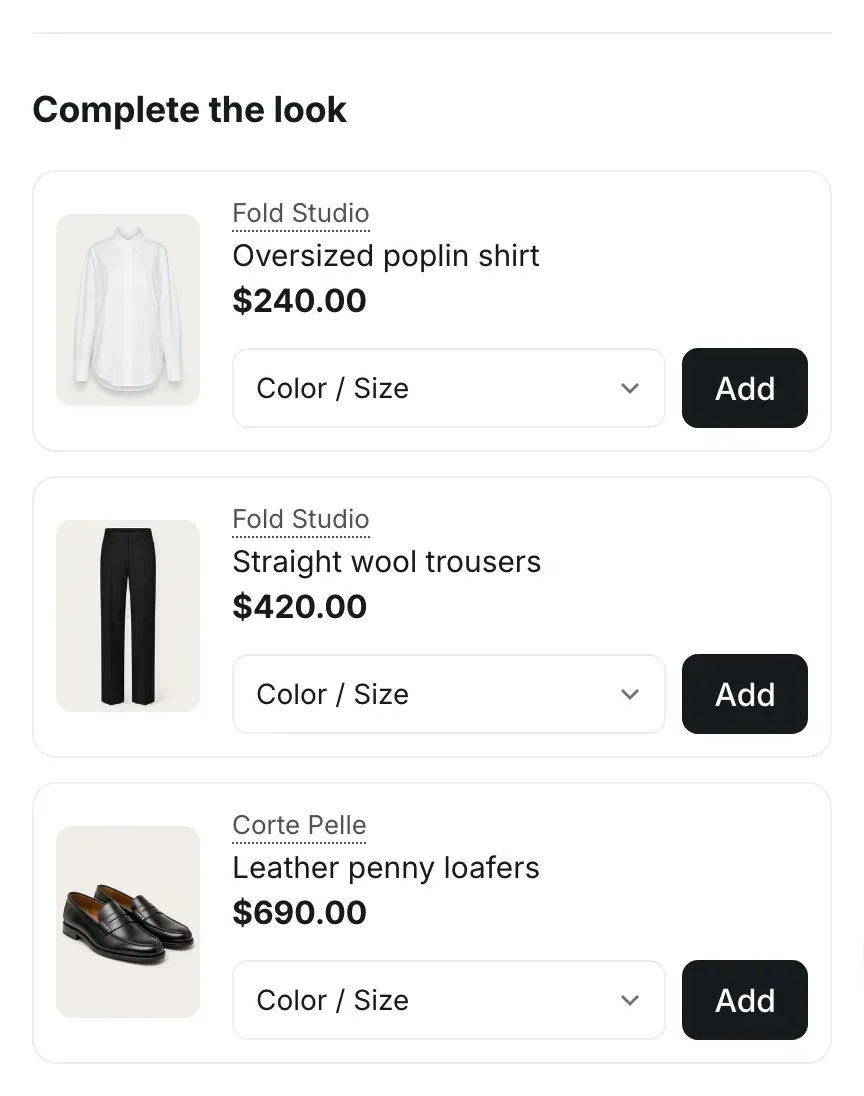
What customers see
Section titled “What customers see”The Complete the look block shows up to four products as compact rows in the purchase column of the product page. Each row has the product photo, brand, title and price, and:
- for a product with variants, a menu such as Color / Size and an Add button. The menu starts empty, so customers choose a size on purpose. Add without a choice asks them to choose first;
- for a product without variants, just Add;
- for a sold-out product, a disabled Sold out button;
- for a product sold only with a subscription, Choose options, which opens its page.
Add puts the product into the cart without leaving the page.
Choose where the products come from
Section titled “Choose where the products come from”The block takes its products from the first source that has any:
| Source | How you set it | Good for |
|---|---|---|
| Products in the block | Products you pick in the theme editor. The same products appear on every product page that uses the template. | A store-wide offer, such as a gift box or a care kit. |
| Products connected to a product metafield | A list of products saved on each product in your Shopify admin. | Outfits and sets that differ from product to product. |
| Complementary products | Products you link in the Search & Discovery app. Used when Products is empty and Use complementary products is on. | Stores that already manage recommendations in the app. |
When no source has products, the block is hidden on your storefront. In the theme editor it shows a hint instead.
Step 1. Prepare the products in Shopify admin
Section titled “Step 1. Prepare the products in Shopify admin”Skip this step if you pick the same products for every page.
Option A: a product metafield (a list for each product)
- In your Shopify admin, open Settings → Custom data → Products and click Add definition.
- Name it “Complete the look”, click Select type, choose Product, then List of products, and click Save.
- Open a product, find Complete the look in the Metafields section at the bottom of the editor, choose up to four products and save.
Option B: complementary products in Search & Discovery
- Install the Search & Discovery app, if it isn’t installed yet.
- Open Apps → Search & Discovery → Product recommendations and click Add recommendations.
- Choose a product and add its Complementary products.
- Click Save.
Step 2. Add the block in the theme editor
Section titled “Step 2. Add the block in the theme editor”- Open a product page in the theme editor: Products → Default product.
- Under Product, click Add block → Complete the look, and drag it to where you want it in the purchase column.
- Choose the source:
- for the same products everywhere, click Products and pick them;
- for a metafield, click the Connect dynamic source icon next to Products and choose Complete the look. Info in the editor: “Connect a product metafield of the product list type to choose products for each product.”;
- for complementary products, leave Products empty and keep Use complementary products on. Info in the editor: “Used when no products are chosen. Complementary products are set in the Search & Discovery app.”
- Set Maximum products to show, from 2 to 4, and the Heading.
- Click Save.
All settings of the block are described on Product page blocks.
Check the result
Section titled “Check the result”Open a product that has products in its metafield, or complementary products in the app. The block lists them under the heading. Choose a size in one row and click Add: the cart count goes up and the page stays open. Complementary products load as the customer scrolls to the block, so they appear a moment later than the rest of the page.
Why is the block missing on some products?
Section titled “Why is the block missing on some products?”Those products have no products in the connected metafield and no complementary products in the app, or Use complementary products is off. Products that are sold out, unpublished or already in the cart are also left out of complementary products.
Can I use both the metafield and complementary products?
Section titled “Can I use both the metafield and complementary products?”Yes. Connect the metafield and keep Use complementary products on. Products with a filled metafield show their list; products with an empty metafield fall back to complementary products.
How is this different from “Similar products” at the bottom of the page?
Section titled “How is this different from “Similar products” at the bottom of the page?”Similar products are related products, alternatives to the one on the page, picked by Shopify or set as related products in Search & Discovery. Complete the look shows products that go with it. Both can be on the page at once.