Hero banner
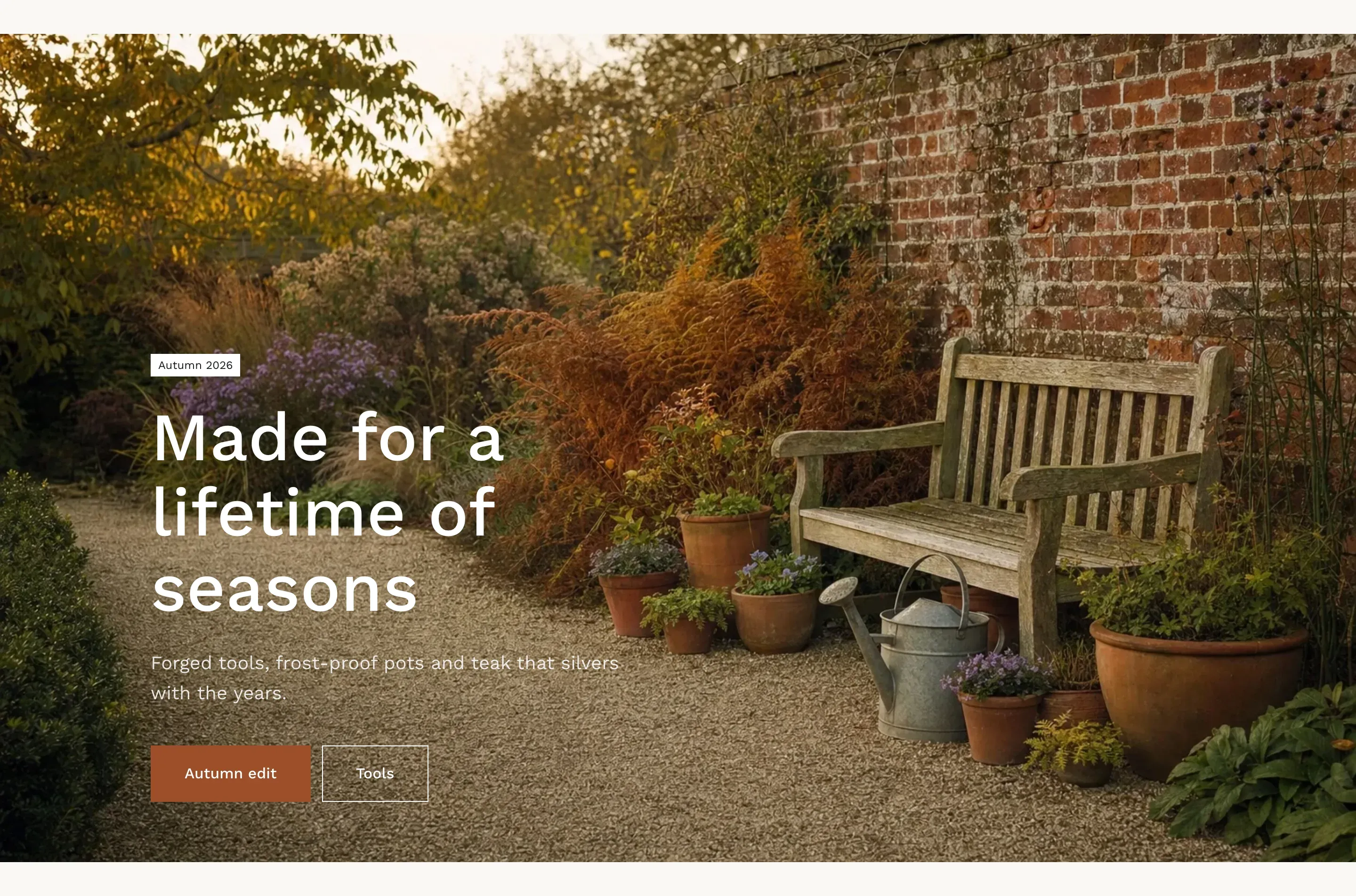
The hero banner is the first thing customers see on a page: a large photo with a label, a heading, a short text and buttons that lead to a collection or a page. With two panels, the section turns into two image tiles side by side, and each whole tile is a link.
Where to find it
Section titled “Where to find it”Theme editor → page → Add section → Hero banner or Image tiles.
Both options add the same Hero banner section. Hero banner starts with one panel, Image tiles starts with two. You can switch between the layouts later by adding or removing a panel.
One panel or two
Section titled “One panel or two”The section holds up to two Image panel blocks. Info in the editor: “Add one panel for a large banner or two panels for two image tiles side by side.”
| Panels | What customers see |
|---|---|
| One | A large banner. The label, heading, text and up to two buttons sit on the photo, in the corner you choose in Content position. |
| Two | Two tiles of the same height. The label, heading and the first button’s label sit on a dark caption at the bottom of each tile, with an arrow. The whole tile is a link to the first button’s link. On hover, the photo zooms in slightly. |
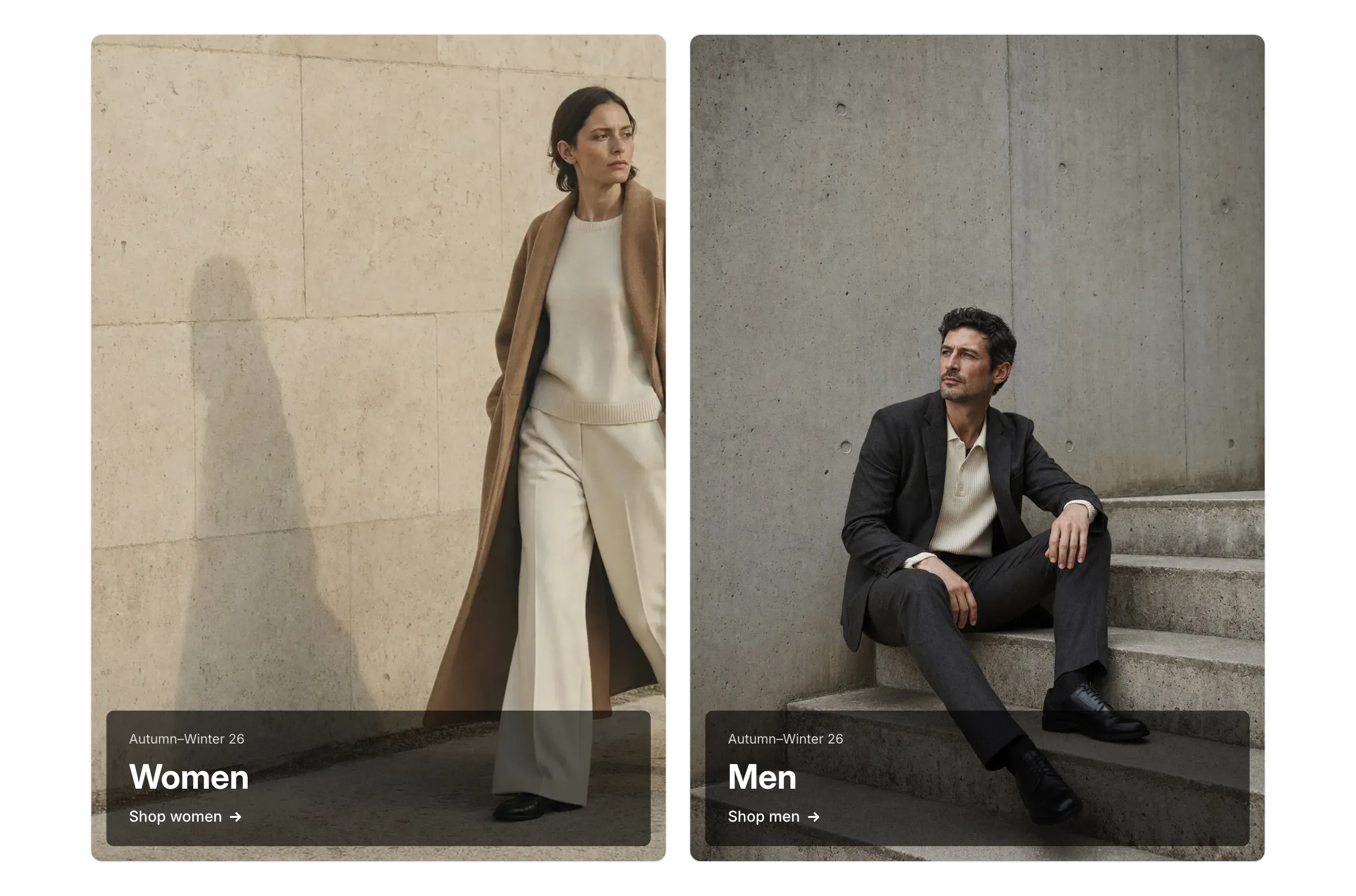
In image tiles, the panel’s Text, the second button, Content position and Light text are not used. A section without panels is not shown.
Set up a large banner
Section titled “Set up a large banner”- Add the Hero banner section and click the Image panel block inside it.
- Upload an Image, 2400 × 1400px works best.
- Optional: upload a Mobile image for phones, 1100 × 1375px (4:5).
- Fill in Label, Heading and Text. Clear a field to hide it.
- Enter the first button’s Label and choose a Button link. For a second button, fill in Second button label and Second button link.
- Under Layout, choose the Content position. Turn on Light text if the photo is dark.
- Click the section and choose the Height, Full page width and Text on mobile.
- Click Save.
Set up image tiles
Section titled “Set up image tiles”- Add the Image tiles section. It comes with two Image panel blocks.
- In each panel, upload an Image and fill in Label and Heading.
- Enter the button Label, for example
Shop women, and choose the Button link. The whole tile links there. - Click Save.
On mobile
Section titled “On mobile”On screens up to 767px wide:
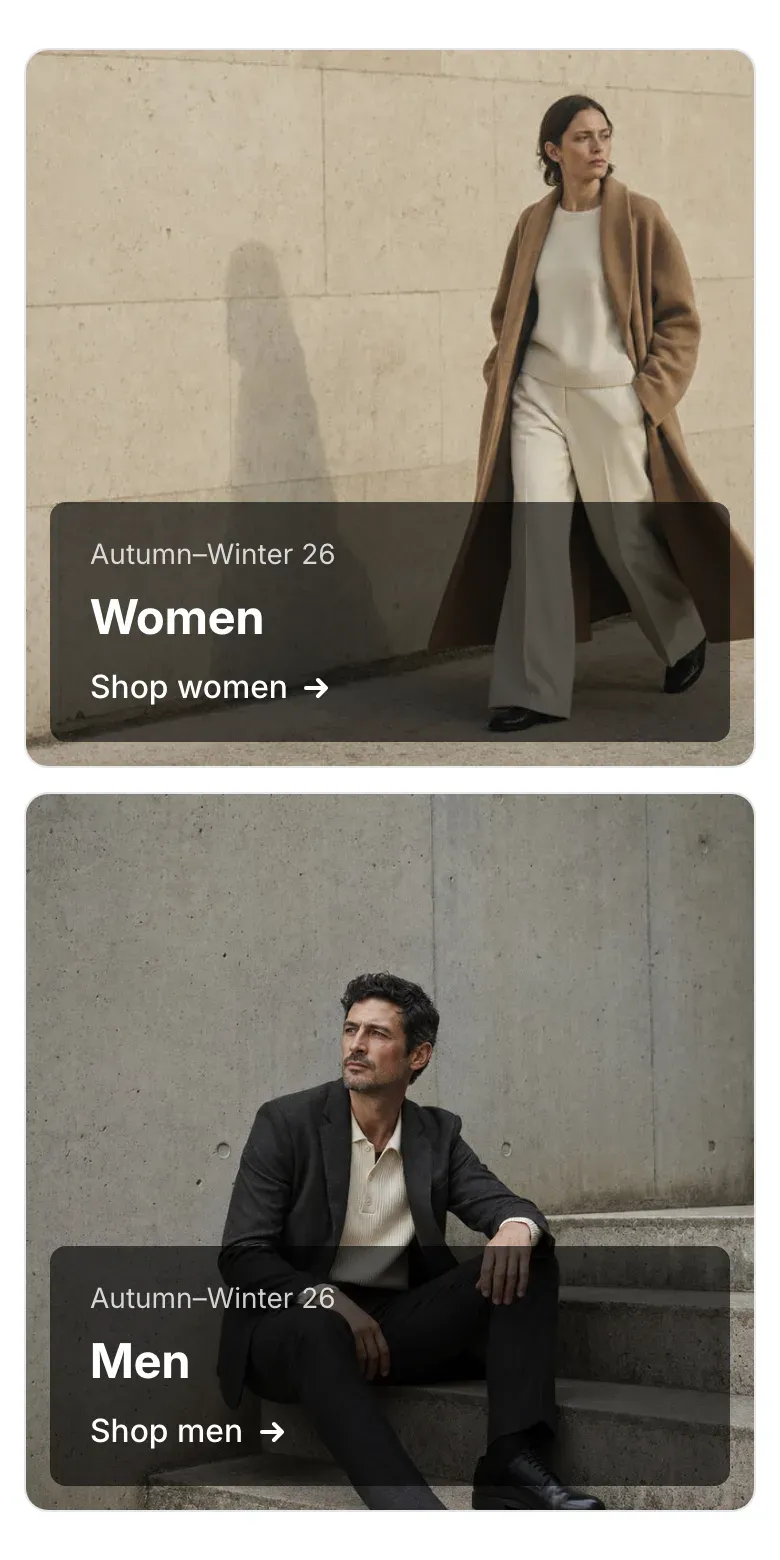
- Image tiles stack one under the other.
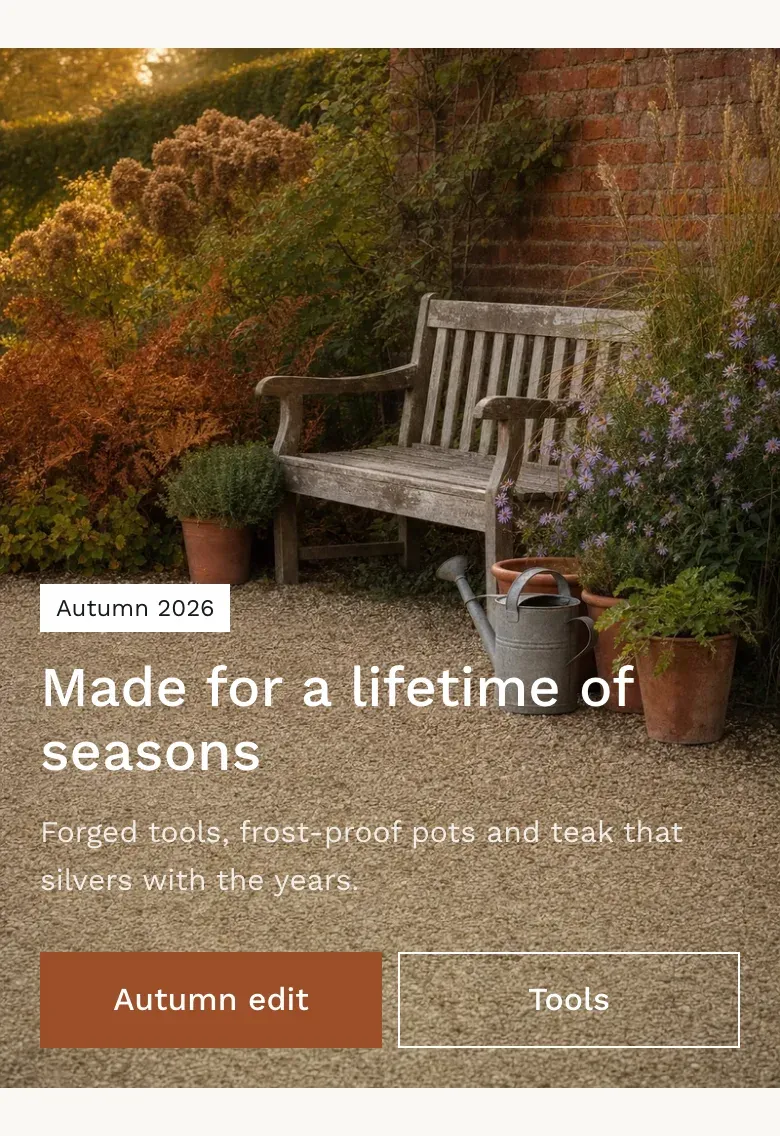
- A single banner follows Text on mobile. With Below the image, the photo is shown in a 4:5 frame with the label in its corner, and the heading, text and buttons follow under it in the section’s colors. With Over the image, the text stays on the photo, as on desktop, and the buttons sit side by side at the full width.
- If a panel has a Mobile image, phones show it instead of the main image.
When the banner is the first section on the page, its photo starts loading right away, so the first screen appears faster.
Settings reference
Section titled “Settings reference”| Setting | What it does | Default |
|---|---|---|
| Height | Height of the banner. Options: Small, Medium, Large. | Medium |
| Full page width | Stretches the banner to the edges of the screen, without rounded corners. | Off |
| Text on mobile | Where the text of a single banner goes on phones. Options: Below the image, Over the image. Info in the editor: “With one panel only.” | Below the image |
| Color scheme | Colors of the section. See Section basics. | Scheme 1 |
Image panel block:
| Setting | What it does | Default |
|---|---|---|
| Image | Info in the editor: “Recommended size: 2400 × 1400 px. Set a focal point in Content > Files to control the crop.” | Empty |
| Mobile image | Info in the editor: “Recommended size: 1100 × 1375 px (4:5). The desktop image is used when empty.” | Empty |
| Label | Short text above the heading, such as a season or an offer. | New season |
| Heading | Main text of the panel. | Image banner |
| Text | Line under the heading. Not shown in image tiles. | Tell customers what this collection is about |
| Label | Text of the first button. | Shop now |
| Button link | Page that opens when customers click the first button, or the whole tile in image tiles. | Empty |
| Second button label | Text of the second button. Info in the editor: “Shown only when the section has one panel.” | Empty |
| Second button link | Page that opens when customers click the second button. | Empty |
| Content position | Where the text sits on the photo. Options: Top left, Middle left, Bottom left, Middle center, Bottom center. Info in the editor: “Used when the section has one panel.” | Middle left |
| Light text | Info in the editor: “White text for dark photos. Used when the section has one panel.” | Off |