Product specifications
Show a table of product details, such as material, fit and care, with each product’s own values.
You need: product metafields for the values that differ between products · no app · about 20 minutes to set up, then a few minutes per product to fill in.
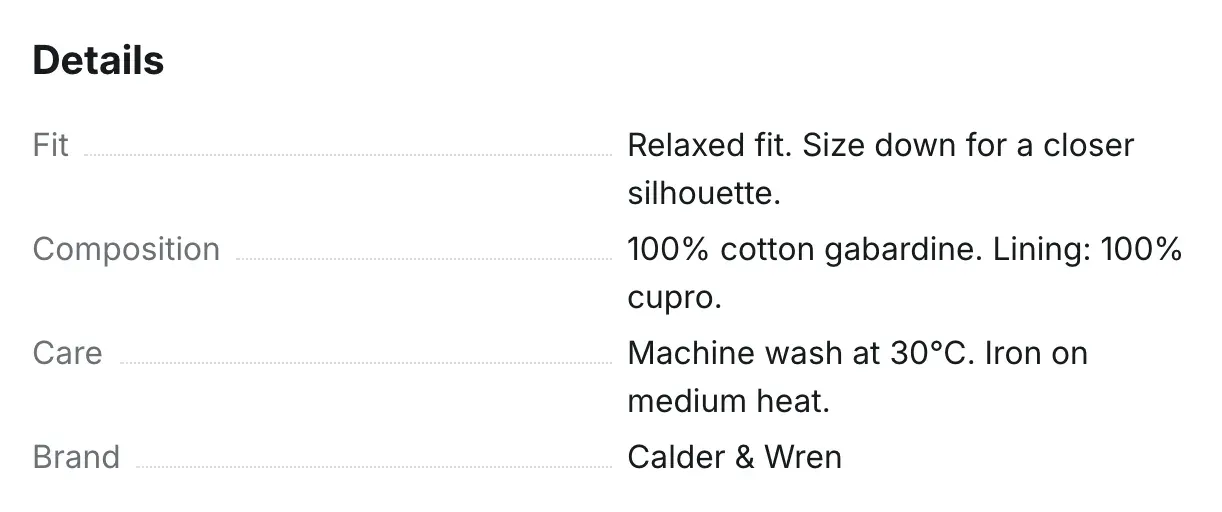
How the table is built
Section titled “How the table is built”The Specifications block of the Product section shows the table. Rows come from three places, in this order:
- Product options, such as Size XS / S / M / L, when Show option values is on. Products without variants have no option rows.
- Specification row blocks, in their order in the left sidebar. Each block is one row with a Name and a Value.
- Brand (the product vendor), Type (the product type) and SKU (of the selected variant), each turned on in the Specifications block.
Rows with an empty value are hidden, so one template works for products that have different sets of details. When the table has no rows at all, the block is hidden.
Step 1. Create metafield definitions in Shopify admin
Section titled “Step 1. Create metafield definitions in Shopify admin”A metafield is an extra field in the product editor. Create one for each detail that differs between products.
- In your Shopify admin, open Settings → Custom data → Products.
- Click Add definition.
- Enter a Name, for example “Composition”.
- Click Select type and choose Single line text. The Value of a row connects to text metafields.
- Click Save, and repeat for the other details, for example “Fit” and “Care”.
- Open a product. The new fields appear in the Metafields section at the bottom of the product editor. Fill them in and save.
Step 2. Add the table in the theme editor
Section titled “Step 2. Add the table in the theme editor”- Open a product page in the theme editor: Products → Default product.
- Under Product, check that the Specifications block is there. If not, click Add block → Specifications.
- In the Specifications block, set the Heading, for example “Details”, and turn on the rows you want: Show option values, Show vendor, Show product type, Show SKU.
- Click Add block → Specification row. Enter the Name, for example “Composition”.
- Next to Value, click the Connect dynamic source icon and choose the Composition metafield. Info in the editor: “Connect a product metafield to show each product’s own value.”
- Repeat steps 4 and 5 for each detail, then drag the rows into the order you want.
- Click Save.
A Specification row with a typed value instead of a connected metafield shows that value on every product, for example “Made in Portugal” for a store that makes everything in one place.
The table is shown with the other product information, as sections with contents or as tabs, depending on Product information in the Product section. See Product page.
Check the result
Section titled “Check the result”Open two products on your storefront: one with all metafields filled in and one with some of them empty. The first shows every row; the second skips the empty ones. Choose another variant: the SKU row changes with it.
Why don’t my Specification row blocks show?
Section titled “Why don’t my Specification row blocks show?”Rows are part of the Specifications block. Add the Specifications block to the product page and give it a Heading.
Why is one row missing on some products?
Section titled “Why is one row missing on some products?”The connected metafield is empty for those products. Fill it in in the product editor, or type a fixed value in the block.
Can I show a metafield that holds a list or a file?
Section titled “Can I show a metafield that holds a list or a file?”Rows show plain text, so connect single line text metafields. For a size table, use the Size guide block; see Size chart.
Can different product types have different rows?
Section titled “Can different product types have different rows?”Yes, in two ways: leave the metafields empty on products where a row doesn’t apply, or create a second product template with its own rows and assign it to those products. See Alternate templates.