Blog and blog posts
The blog page lists your posts as image tiles, and the blog post page shows one post with its image, tags and date. Both pages have a sidebar where customers can browse post categories and tags and sign up for your newsletter.
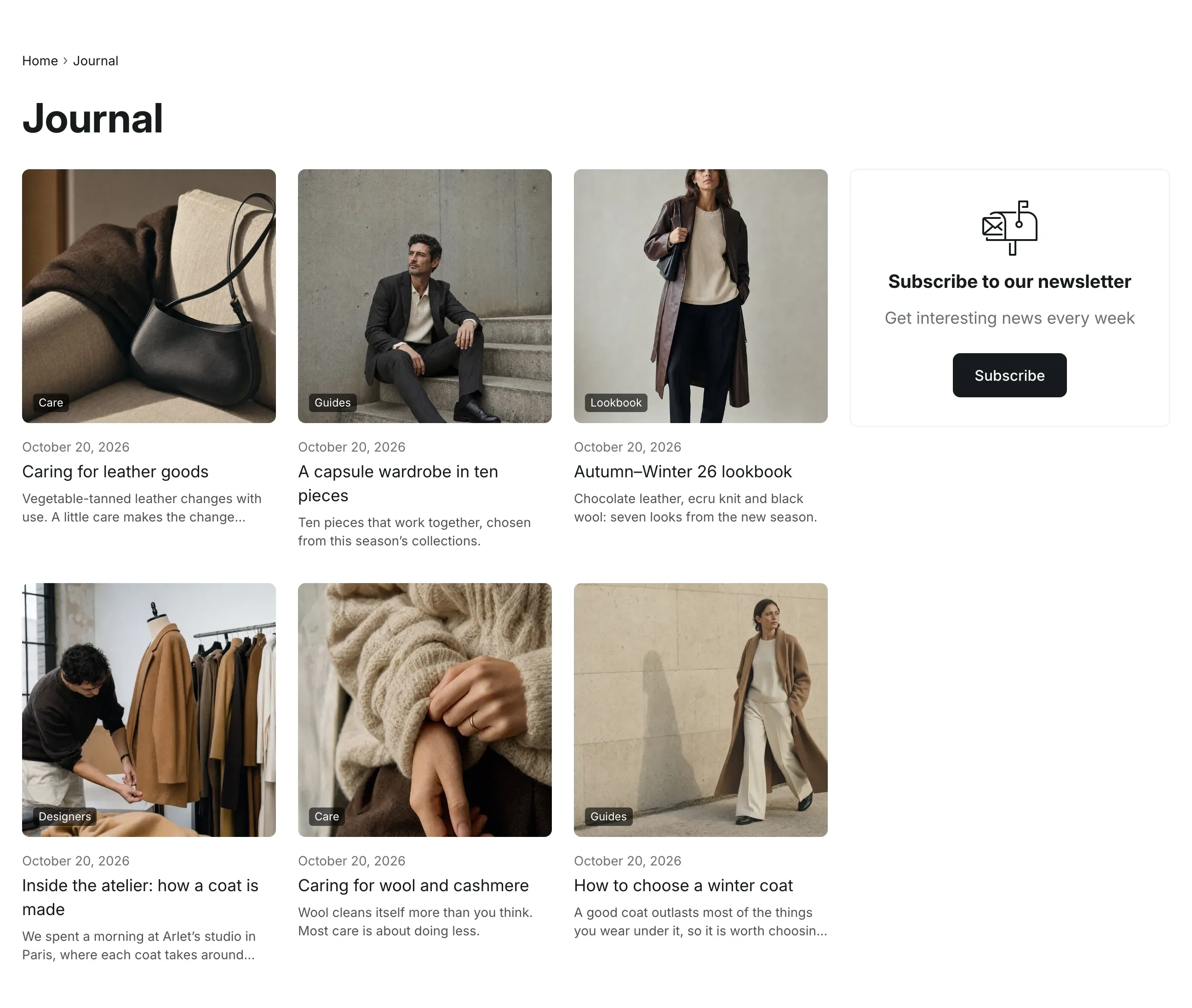
Where to find it:
- Blog page: Theme editor → page selector at the top → Blogs → Default blog → Blog posts.
- Blog post page: Theme editor → page selector at the top → Blog posts → Default blog post → Blog post.
You write posts in your Shopify admin under Content → Blog posts. See Shopify Help Center: Blogs.
The blog page
Section titled “The blog page”The Blog posts section shows breadcrumbs, the blog title and the posts of the blog, with page numbers below them when there are more posts than Posts per page.
Choose a layout
Section titled “Choose a layout”| Layout | What it looks like |
|---|---|
| Grid, 3 columns | Three tiles in a row. |
| Mosaic | Wide and narrow tiles alternate in rows of two: the wide tile comes first in odd rows and second in even rows. |
| Grid, 2 columns | Two larger tiles in a row. |
Each tile has the post image, the post tags as labels on the image, the publish date, the title and an excerpt. The excerpt is the post excerpt, or the start of the post text when the excerpt is empty, cut to two lines. Posts without an image keep a gray image area, so tiles stay aligned.
On screens up to 1024px wide, the sidebar moves under the posts. Up to 767px, every layout shows two tiles in a row, and up to 575px one.
Add text below the posts
Section titled “Add text below the posts”Use Heading and Text under Text below posts to add a block of text under the posts, for example a short description of your blog for search engines. It is shown only when at least one of the fields is filled in.
The blog post page
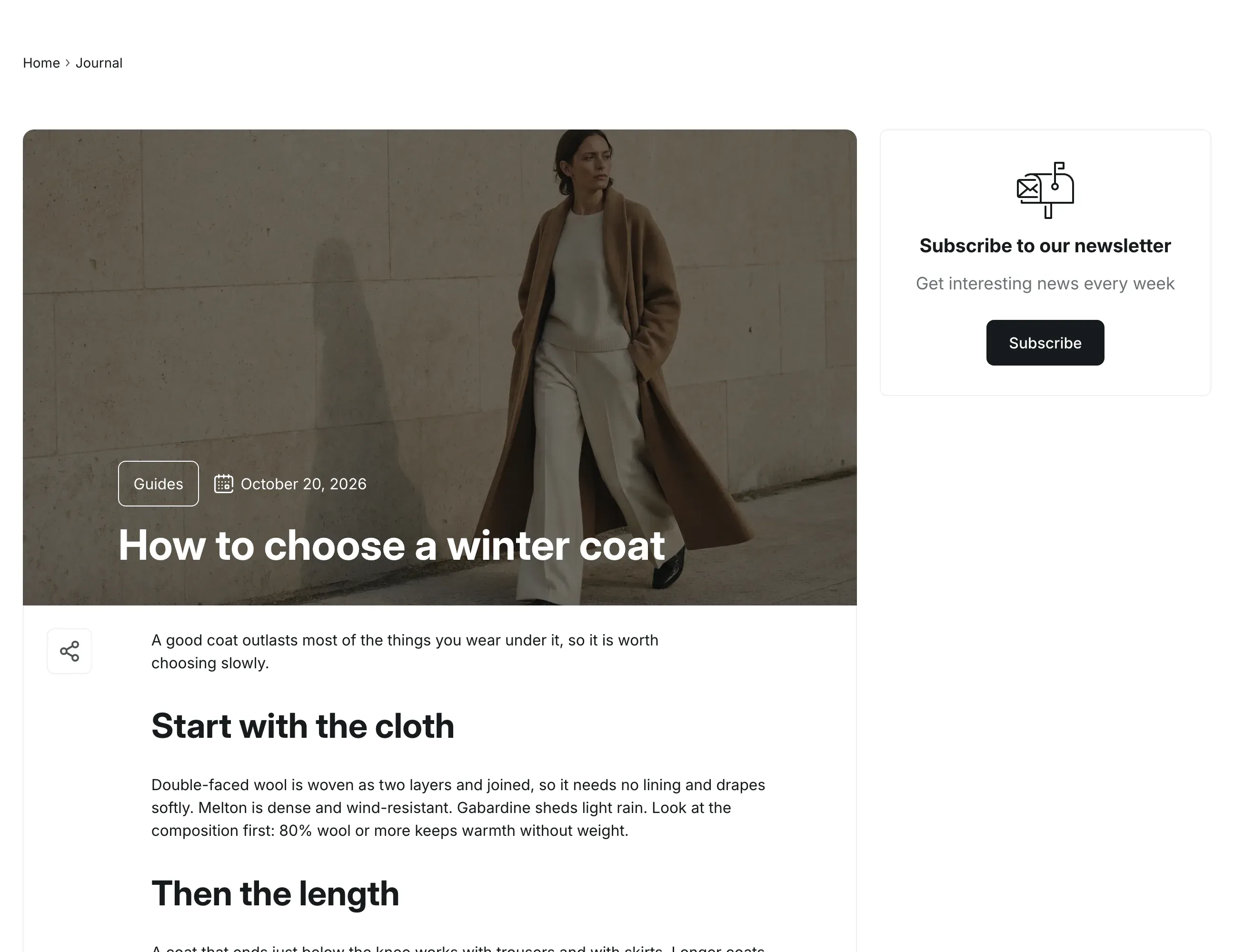
Section titled “The blog post page”The Blog post section shows breadcrumbs, the post with its image, tags and date, and the sidebar.
Choose a layout
Section titled “Choose a layout”| Layout | What it looks like |
|---|---|
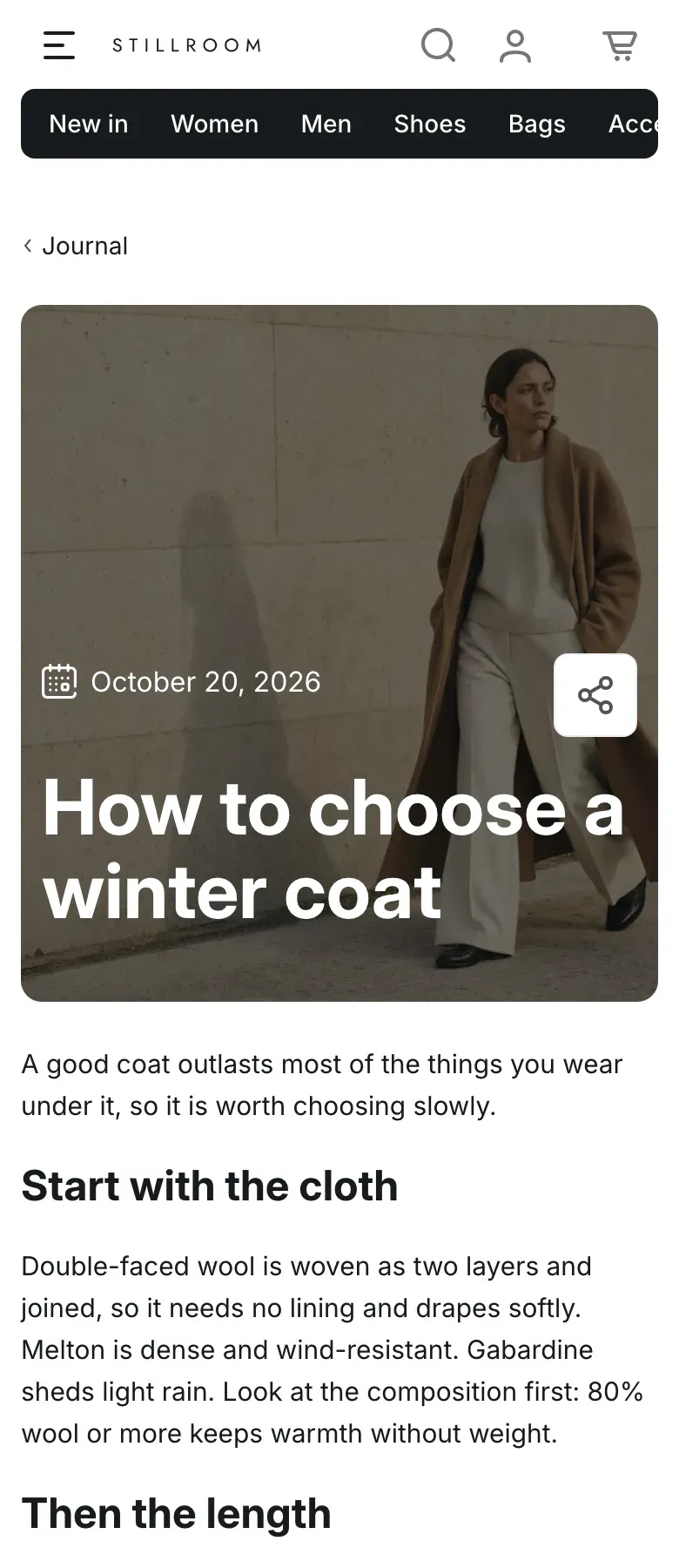
| Image header | The post image fills the top of the post under a dark overlay, with the tags, the date and the title in white over it. The text is in a framed block below. |
| Title above | The title is above the post, and the framed block starts with the tags and the date. |
Info in the editor: “Posts without an image use the title above layout.”
The image header is 500px tall on wide screens and 400px on screens up to 1366px wide, and the image is cropped to fill it. Use a landscape image at least 2200px wide, with the subject away from the bottom left, where the title sits.
Repeat tags and date after the post shows the tags and the date again at the end of the post text. On screens up to 1024px wide, the post page shows the date without the tags.
Share button
Section titled “Share button”With Show share button on, a share button sits in a column to the left of the post text and stays on screen while customers scroll. On screens up to 1023px wide, it moves next to the date.
The button opens a menu with Facebook, X, Telegram, WhatsApp and Copy link. On phones and tablets that have a system share sheet, the button opens the share sheet instead.
Comments
Section titled “Comments”Comments appear under the post when the blog allows them. You turn comments on and choose whether they are moderated in your Shopify admin, in the settings of the blog. Customers see the comments, 10 per page, and a form with name, email and comment fields. When comments are moderated, the form says that comments are checked before they appear.
The sidebar
Section titled “The sidebar”Both sections share the same sidebar. It has up to three parts:
- Categories: links that show only the posts of one category, with the number of posts in each.
- Tags: the other post tags, shown as chips. A tag opens the blog filtered by that tag.
- Newsletter card: Subscribe to our newsletter with a Subscribe button. The button opens a sign-up form with an email field.
On screens up to 1024px wide, categories and tags become rows of chips that customers scroll sideways, and the newsletter card is hidden.
Sort posts into categories
Section titled “Sort posts into categories”Categories are post tags that start with category:.
- In your Shopify admin, open Content → Blog posts and open a post.
- In Tags, add a tag such as
category:Style guides. The text after the colon is the category name customers see. - Click Save, and repeat for the other posts.
- In the theme editor, make sure Show categories is on in the Blog posts and Blog post sections.
Info in the editor: “Categories are post tags that start with category:, for example category:Design. Post counts show for blogs with up to 50 posts.”
When customers open a category, the page title and the last breadcrumb show the category name. On a blog post page, the breadcrumbs link to the post’s category. Tags that start with category: never appear in the tag list or as labels on tiles.
Show link to all posts adds an All link at the end of the categories, which opens the blog without a filter. It is available in the Blog posts section only.
Newsletter sign-ups
Section titled “Newsletter sign-ups”Info in the editor: “Sign-ups appear in Customers with the newsletter tag.”
Customers who sign up are added to Customers in your Shopify admin with the tag newsletter and agree to receive email marketing. See Forms and messages.
Settings reference
Section titled “Settings reference”Blog posts section (blog page):
| Setting | What it does | Default |
|---|---|---|
| Layout | Options: Grid, 3 columns, Mosaic, Grid, 2 columns. | Grid, 3 columns |
| Posts per page | Number of posts on one page, from 2 to 24. | 6 |
| Show tags on images | Shows the post tags as labels on the tile images. | On |
| Show date | Shows the publish date on tiles. | On |
| Show excerpt | Shows the excerpt on tiles. | On |
| Show categories | Shows the categories in the sidebar. Info in the editor: “Categories are post tags that start with category:, for example category:Design. Post counts show for blogs with up to 50 posts.” | On |
| Show link to all posts | Adds an All link to the categories. Shown when Show categories is on. | On |
| Show tags | Shows the other post tags in the sidebar. | On |
| Show newsletter sign-up | Shows the newsletter card in the sidebar. Info in the editor: “Sign-ups appear in Customers with the newsletter tag.” | On |
| Heading | Heading of the text below the posts. | Empty |
| Text | Text below the posts. | Empty |
| Color scheme | Colors of the section. See Color scheme. | Scheme 1 |
Blog post section (blog post page):
| Setting | What it does | Default |
|---|---|---|
| Layout | Options: Image header, Title above. Info in the editor: “Posts without an image use the title above layout.” | Image header |
| Show share button | Shows the share button next to the post. | On |
| Repeat tags and date after the post | Shows the tags and the date again at the end of the post. | On |
| Show categories | Shows the categories in the sidebar. Info in the editor: “Categories are post tags that start with category:, for example category:Design. Post counts show for blogs with up to 50 posts.” | On |
| Show tags | Shows the other post tags in the sidebar. | On |
| Show newsletter sign-up | Shows the newsletter card in the sidebar. Info in the editor: “Sign-ups appear in Customers with the newsletter tag.” | On |
| Color scheme | Colors of the section. See Color scheme. | Scheme 1 |
Why are post counts missing next to the categories?
Section titled “Why are post counts missing next to the categories?”Counts are shown for blogs with up to 50 posts. In larger blogs, the categories are listed without counts.
Can I show blog posts on the home page?
Section titled “Can I show blog posts on the home page?”Yes. Add the Blog posts section to the home page. See Blog posts section.
Can I use a blog for something other than articles?
Section titled “Can I use a blog for something other than articles?”Yes. Alpha Start can turn a blog into a catalog of services with prices and order buttons. See Services.