Cart page
The cart page lists the products a customer has added and leads them to checkout. Customers change quantities, remove items, apply discount codes and leave a note for the order right on the page, without reloads.
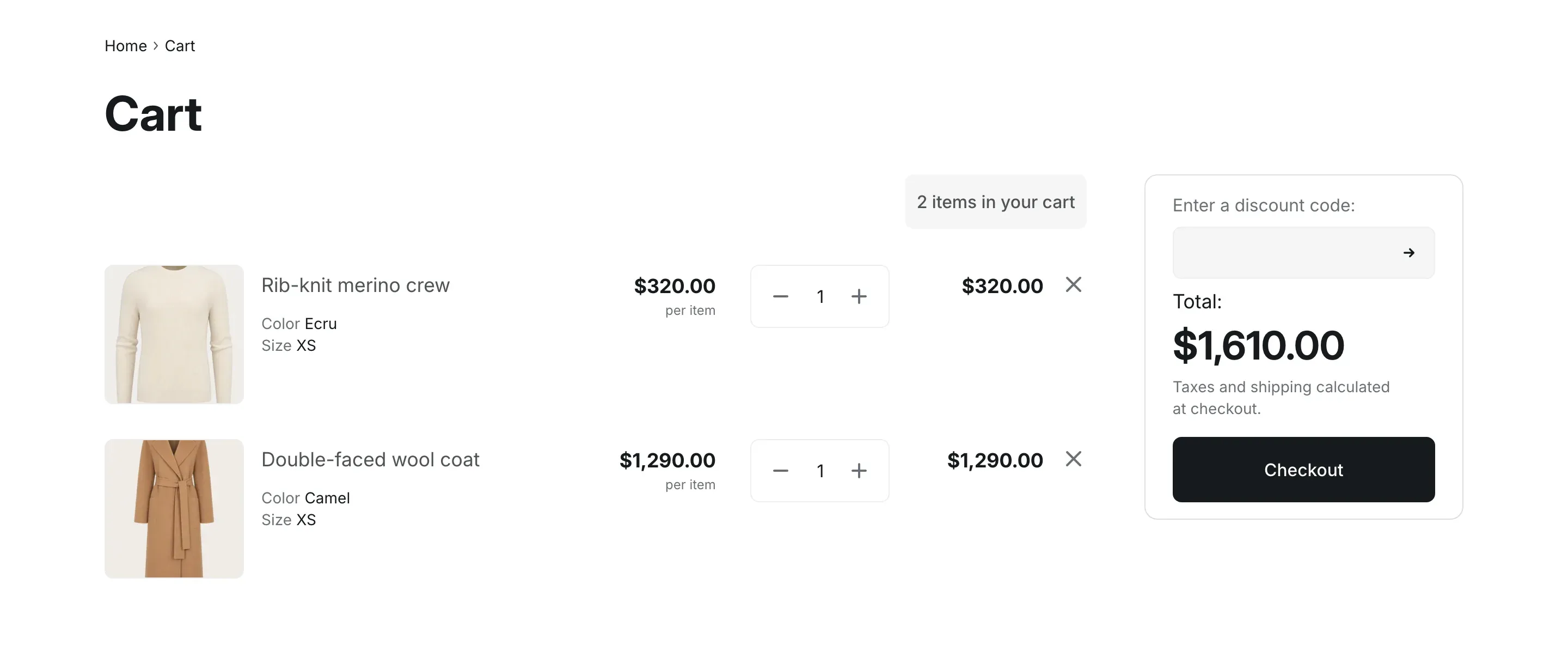
Where to find it: Theme editor → page selector at the top → Cart → Cart.
Cart page or dropdown
Section titled “Cart page or dropdown”The header cart can open a dropdown with the cart items or go straight to the cart page. This is set in Theme settings → Cart → Cart type. On screens up to 1024px wide, the header cart always opens the cart page. See Search, cart and back to top button.
The cart page and the dropdown stay in sync: a change in one shows up in the other.
What the cart page shows
Section titled “What the cart page shows”Each product line shows:
- the product image, title, chosen options and any extra details, such as engraving text or a subscription plan;
- the price per item and any line discounts;
- a quantity selector and the line total. When the product has a compare-at price, the regular price is struck through with the saving next to it;
- a remove button. A removed product leaves a “… was removed from your cart.” notice with a Restore button, so customers can bring it back.
The order summary on the right shows:
- the discount code field, when turned on;
- the order discounts, the Total, and the regular total struck through with the saving when products are discounted;
- a note about taxes and shipping, which follows your tax settings in Shopify;
- the order note field, when turned on;
- the Checkout button and the dynamic checkout buttons.
Discount codes
Section titled “Discount codes”With Show discount code field on, customers enter a code and click the arrow button. Applied codes appear as chips under the field, each with a button to remove it. When a code can’t be applied, a message under the field says so.
Create discount codes in your Shopify admin under Discounts. Automatic discounts don’t need a code: they appear in the order summary on their own.
Order note
Section titled “Order note”With Show order note on, an Order note field appears in the order summary. The note is saved as the customer types and shows in the order details in your Shopify admin.
Dynamic checkout buttons
Section titled “Dynamic checkout buttons”Show dynamic checkout buttons adds accelerated checkout buttons, such as Shop Pay, PayPal or Google Pay, under Checkout. Which buttons appear depends on the payment methods turned on in your Shopify admin. Info in the editor: “Customers can buy straight away with an accelerated checkout.” See Dynamic checkout buttons in the Shopify Help Center.
Empty cart
Section titled “Empty cart”An empty cart shows “Your cart is empty” and a “Click here to continue shopping” link. By default the link opens all products. To send customers somewhere else, such as a sale collection, set Link in an empty cart.
App blocks
Section titled “App blocks”Apps that support theme app blocks, such as upsell or gift wrapping apps, add their blocks under the product lines. In the left sidebar, under Cart, click Add block → Apps. The Custom Liquid block adds your own Liquid code in the same place. See Apps.
Settings reference
Section titled “Settings reference”Cart section:
| Setting | What it does | Default |
|---|---|---|
| Show discount code field | Shows the discount code field in the order summary. | On |
| Show order note | Shows the order note field in the order summary. | Off |
| Show dynamic checkout buttons | Info in the editor: “Customers can buy straight away with an accelerated checkout.” | On |
| Link in an empty cart | Info in the editor: “Where the “Continue shopping” link leads. Empty — all products.” | Empty |
| Color scheme | Colors of the section. See Section basics. | Scheme 1 |
Custom Liquid block:
| Setting | What it does | Default |
|---|---|---|
| Liquid code | Info in the editor: “Add app snippets or other Liquid code to create advanced customizations” | Empty |
Why don’t I see the dynamic checkout buttons?
Section titled “Why don’t I see the dynamic checkout buttons?”They appear when Show dynamic checkout buttons is on and at least one accelerated payment method, such as Shop Pay or PayPal, is turned on in Settings → Payments in your Shopify admin.
Can customers enter a discount code at checkout instead?
Section titled “Can customers enter a discount code at checkout instead?”Yes. Shopify checkout has its own discount code field. Turn off Show discount code field if you want only that one.