Product cards
Product cards appear in collection grids, search results and product sections on the home page. The Product cards theme settings apply to all of them at once.
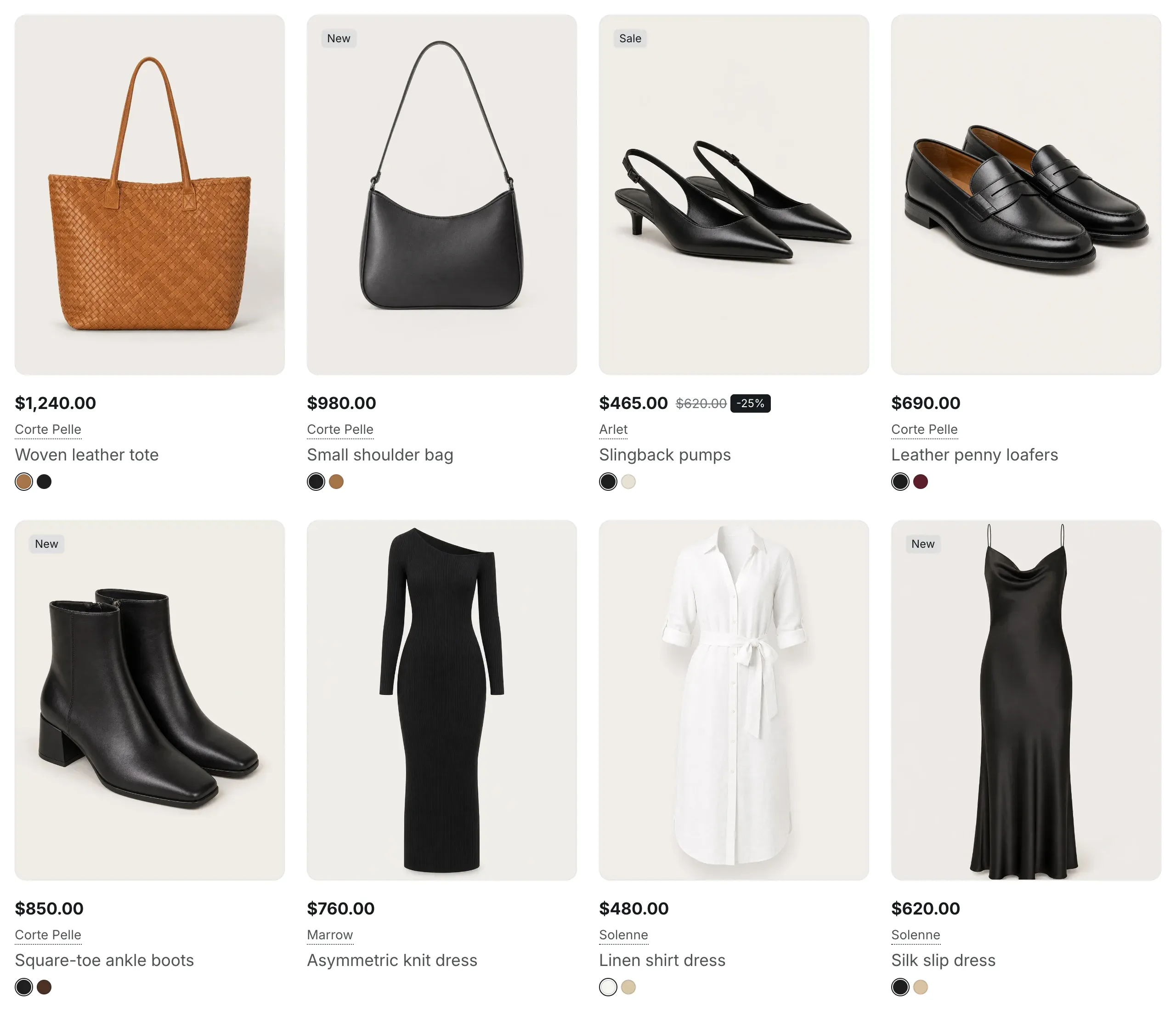
Change the product cards
Section titled “Change the product cards”- In the theme editor, open Theme settings → Product cards.
- Choose the Image ratio and the image background options.
- Turn on or off the parts of the card you want to show.
- Click Save.
What a card shows
Section titled “What a card shows”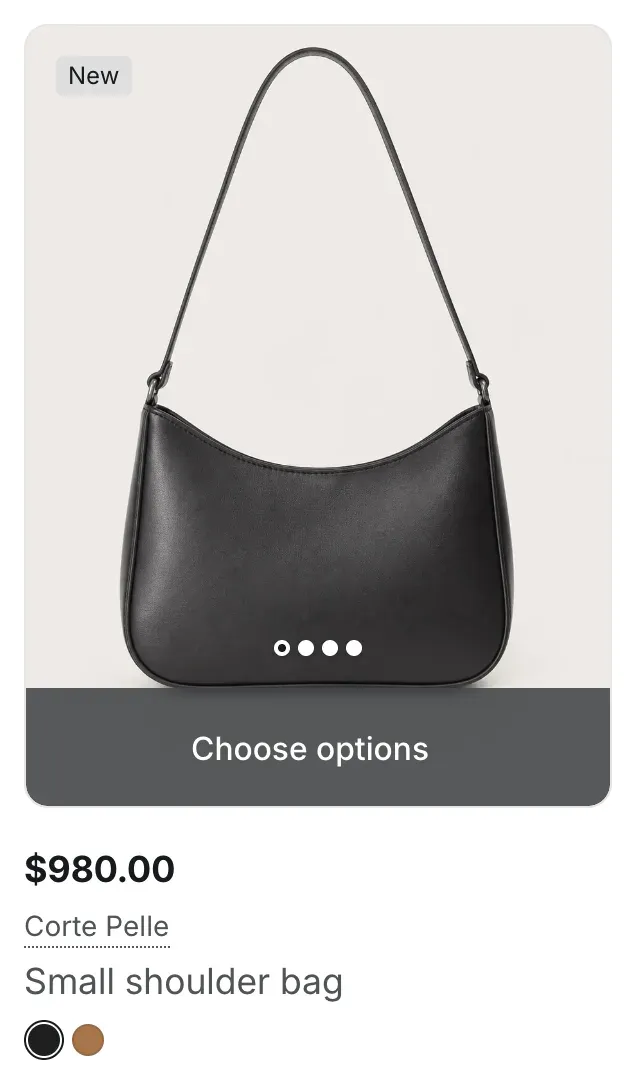
- Image: up to five product images. On desktop, moving the pointer across the image switches between them; on touch screens customers swipe.
- Quick add: on desktop, hovering a card slides up an Add to cart bar with a quantity selector. Products with several variants show Choose options instead, which opens the product page. Sold-out products show a disabled Sold out button. The bar is hidden on touch screens.
- Brand: the product vendor, linked to all products of that vendor.
- Stock status: In stock, Low stock (fewer than five items left of a variant that Shopify tracks) or Sold out.
- Rating: a star with the average rating from your product reviews app.
- Color swatches: the colors of the product’s color option, shown under the title.
Add labels to product images
Section titled “Add labels to product images”To show a label such as “New”, “Sale” or “Bestseller” in the top-left corner of the product image, add a product tag that starts with label:. For example, the tag label:Bestseller shows the label Bestseller. A product can have several labels.
Settings reference
Section titled “Settings reference”| Setting | What it does | Default |
|---|---|---|
| Image ratio | Shape of card images. Options: Square (1:1), Portrait (3:4). | Square (1:1) |
| Show gray background behind images | Adds a light gray background behind product images. Works well with product photos on a white or transparent background. | On |
| Add padding around images | Adds space around the product image inside the card and shows the whole image without cropping. | Off |
| Show brand | Info in the editor: “Shows the product vendor above the title in product cards and rows, linked to all products of that brand.” | On |
| Show stock status | Shows the stock badge on the product image. | On |
| Show product rating | Shows the average rating on the product image. Info in the editor: “Requires a product reviews app”. | On |
| Show color swatches | Info in the editor: “Shows the color swatches of a product’s options under its title.” | On |
| Show quick add to cart | Shows the add to cart bar on hover. Info in the editor: “Products with several variants link to the product page instead”. | On |