Featured collection
Featured collection shows a heading and a row of product cards from one collection, so customers can browse new arrivals, bestsellers or a seasonal edit without leaving the page. A thin frame runs around the row.
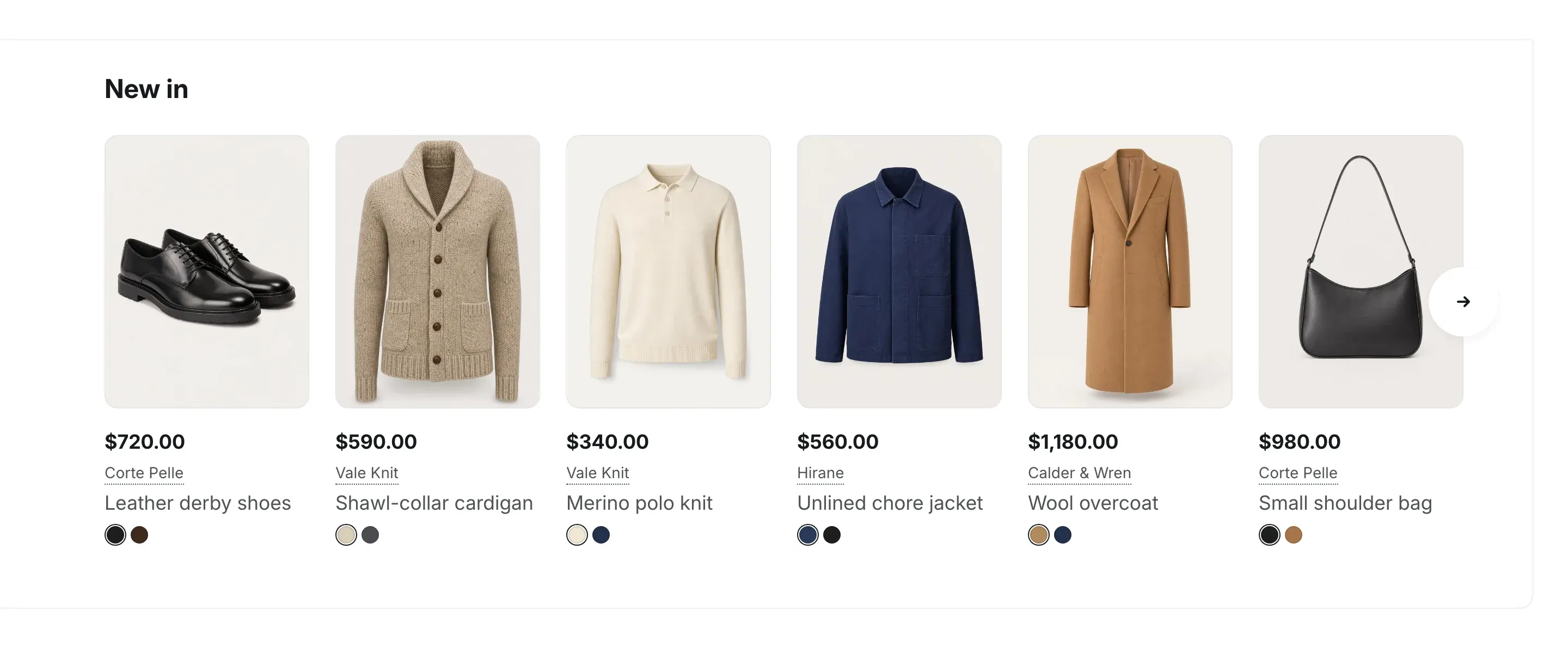
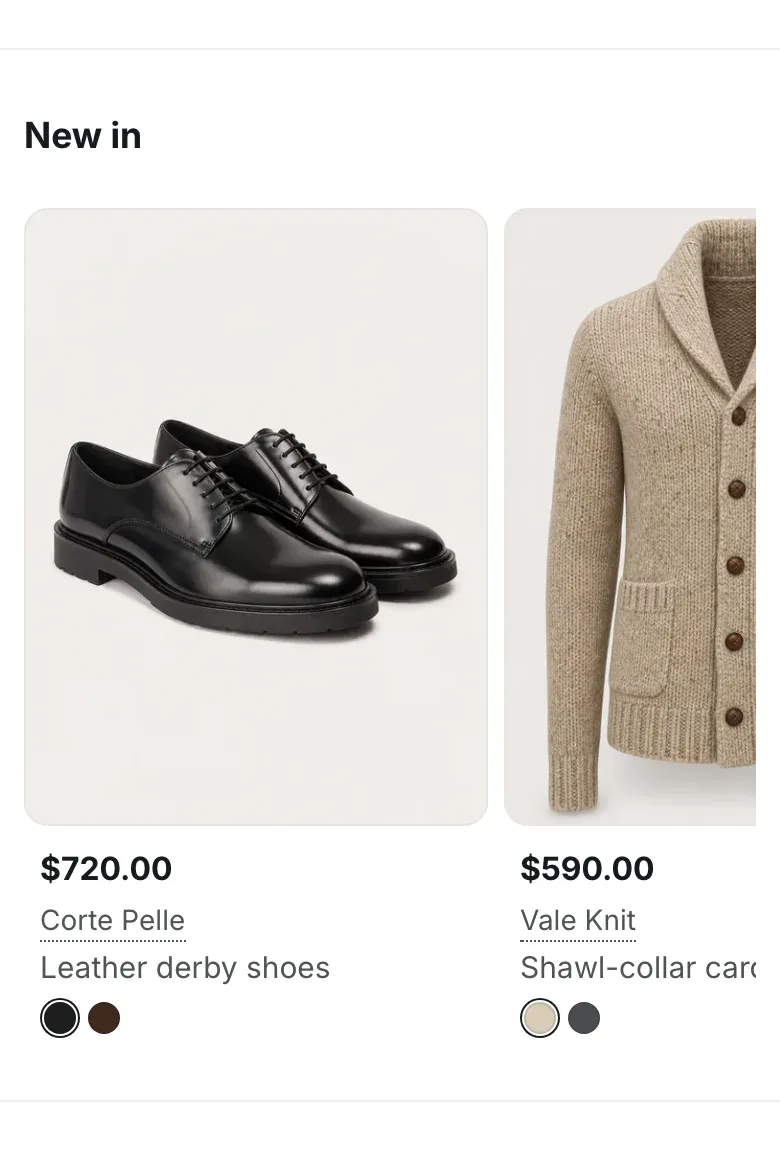
Where to find it: Theme editor → page → Add section → Featured collection
Set up the section
Section titled “Set up the section”- In the theme editor, click Add section and choose Featured collection.
- Enter a Heading, or clear it to show the products without a heading.
- Choose a Collection. To show products from your whole catalog, leave it empty.
- Set Maximum products to show.
- Click Save.
How the row works
Section titled “How the row works”- On desktop, six cards fit the row. When there are more products, arrow buttons scroll the row.
- On screens up to 1024px wide, the cards are 232px wide and customers swipe the row sideways. The arrow buttons are hidden.
- Products appear in the order set for the collection in your Shopify admin.
- If the collection or catalog has no products, six placeholder cards show the layout.
The product cards follow Theme settings → Product cards: image ratio, brand, stock status, rating, color swatches and quick add. See Product cards. In this section, the cards don’t show image labels from label: tags or the quantity selector in the quick add bar, to keep the narrow cards clean.
Settings reference
Section titled “Settings reference”| Setting | What it does | Default |
|---|---|---|
| Heading | Heading above the row. Supports bold, italic and links. | Recommended products |
| Collection | Collection whose products are shown. Info in the editor: “Leave empty to show products from the whole catalog.” | Empty |
| Maximum products to show | From 4 to 24. | 9 |
| Color scheme | Colors of the section. See Section basics. | Scheme 1 |
Related pages
Section titled “Related pages”- Collection with products: a collection tile next to a row of its products.
- Product tabs: several collections in one section, switched by tabs.
- Product cards