Product page
The product page shows the product media, the price, the variant options and the buttons customers use to buy. Below them, the product information and related products help customers decide. Everything on the page belongs to one section, Product, and its blocks.
Where to find it: Theme editor → page selector at the top → Products → Default product → Product.
Open the product page in the editor
Section titled “Open the product page in the editor”- In the theme editor, open the page selector at the top.
- Choose Products → Default product. The preview shows one of your products.
- To preview another product, choose it in the product picker at the top of the editor.
- In the left sidebar, click Product to open the section settings, or click a block under it.
Changes to the default product template apply to every product that uses it. To give some products a different page, create another template. See Alternate templates.
Choose a layout
Section titled “Choose a layout”Layout sets how the media and the purchase blocks are arranged on desktop.
| Layout | What it looks like |
|---|---|
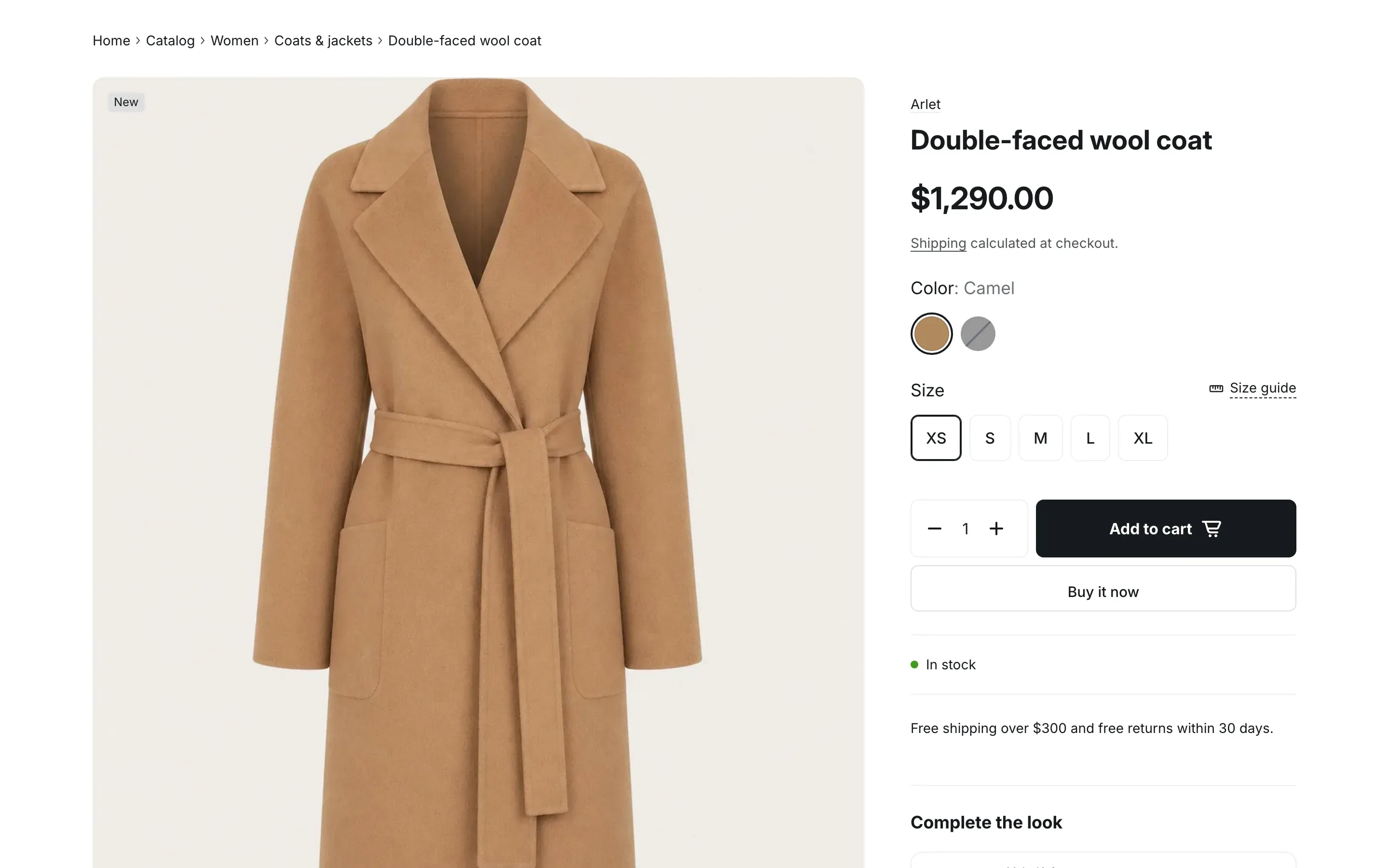
| Classic: media and purchase column | The title runs across the top. The main image has a column of thumbnails on its left, and the purchase column is on the right. Rating and SKU sit in a row at the top of the purchase column, the inventory status is a badge on the image and the vendor is a card at the end of the purchase column. Media size sets how wide the media is. |
| Showcase: three columns with purchase box | The title runs across the top, with rating, vendor and SKU in a row under it. Then three columns: the image with thumbnails below it, a column with the variant picker and Text blocks, and a framed purchase box that stays on screen while customers scroll. |
| Gallery: media grid and sticky column | All images in a two-column grid. When the number of images is odd, the first one takes the full width. After six images, a “… more photos” button shows the rest. Every block, title included, goes into a column on the right that stays on screen while customers scroll. |
Info in the editor: “Each layout keeps the title, vendor, rating, SKU and inventory status in its own places. Other blocks follow their order in the purchase column.”
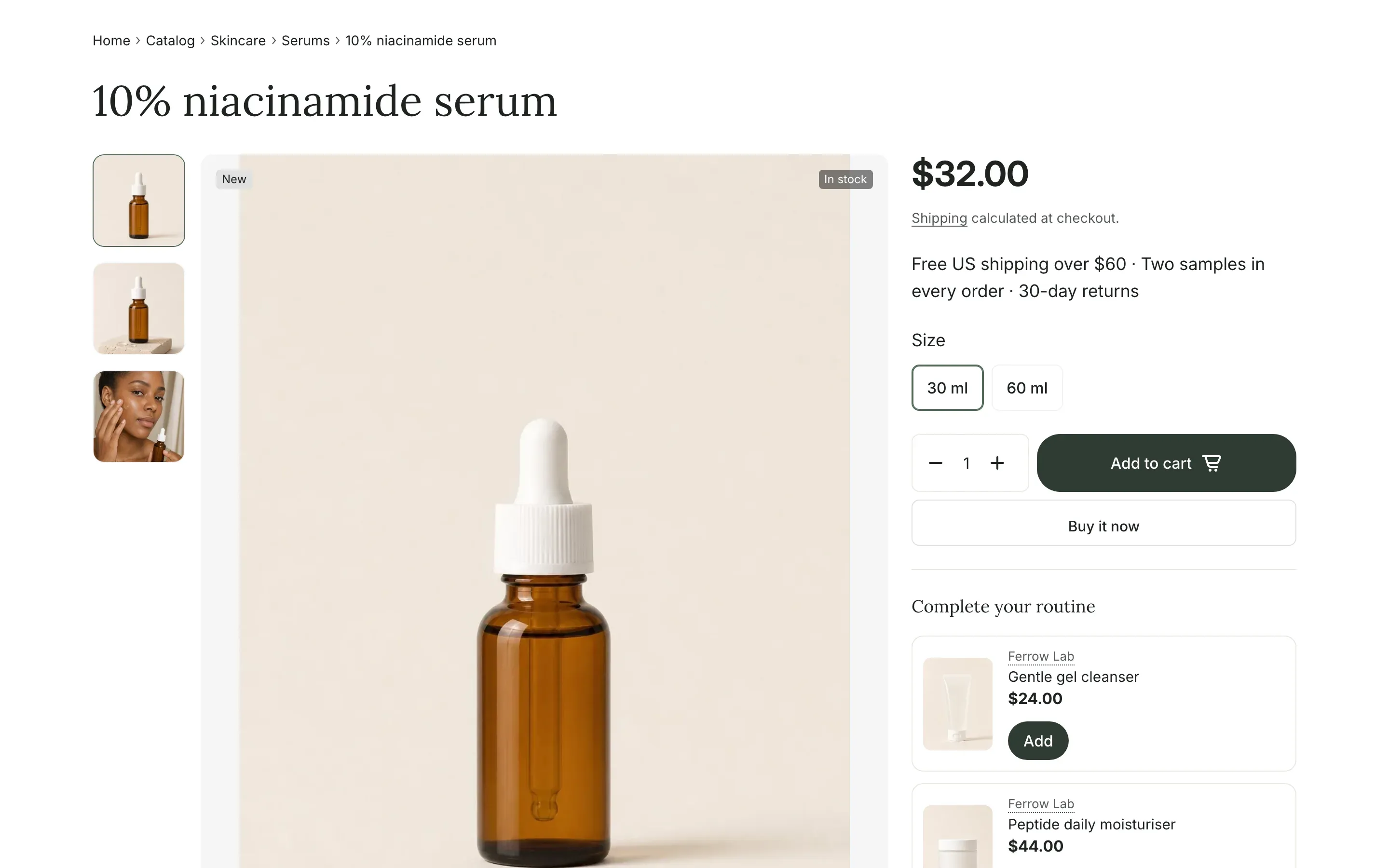
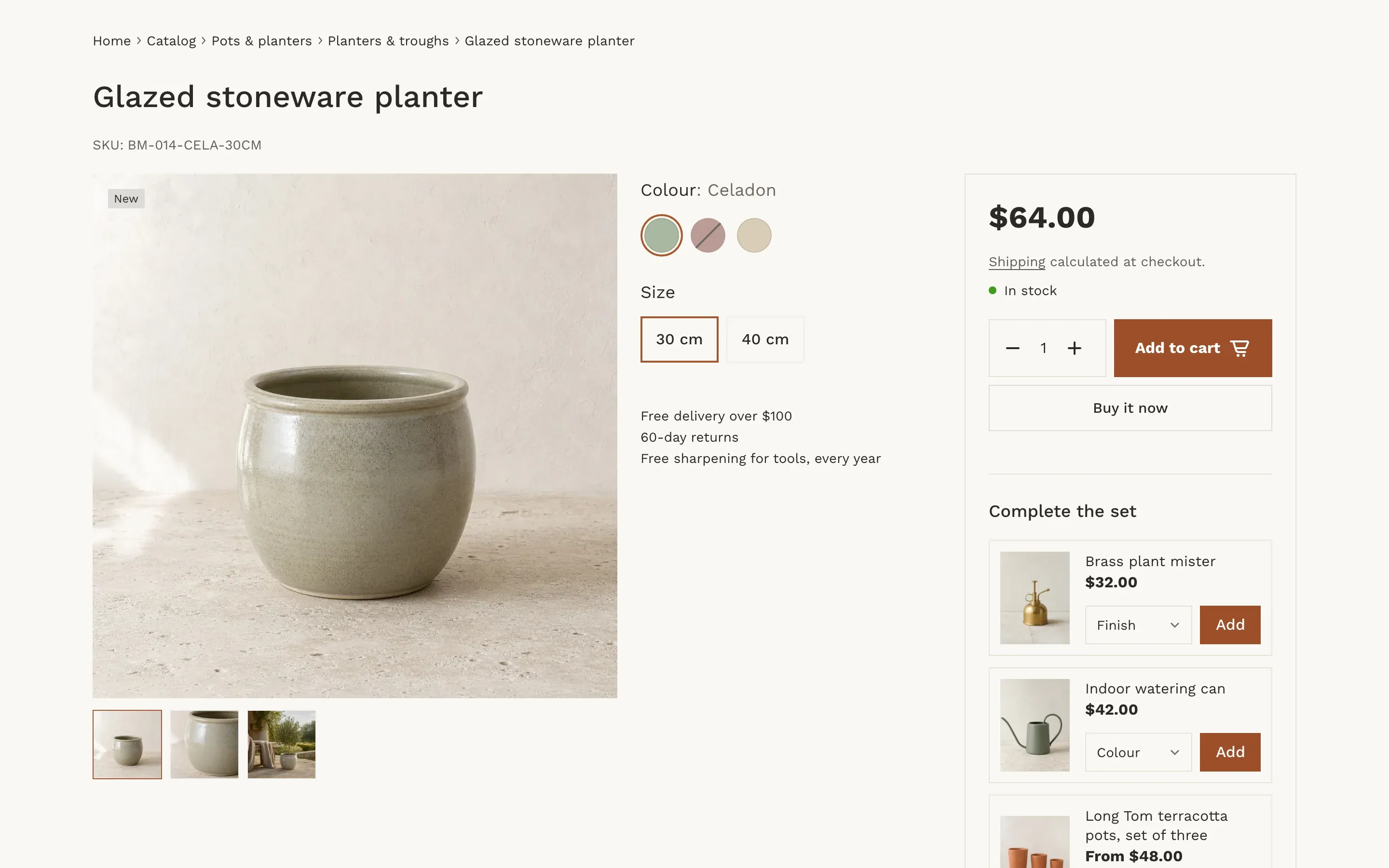
On screens up to 1024px wide, every layout becomes one column: the media turns into a swipeable row with dots, followed by the blocks.
- Customers click an image to open it in a full-screen viewer. Videos play in place, and 3D models get a View in your space button on devices that support augmented reality.
- Zoom image on hover magnifies the main image under the pointer in the Classic and Showcase layouts. It is hidden in the Gallery layout and does nothing on touch screens.
- Show only the selected variant’s media shows only the images of the chosen variant. Shopify doesn’t link images to variants beyond one image per variant, so the theme uses the order of media in the product editor: each variant’s image starts a group, and the images after it up to the next variant image belong to that variant. Images placed before the first variant image are shown for every variant.
Variant selection
Section titled “Variant selection”Variant selection offers two ways to choose a variant:
- Option buttons: one row of buttons per option, such as Color or Size. Values that can’t be bought with the other chosen values are struck through but stay selectable.
- Table of variants: a table under the top part of the page, one row per variant with its option values, availability, price and its own Add to cart button. Customers can sort the table by any column. On screens up to 1024px wide, the rows become cards. The table shows up to 50 variants and needs the Variant picker block. Products without variants have nothing to choose, so the page keeps the usual layout.
How option buttons look:
- An option where every value has a swatch shows round swatches, with the chosen value next to the option name. Set swatch colors or images for option values in the product editor. See Color swatches.
- With Show variant images on option buttons turned on in the Variant picker block, an option where every value has its own variant image shows small images instead of names. Info in the editor: “Used for options where every value has its own variant image.” When two values share the same image, names are shown.
- Other options show buttons with the value names.
When a customer picks a variant, the price, stock status, SKU, images and buttons update, and the page address changes so the link opens the same variant.
Purchase blocks
Section titled “Purchase blocks”The blocks in the purchase column are what customers use to buy. Add, remove and reorder them under Product in the left sidebar.
- Title, Vendor, Rating, SKU and Inventory status have fixed places in the Classic and Showcase layouts (see the table above). In the Gallery layout they follow the block order.
- Rating shows the average rating and the number of reviews saved by a product reviews app. Without such an app, nothing is shown. See Ratings and reviews.
- Inventory status shows In stock, Low stock (fewer than five items left of a variant whose stock Shopify tracks and that can’t be sold when out of stock) or Sold out.
- Price shows the price with the compare-at price and unit price, and can add the Shop Pay Installments banner, a tax and shipping note with a link to your shipping policy, and the Found it cheaper? link.
- Buy buttons holds the quantity field, Add to cart, purchase options for subscriptions, the gift card recipient form and the dynamic checkout buttons.
- Pickup summary shows one line, such as “In stock at 2 stores”, for the selected variant. When the Pickup availability block is also on the page, the line links to the full list of locations. The block shows nothing when no location offers local pickup. See Product page blocks.
- Text adds a short text next to the purchase buttons, such as delivery terms. Info in the editor: “Short text next to the purchase buttons. Connect a metafield to show different text for each product.”
- Custom Liquid adds Liquid code, such as an app snippet, to the purchase column.
Complete the look and app blocks also go into the purchase column. They are described on Product page blocks.
“Found it cheaper?” form
Section titled ““Found it cheaper?” form”When Show “Found it cheaper?” form is on in the Price block, a Found it cheaper? link appears under the price. It opens a form where the customer enters their name, phone number, email and a link to the same product in another store, and clicks Send.
The request is sent like any contact form, to your store’s contact email. It includes the customer’s details, the link they entered, the product name with the selected variant and the product page address. Info in the editor: “Customers send a link to the same product in another store. Requests arrive at the store email.”
To change the email address that receives the requests, see Forms and messages.
Dynamic checkout and gift cards
Section titled “Dynamic checkout and gift cards”Show dynamic checkout buttons in the Buy buttons block adds a Buy it now button, or an accelerated checkout button such as Shop Pay or PayPal, under Add to cart. Which buttons appear depends on the payment methods in your Shopify admin. Info in the editor: “Customers can buy straight away with an accelerated checkout.” See Dynamic checkout buttons in the Shopify Help Center.
On a gift card product, Show gift card recipient form lets customers send the gift card to someone by email with a personal message. Gift cards with this form don’t show dynamic checkout buttons or the sticky add to cart bar, because those would skip the recipient fields.
Sticky add to cart bar
Section titled “Sticky add to cart bar”With Show sticky add to cart bar on in the Buy buttons block, a bar slides in at the top of the window once the main Add to cart button scrolls out of view. It shows the product image, the title with the selected variant, the price and an Add to cart button. It hides again when the main button comes back into view. On screens up to 768px wide, the button shows only the cart icon.

Product information and related products
Section titled “Product information and related products”The information blocks (Description, Specifications, Pickup availability and Custom content) are shown under the top part of the page. Product information sets how:
- Sections with contents: all blocks one after another under the heading “About the product”, with a list of links on the left that jumps to each block.
- Tabs: one tab per block.
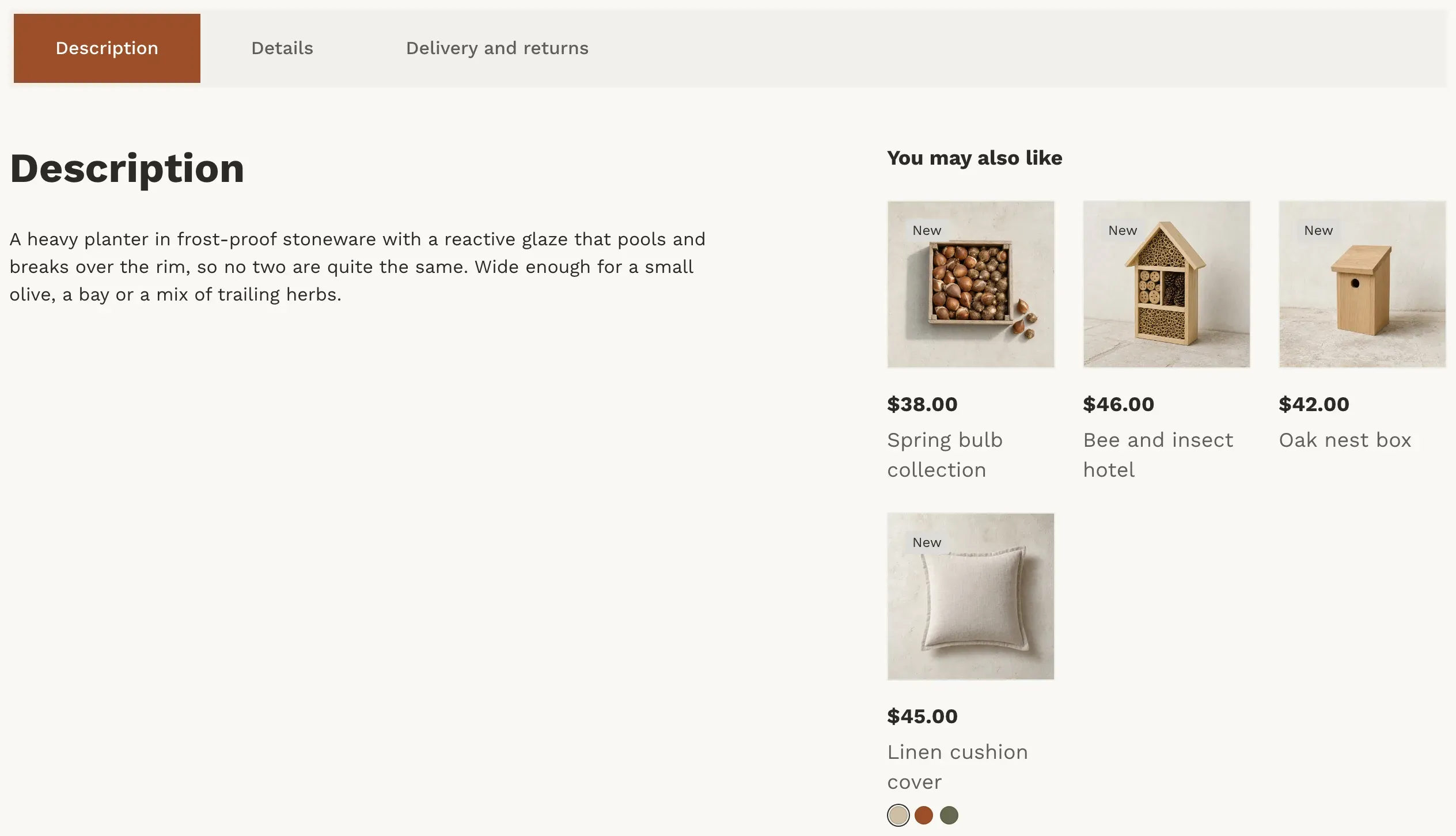
In the Classic layout with Sections with contents and option buttons, the information goes under the media and related products under the purchase column.
Show related products adds product cards next to the product information. Shopify picks them automatically. You can set them for each product with the Search & Discovery app. Info in the editor: “Products are picked by Shopify Search & Discovery.” When Shopify has no related products, the block stays hidden.
To set up the information blocks, see Product page blocks.
Settings reference
Section titled “Settings reference”Product section:
| Setting | What it does | Default |
|---|---|---|
| Layout | Options: Classic: media and purchase column, Showcase: three columns with purchase box, Gallery: media grid and sticky column. | Classic: media and purchase column |
| Media size | Shown with the Classic layout. Options: Smaller media, more text, Larger media, less text. | Smaller media, more text |
| Product information | How the information blocks are shown. Options: Sections with contents, Tabs. | Sections with contents |
| Variant selection | Options: Option buttons, Table of variants. | Option buttons |
| Show only the selected variant’s media | Info in the editor: “Media are grouped starting from each variant’s image. Media before the first variant image are shown for all variants.” | On |
| Zoom image on hover | Magnifies the main image under the pointer. Hidden with the Gallery layout. | On |
| Show related products | Info in the editor: “Products are picked by Shopify Search & Discovery.” | On |
| Heading | Heading above related products. Shown when related products are on. | Similar products |
| Maximum products to show | Number of related products, from 2 to 10. Shown when related products are on. | 4 |
| Color scheme | Colors of the section. See Section basics. | Scheme 1 |
Price block:
| Setting | What it does | Default |
|---|---|---|
| Show Shop Pay Installments | Info in the editor: “Shown when Shop Pay Installments is available in your store.” | On |
| Show tax and shipping note | Shows “Tax included.” when prices include tax, and “Shipping calculated at checkout.” with a link to your shipping policy. | On |
| Show “Found it cheaper?” form | Info in the editor: “Customers send a link to the same product in another store. Requests arrive at the store email.” | On |
Variant picker block:
| Setting | What it does | Default |
|---|---|---|
| Show variant images on option buttons | Info in the editor: “Used for options where every value has its own variant image.” | On |
Buy buttons block:
| Setting | What it does | Default |
|---|---|---|
| Show dynamic checkout buttons | Info in the editor: “Customers can buy straight away with an accelerated checkout.” | On |
| Show gift card recipient form | Info in the editor: “Customers can email a gift card to someone with a personal message. Gift cards with this form don’t show dynamic checkout buttons.” | On |
| Show sticky add to cart bar | Shows the bar with the price and Add to cart at the top of the window after the main button scrolls away. | On |
Text block:
| Setting | What it does | Default |
|---|---|---|
| Text | Info in the editor: “Short text next to the purchase buttons. Connect a metafield to show different text for each product.” | Empty |
Custom Liquid block:
| Setting | What it does | Default |
|---|---|---|
| Liquid code | Info in the editor: “Add app snippets or other Liquid code to create advanced customizations” | Empty |
Blocks without settings:
| Block | What it shows |
|---|---|
| Title | The product title. |
| Vendor | Info in the editor: “Links to all products of the vendor. In the classic layout it’s shown as a card at the end of the purchase column.” |
| Rating | Info in the editor: “Shows the rating saved by a product reviews app.” |
| Inventory status | Info in the editor: “In the classic layout the status is shown on the product media.” |
| SKU | The SKU of the selected variant. Hidden when the variant has no SKU. |
| Pickup summary | Info in the editor: “Shows where the selected variant can be picked up. Add the “Pickup availability” block for the full list of locations.” |
Title, Vendor, Rating, Price, Inventory status, SKU, Variant picker, Buy buttons, Pickup summary and Complete the look can each be added once.
Why don’t I see the “Found it cheaper?” link?
Section titled “Why don’t I see the “Found it cheaper?” link?”Check that the Price block is on the page and Show “Found it cheaper?” form is turned on in it.
Why doesn’t the table of variants appear?
Section titled “Why doesn’t the table of variants appear?”The table needs a product with variants and the Variant picker block on the page.
Why does the page show all images when a customer picks a variant?
Section titled “Why does the page show all images when a customer picks a variant?”Show only the selected variant’s media works when each variant has its own image in the product editor. If no variant has an image, or the selected variant has none, all media are shown.