Content pages
Content pages hold the text you write in your Shopify admin, such as About us, Shipping, Returns or Contact. Alpha Start shows the page title and text, and can add a cover image, a menu of related pages, a Google map and a contact form, so customers find the information they need and get in touch.
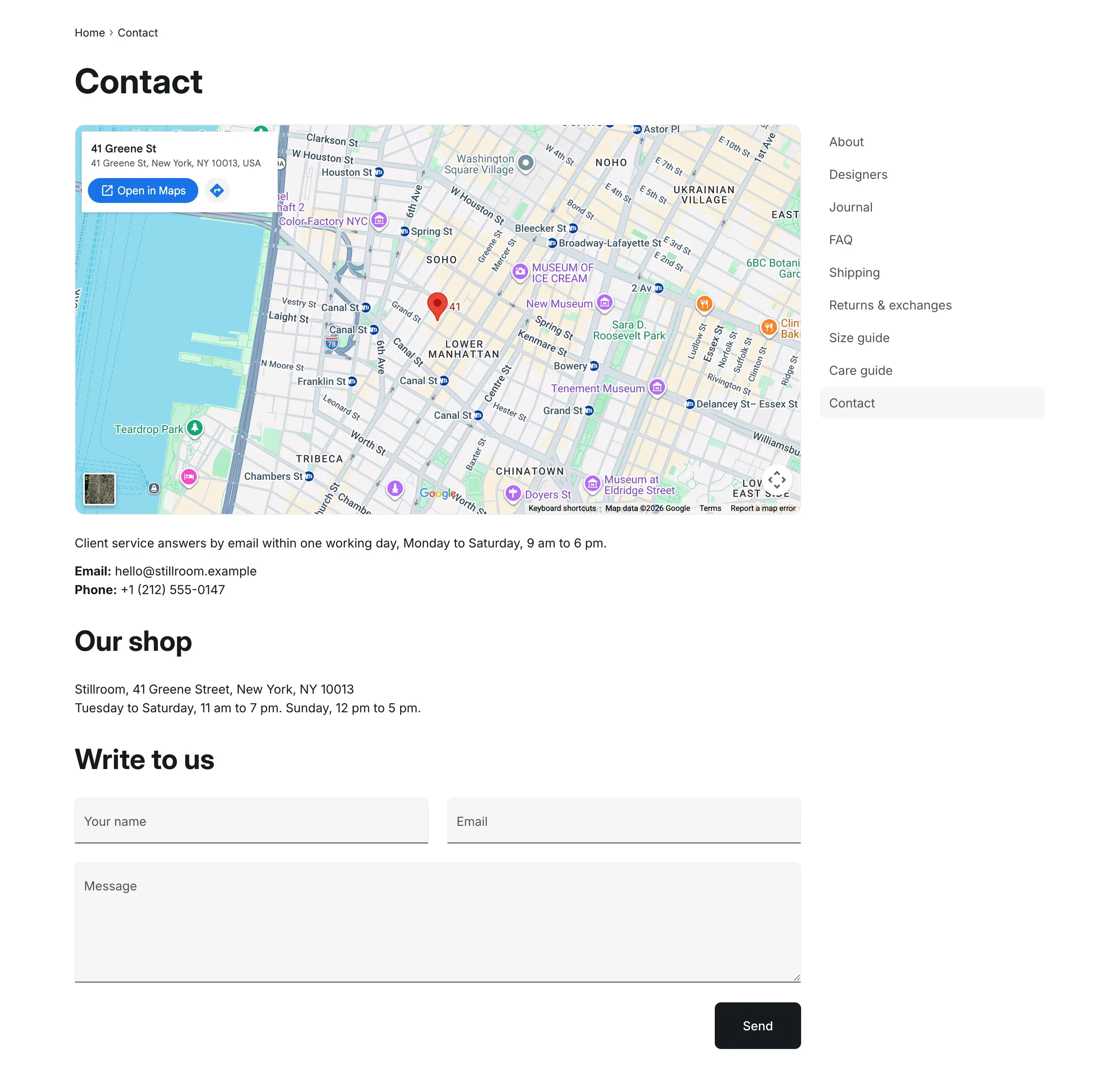
Where to find it: Theme editor → page selector at the top → Pages → Default page → Page.
You write the page text in your Shopify admin under Online Store → Pages. See Shopify Help Center: Pages.
Ready-made templates
Section titled “Ready-made templates”Alpha Start includes three page templates. Each one has the Page section with different blocks and settings:
| Template | What it shows |
|---|---|
| Default page | The page text in the Plain layout. Used by every page unless you choose another template. |
about |
The page text in the Card layout. Add a cover Image to the section to finish it. |
contact |
A Map, the page text and a Contact form with the heading “Feedback”. |
You can add other sections under the Page section in each template, for example a video or advantages on the About page.
Assign a template to a page
Section titled “Assign a template to a page”- In your Shopify admin, open Online Store → Pages and open the page.
- In Theme template, choose the template, for example
contact. - Click Save.
To edit the template, open it in the theme editor from the page selector: Pages → contact. Changes apply to every page that uses the template. To make a new template, for example for a page with its own cover image, see Alternate templates.
Choose a layout
Section titled “Choose a layout”| Layout | What it looks like |
|---|---|
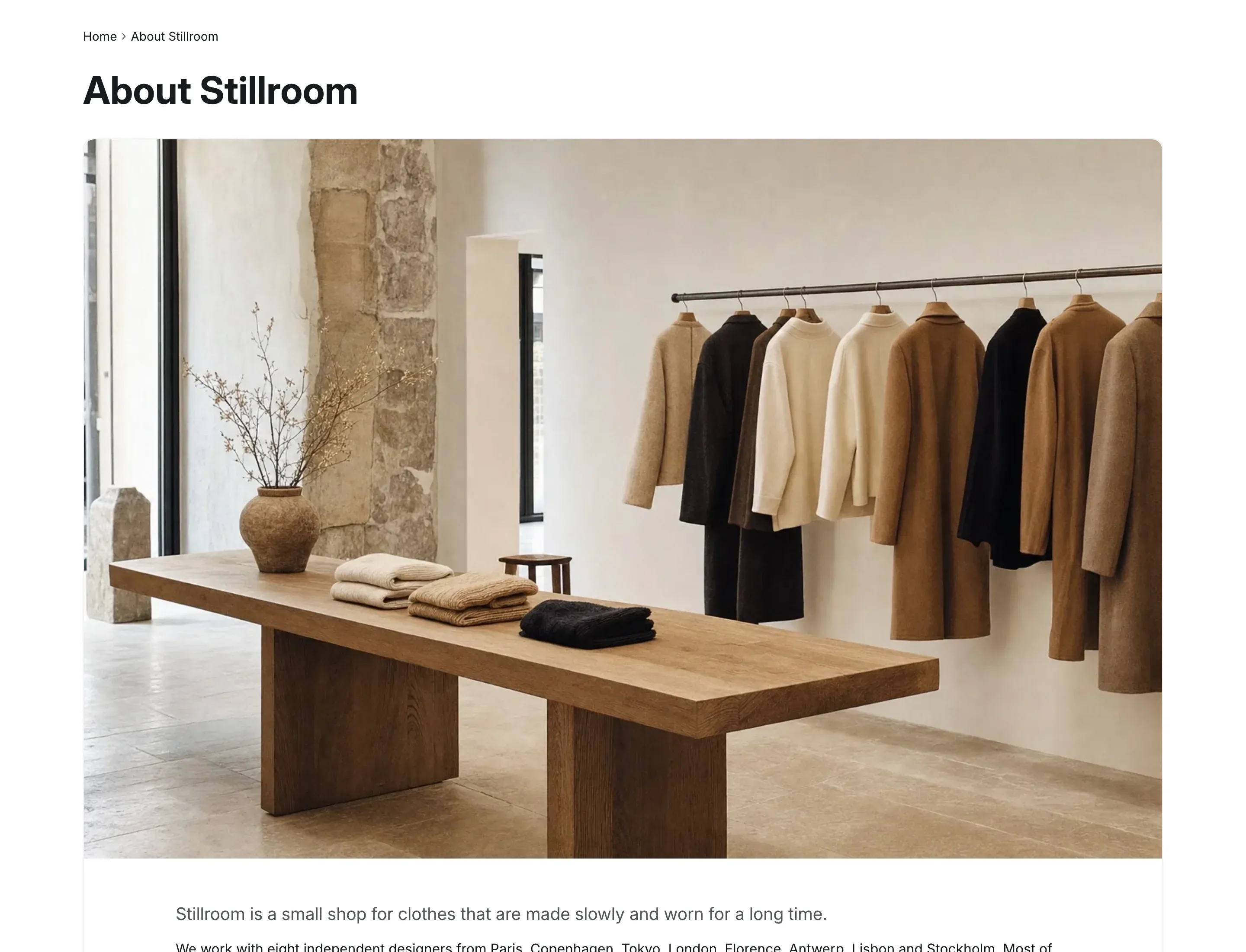
| Plain | The text runs across the full width. A cover image sits above it with rounded corners. |
| Card | The text is in a bordered card, and the cover image fills the top of the card from edge to edge. |
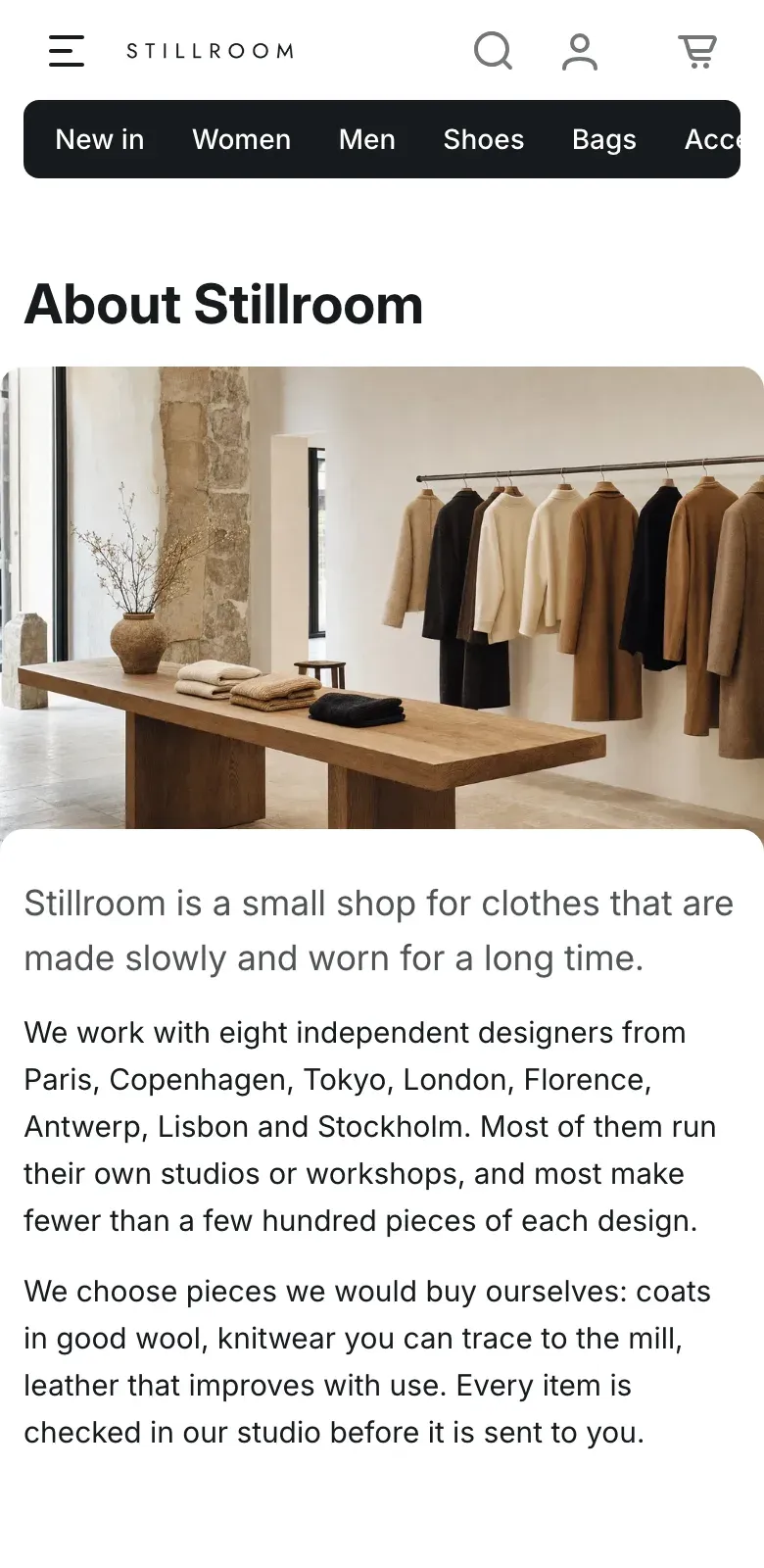
On screens up to 1024px wide, the card loses its border, the cover image spans the full screen width and the text starts on a panel with rounded top corners that overlaps the image. The breadcrumbs are hidden on these screens.
Add a cover image
Section titled “Add a cover image”Choose an Image in the Page section. The image keeps its proportions and is shown above the page text. Use an image at least 1600px wide; up to 2400px keeps it sharp on large screens.
Info in the editor: “Shown above the content. To give a page its own image, create a template for it in the theme editor.”
Add a side menu
Section titled “Add a side menu”Choose a Menu in the Page section to show links to related pages next to the text, for example a menu with About us, Shipping, Returns and Contact. The current page is highlighted. On screens up to 1024px wide, the menu moves under the text.
Info in the editor: “Shown next to the content, with the current page highlighted.”
You create menus in your Shopify admin under Content → Menus.
Blocks
Section titled “Blocks”Blocks of the Page section are stacked in the order you set in the left sidebar. When the section has no blocks, the page text is shown on its own.
| Block | What it shows |
|---|---|
| Page content | The text of the page from your Shopify admin. Use it to place the text before or after the other blocks. |
| Map | A Google map of an address. |
| Contact form | A form with name, email and message fields. |
| Custom Liquid | Your own Liquid or HTML code, such as an embed. |
| Apps | Blocks from apps you’ve installed. See Apps. |
The Map block shows a Google map with a pin at the address. Enter the address in Address, or leave it empty to use the Address from Theme settings → Contact information. Each line of the address becomes part of one search, so write it as you would in Google Maps.
Info in the editor: “Leave empty to use the store address from Theme settings > Contacts.”
If neither address is filled in, the theme editor shows a hint in place of the map, and customers see nothing.
Contact form
Section titled “Contact form”The Contact form block has an optional Heading and three fields: Your name, Email and Message. Email and message are required. After customers click Send, they see “Thanks for contacting us. We’ll get back to you as soon as possible.” and the message arrives at your store email. On phones, the fields are stacked in one column.
You can add several contact forms to a page; the confirmation appears only under the form that was sent. See Forms and messages.
Settings reference
Section titled “Settings reference”Page section:
| Setting | What it does | Default |
|---|---|---|
| Layout | Options: Plain, Card. | Plain |
| Image | Cover image above the text. Info in the editor: “Shown above the content. To give a page its own image, create a template for it in the theme editor.” | Empty |
| Menu | Info in the editor: “Shown next to the content, with the current page highlighted.” | Empty |
| Color scheme | Colors of the section. See Color scheme. | Scheme 1 |
The Page content block has no settings.
Map block:
| Setting | What it does | Default |
|---|---|---|
| Address | Address to show on the map. Info in the editor: “Leave empty to use the store address from Theme settings > Contacts.” | Empty |
| Zoom | Map zoom, from 1 (the whole world) to 20 (a building). | 10 |
| Height | Height of the map, from 200 to 800px. | 500px |
Contact form block:
| Setting | What it does | Default |
|---|---|---|
| Heading | Heading above the form. | Feedback |
Custom Liquid block:
| Setting | What it does | Default |
|---|---|---|
| Liquid code | Info in the editor: “Add app snippets or other Liquid code to create advanced customizations” | Empty |
Why doesn’t the map show on my contact page?
Section titled “Why doesn’t the map show on my contact page?”Fill in Address in the Map block or Address in Theme settings → Contact information. Without an address the map is hidden.
Why is the page text missing after I added a block?
Section titled “Why is the page text missing after I added a block?”When the section has blocks, the text is shown by the Page content block. Add it and drag it to the right place.
Can each page have its own cover image?
Section titled “Can each page have its own cover image?”The image belongs to the template, so every page with the same template shares it. Create a template for the page and choose the image there. See Alternate templates.