Promotions
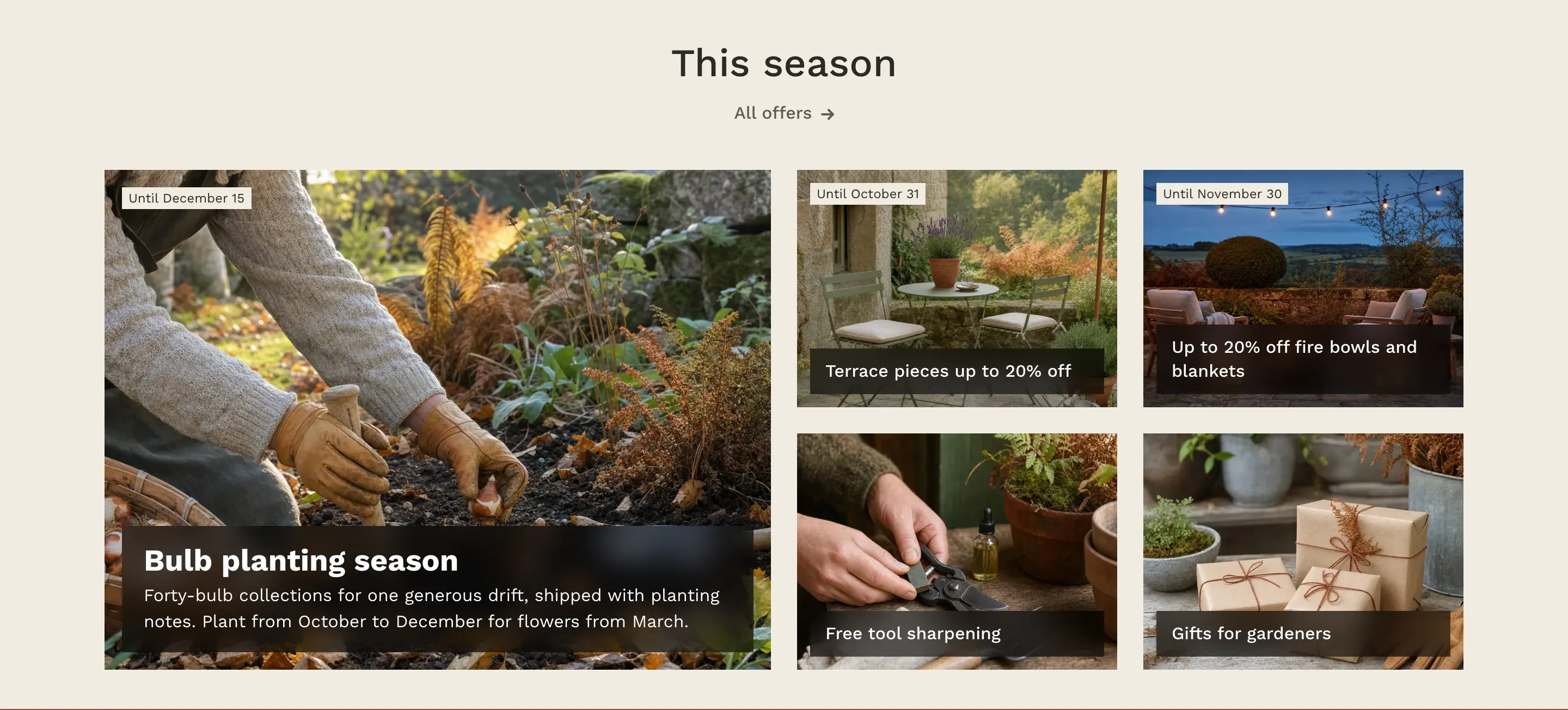
Promotions shows your current offers as image cards: a large featured promotion and up to four more. Each card can show when the offer ends, counts down the last three days and disappears from the store by itself once the offer is over.
Where to find it: Theme editor → page → Add section → Promotions
Set up the section
Section titled “Set up the section”- In the theme editor, click Add section and choose Promotions. The section comes with a featured promotion and four more promotion blocks.
- Click the first Promotion block under the section. This is the featured promotion: it is always first and can’t be removed or moved.
- Upload an Image, enter a Title and a Description, choose a Link and, if the offer has one, an End date.
- Fill in the other Promotion blocks the same way. Remove the ones you don’t need, or click Add block to add one back. Besides the featured promotion, a section holds up to four promotions.
- Choose a Layout.
- Click Save.
Layouts
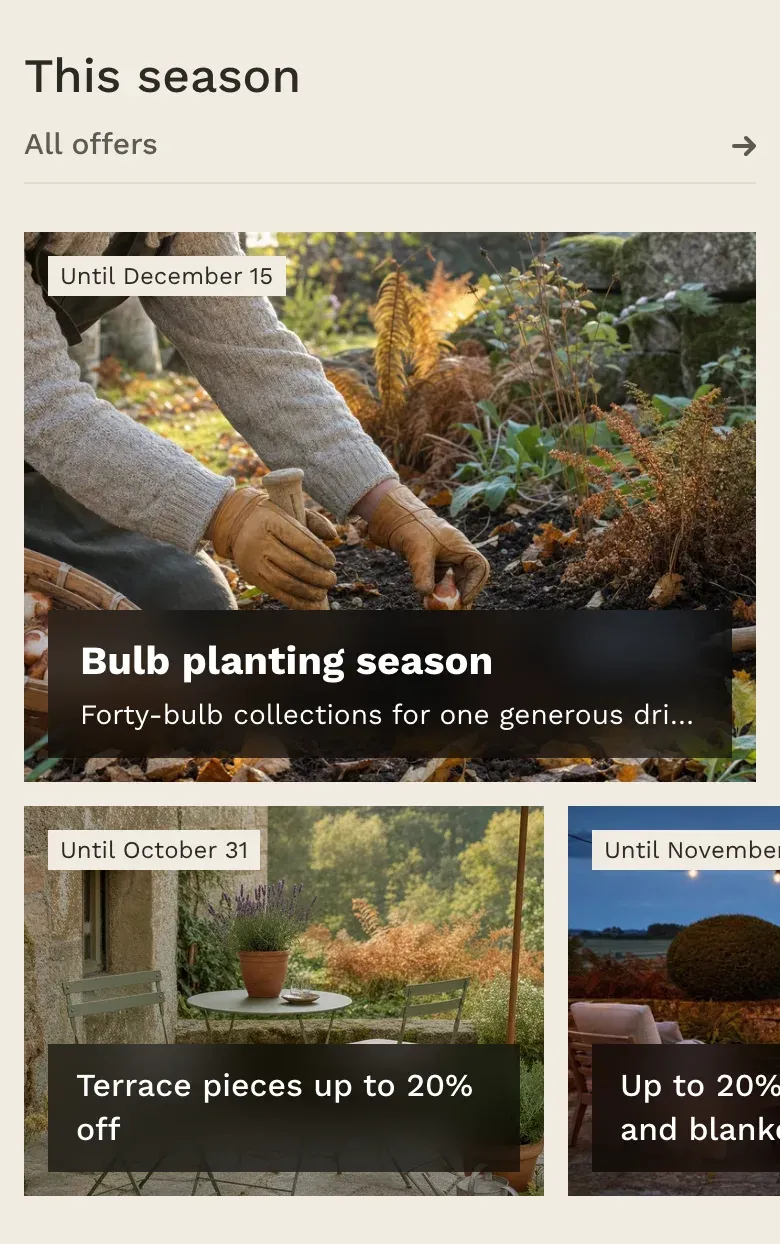
Section titled “Layouts”Grid shows the featured promotion as a large card on the left half and the other promotions on the right, two to a row. One other promotion fills the whole right half; with three, the last one takes the full width of the right half. When there are no other promotions, the featured card spans the whole width. The title sits on a dark translucent panel over the image, and the description is shown only on the featured card. On screens up to 768px wide, the featured card takes the full width and the other cards scroll sideways below it. On phones, the featured description is cut to one line.
Carousel shows all promotions, the featured one included, as equal cards, four in a row, with arrow buttons to scroll to the rest. Each card shows the image, the end date line, the title and the description. The heading is aligned left. On screens up to 1024px wide, customers swipe the cards sideways.
End dates
Section titled “End dates”Enter the End date as YYYY-MM-DD, for example 2026-12-31. The promotion runs through the whole of that day.
| When | What the card shows |
|---|---|
| No end date | Nothing in the grid layout. Ongoing promotion in the carousel layout. |
| More than three days before the end | Until and the date, for example Until December 31. |
| The last three days | A badge with the days left, for example 2 days left, in the sale badge color from Theme settings → Colors → Product badges. |
| After the end date | The card is hidden from the store. In the theme editor, it stays visible with an Ended label, so you can update or remove it. |
In the grid layout, the date label sits in the top-left corner of the image. In the carousel layout, it is shown on a line between the image and the title.
Images
Section titled “Images”Images are cropped to 4:3 in every layout except a featured card on its own in the grid, which is a wide 3:1 strip. Images 1300 × 975px or larger work best. Keep the main subject away from the bottom edge, where the title panel sits in the grid layout. If you set a focal point on the image in Shopify, the crop keeps it in view.
Settings reference
Section titled “Settings reference”| Setting | What it does | Default |
|---|---|---|
| Heading | Heading above the cards. Supports bold, italic and links. | Promotions |
| Link label | Text of the link under the heading. See Section basics. | All promotions |
| Link | Page the link opens. The link is shown when both the label and the link are set. | /collections/all |
| Layout | Options: Grid, Carousel. Info in the editor: “The grid shows the featured promotion large next to up to four more” | Grid |
| Color scheme | Colors of the section. See Section basics. | Scheme 1 |
Promotion block:
| Setting | What it does | Default |
|---|---|---|
| Image | Info in the editor: “Shown with a 4:3 crop. 1300 × 975px or larger works best.” | Empty |
| Title | Title of the promotion. | Promotion |
| Description | Info in the editor: “Shown on the featured promotion in the grid layout and on every card in the carousel layout” | Empty |
| Link | Page the card opens. Without a link, the card is not clickable. | Empty |
| End date | Info in the editor: “Format: YYYY-MM-DD. The card is hidden after this day and shows how many days are left during the last three. Leave empty for an ongoing promotion.” | Empty |
Related pages
Section titled “Related pages”- Colors: the sale badge color used for the days-left badge.
- Collection with products: a promotion collection next to its products.