Featured product
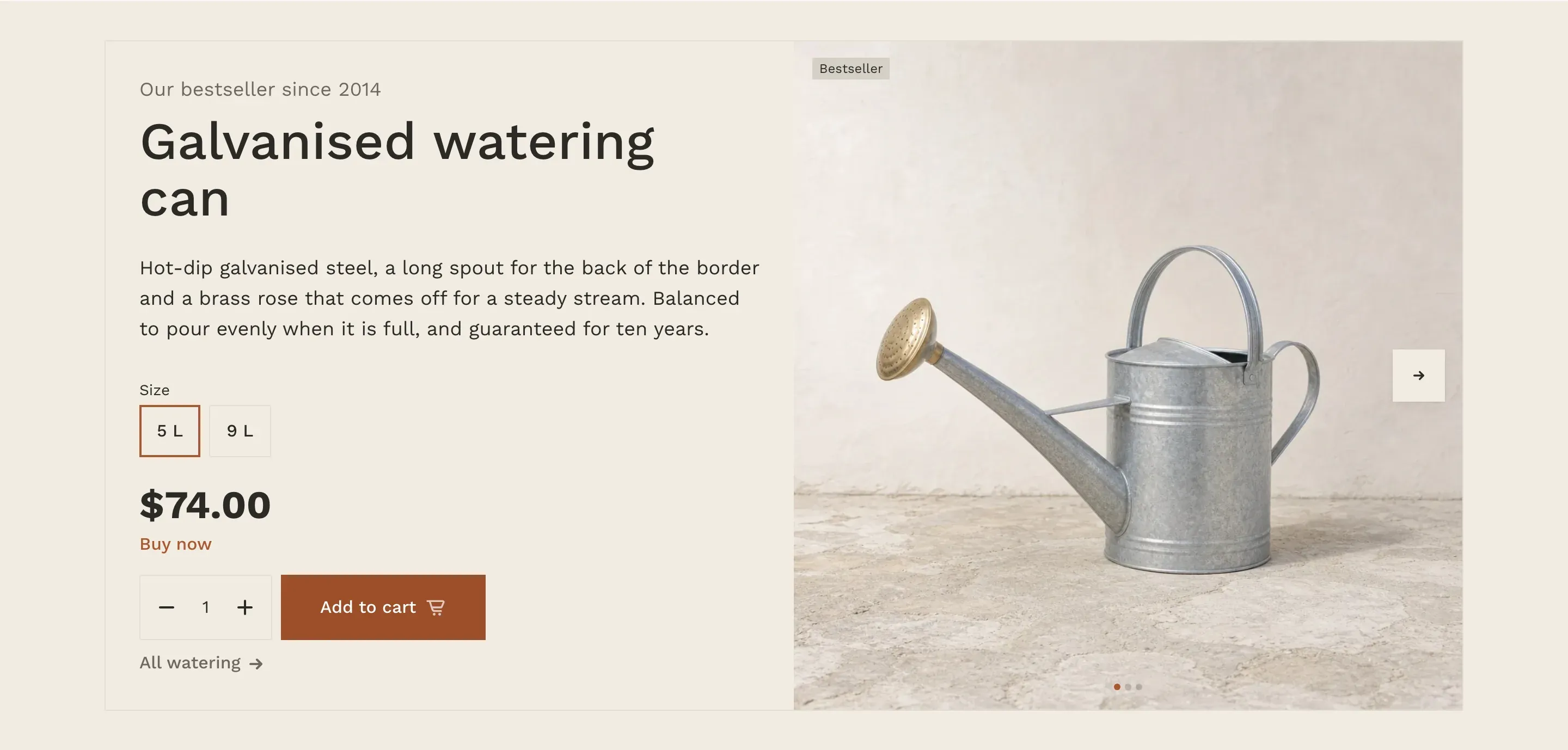
Featured product puts one product in a large card: its details and buy buttons on the left and its photos and videos on the right. Customers can choose options, add the product to the cart or go straight to checkout without opening the product page.
Where to find it: Theme editor → page → Add section → Featured product
Set up the section
Section titled “Set up the section”- In the theme editor, click Add section and choose Featured product.
- Choose a Product.
- Optional: add a Subheading, for example “Our bestseller”, and a Text. Without text, the start of the product description is shown.
- Optional: add a Link label and a Link for a link at the bottom of the card, for example to the product’s collection.
- Click Save.
What the card shows
Section titled “What the card shows”From top to bottom, the details side shows:
- the Subheading, in secondary text at the top of the card;
- the product title, linked to the product page;
- the Text, or the first 30 words of the product description when the text is empty;
- option buttons for products with variants, such as size or color. Options with swatch colors set in Shopify show round swatches. See Color swatches;
- the price, with the compare-at price and the discount when the product is on sale;
- app blocks and Custom Liquid blocks, if you added them;
- a Buy now button, when Show “Buy now” button is on;
- a quantity selector and an Add to cart button;
- the link from Link label and Link.
Add to cart adds the product without leaving the page and shows Added to cart for a moment. Buy now adds the chosen variant and quantity to the cart and opens checkout. For a sold-out variant, both buttons are disabled and the add button reads Sold out. When Shopify tracks the variant’s stock and doesn’t allow overselling, the quantity can’t go above the stock.
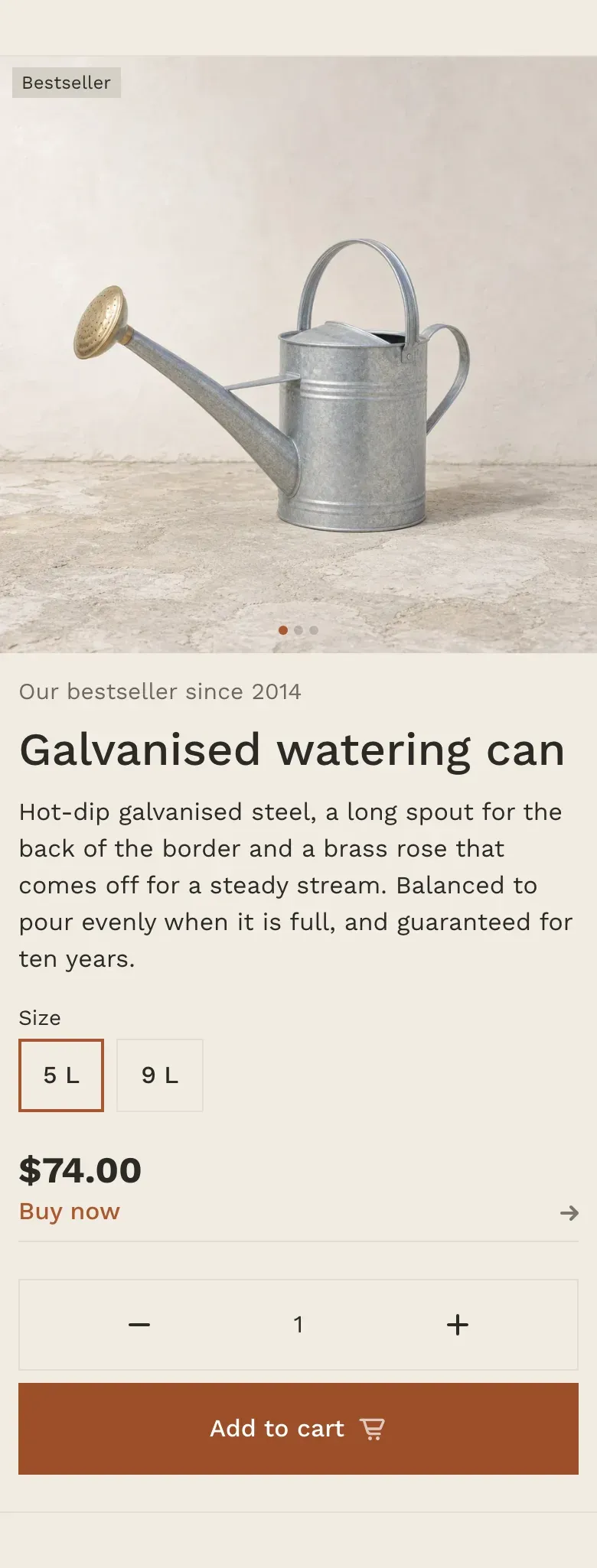
The media side is a slider of all product media: images, videos, YouTube and Vimeo videos and 3D models. Customers switch media with the arrow buttons, the dots or by swiping, and clicking an image opens it full screen. On desktop, the media area is square and images fill it, so square product photos work best. When a customer chooses a variant that has its own image, the slider moves to that image. For 3D models, a View in your space button opens the model in augmented reality on devices that support it.
Image labels from label: product tags, the stock status and the rating appear over the media, and the gray background and padding around images follow Theme settings → Product cards. See Product cards.
On screens up to 1024px wide, the media move above the details and show the whole image without cropping, and the link at the bottom of the card is hidden.
Add app blocks
Section titled “Add app blocks”Apps such as product reviews, loyalty points or wishlists can add blocks to this section. They appear under the price, above the buy buttons.
- Under Featured product in the left sidebar, click Add block.
- Choose a block from an installed app, or Custom Liquid to paste a code snippet an app gave you.
- Click Save.
See Apps for how apps work with the theme.
Settings reference
Section titled “Settings reference”| Setting | What it does | Default |
|---|---|---|
| Product | Product shown in the section. | Empty |
| Subheading | Short text at the top of the card. | Empty |
| Text | Text under the product title. Info in the editor: “Leave empty to show the start of the product description” | Empty |
| Show “Buy now” button | Info in the editor: “Takes the customer straight to checkout with the chosen quantity” | On |
| Link label | Text of the link at the bottom of the card. Shown on screens wider than 1024px. | Empty |
| Link | Page the link opens. The link is shown when both the label and the link are set. | Empty |
| Color scheme | Colors of the section. See Section basics. | Scheme 1 |
Custom Liquid block:
| Setting | What it does | Default |
|---|---|---|
| Liquid code | Info in the editor: “Add app snippets or other Liquid code to create advanced customizations” | Empty |
Related pages
Section titled “Related pages”- Product page: the full product page.
- Header: the Featured product header layout shows a product under the header on the home page.
- Apps