404, password and gift card pages
Three pages in Alpha Start appear outside the regular shopping path: the page customers see when a link is broken, the landing page of a store that isn’t open yet, and the page with a gift card. Each one works without any setup and can be adjusted to match your store.
404 page
Section titled “404 page”When customers open an address that doesn’t exist, for example an old or mistyped link, they see the Not found page. It keeps them in your store with a large heading, a short explanation, a button to the catalog and a link to the home page.
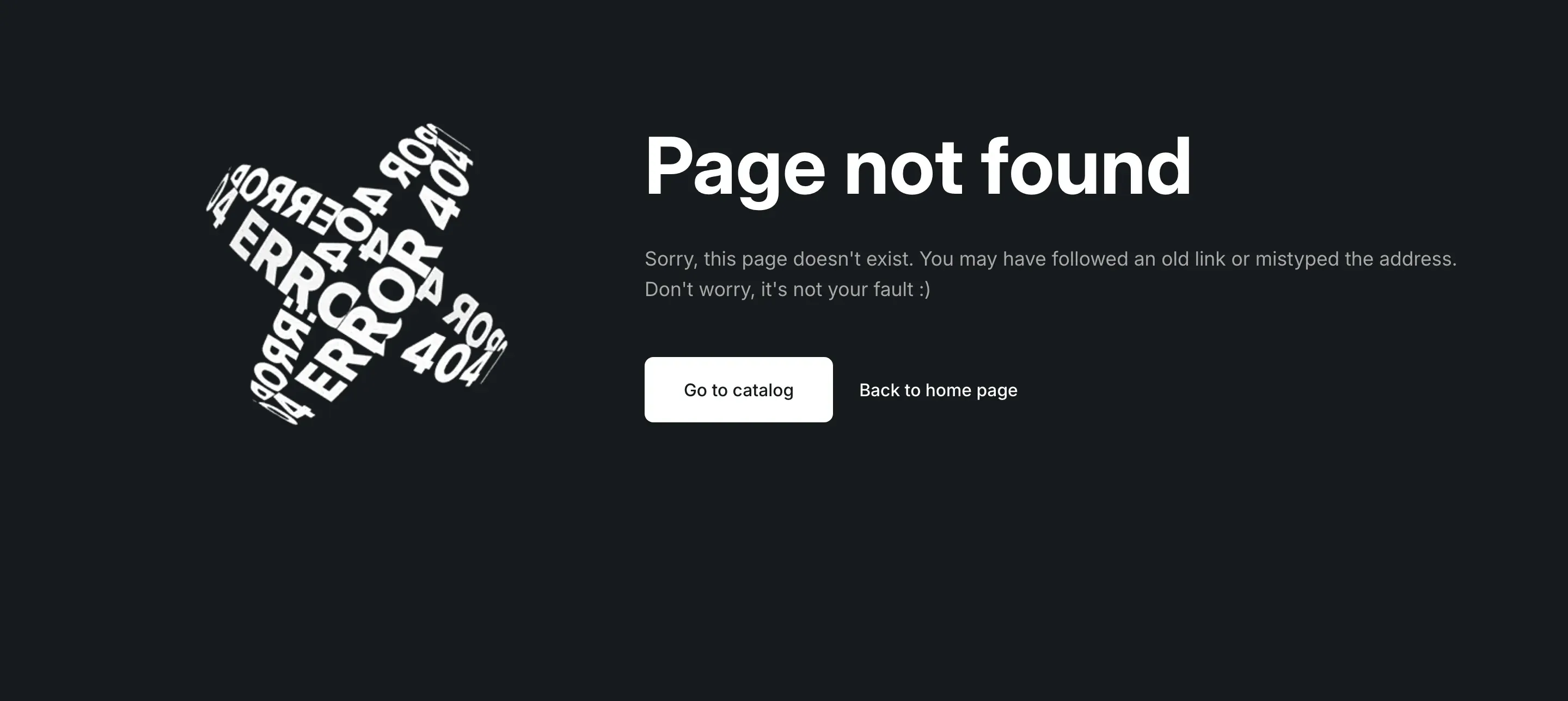
Where to find it: Theme editor → page selector at the top → 404 page → Not found.
The page works with no setup: empty fields use the default text of the theme, which is translated into every language of your store. Fill in a field only when you want your own wording.
- Image: without an image of your own, the page shows a built-in animation. It blends into the background on both dark and light color schemes, and customers who turned on reduced motion in their device settings see a still frame. Your own image works best at 940 × 780px.
- Primary button: Go to catalog by default, linked to the page with all your collections.
- Text link: Back to home page by default, linked to the home page.
On screens up to 991px wide, the image, the text and the button stack in one column, and the button takes the full width.
You can add more sections to the 404 page under Not found, for example a Featured collection with your bestsellers.
Settings reference
Section titled “Settings reference”| Setting | What it does | Default |
|---|---|---|
| Image | Info in the editor: “Leave empty to show the built-in animation. Recommended size: 940 × 780 px.” | Empty |
| Show image | Shows the image or the animation. | On |
| Heading | Large heading. Empty shows “Page not found”. | Empty |
| Text | Text under the heading. Empty shows “Sorry, this page doesn’t exist. You may have followed an old link or mistyped the address. Don’t worry, it’s not your fault :)”. | Empty |
| Label | Label of the primary button. Empty shows “Go to catalog”. | Empty |
| Link | Info in the editor: “Leave empty to link to the collections page.” | Empty |
| Link label | Label of the text link. Empty shows “Back to home page”. | Empty |
| Link | Info in the editor: “Leave empty to link to the home page.” | Empty |
| Color scheme | Colors of the section. See Color scheme. | Scheme 5 |
Info in the editor, above the content fields: “Leave the fields empty to use the default text from the theme translations.”
Password page
Section titled “Password page”While your store is protected with a password, visitors see the Password page instead of your store. It works as a launch page: it says that the store is opening soon, collects emails of people who want to know when it opens and lets people with the password in.
Where to find it: Theme editor → page selector at the top → Password → Password.
Password protection is turned on in your Shopify admin under Online Store → Preferences → Password protection. See Shopify Help Center: Password protection.
What the page shows
Section titled “What the page shows”Your logo is at the top left. Below it, the page is split in two:
- On the left: the Store closed for preparation status, a large heading (Opening soon by default), your message and a sign-up form under Get a note on opening day.
- On the right: a panel closed by a roller shutter with large text painted on it, for example your opening date. When customers click Enter with password, the shutter lifts and shows the password form with Enter the store and a Log in here link for the store owner. Esc or the close button lowers the shutter again. After a wrong password, the page reloads with the shutter up and the error shown.
At the top right, the page shows Questions before the launch: with your main phone and email. At the bottom, it shows your social media icons and the copyright line with the year and store name.
On screens up to 1024px wide, the panel moves under the text, and everything stacks in one column.
Sign-ups
Section titled “Sign-ups”Info in the editor: “Sign-ups appear in Customers with the prospect and password page tags.”
Visitors who leave their email are added to Customers in your Shopify admin with the tags prospect and password page. Under the form, the page says: “One email when the store opens. You can unsubscribe at any time.” Sending that email is up to you, for example with Shopify Email.
Settings reference
Section titled “Settings reference”| Setting | What it does | Default |
|---|---|---|
| Color scheme | Colors of the page. | Scheme 1 |
| Show store status | Shows Store closed for preparation above the heading. | On |
| Show contact information | Info in the editor: “Phone and email come from Theme settings → Contact information.” | On |
| Show social media icons | Info in the editor: “Links come from Theme settings → Social media” | On |
| Heading | Large heading. Empty shows “Opening soon”. | Empty |
| Text | Message under the heading. Info in the editor: “Leave empty to show the message from Online Store → Preferences.” | Empty |
| Show newsletter sign-up | Info in the editor: “Sign-ups appear in Customers with the prospect and password page tags.” | On |
| Heading | Heading of the sign-up form. Empty shows “Get a note on opening day”. Shown when Show newsletter sign-up is on. | Empty |
| Shutter text | Info in the editor: “Large text painted on the shutter, for example the opening date. Leave empty to show the store name.” | Empty |
| Color scheme | Colors of the password panel, under Password panel. | Scheme 5 |
Gift card page
Section titled “Gift card page”When you sell gift cards, Shopify emails each recipient a link to the gift card page. Alpha Start shows your logo and a card with:
- the title Your gift card for and your store name, and a gift card image;
- the Balance, and the initial value when part of the card has been used;
- Expires on with the date, or a red badge when the card has expired or is no longer active;
- the code with a Copy code button, to use at checkout;
- a QR code to pay in a store that uses Shopify POS;
- an Add to Apple Wallet button when the card can be added to Apple Wallet.
Under the card are Print gift card and Start shopping, which opens your store. The printed page keeps only the card details.
The page has no settings in the theme editor. It uses your logo and the colors and fonts from theme settings. To see it, issue a gift card to yourself in your Shopify admin under Products → Gift cards and open the link in the email. See Shopify Help Center: Gift cards.