Layout and corners
Two groups of theme settings control the overall shape of your store: Layout sets how wide the content is, and Corners sets how rounded the corners of cards, buttons and inputs are.
Change the page width
Section titled “Change the page width”- In the theme editor, open Theme settings → Layout.
- Choose a Page width.
- Adjust Page margin if you want more or less space between the content and the edge of the screen.
- Click Save.
Page width limits how wide the content area can get on large screens. On smaller screens the content fills the screen, keeping at least the Page margin on each side.
| Setting | What it does | Default |
|---|---|---|
| Page width | Maximum width of the page content. Options: Narrow (1360px), Normal (1488px), Wide (1600px). | Normal (1488px) |
| Page margin | Minimum space between the content and the left and right edges of the screen, from 10 to 100px. | 12px |
Change the corners
Section titled “Change the corners”- In the theme editor, open Theme settings → Corners.
- Adjust Corner radius for cards, images and menus.
- Adjust Button corner radius and Input corner radius separately.
- Click Save.
Corner radius sets the rounding of large elements, such as product cards and images. Smaller elements, such as badges and chips, get a proportionally smaller radius, so the store keeps a consistent look. Set it to 0 for a store with square corners everywhere: rounded pills and round icon buttons become square too.
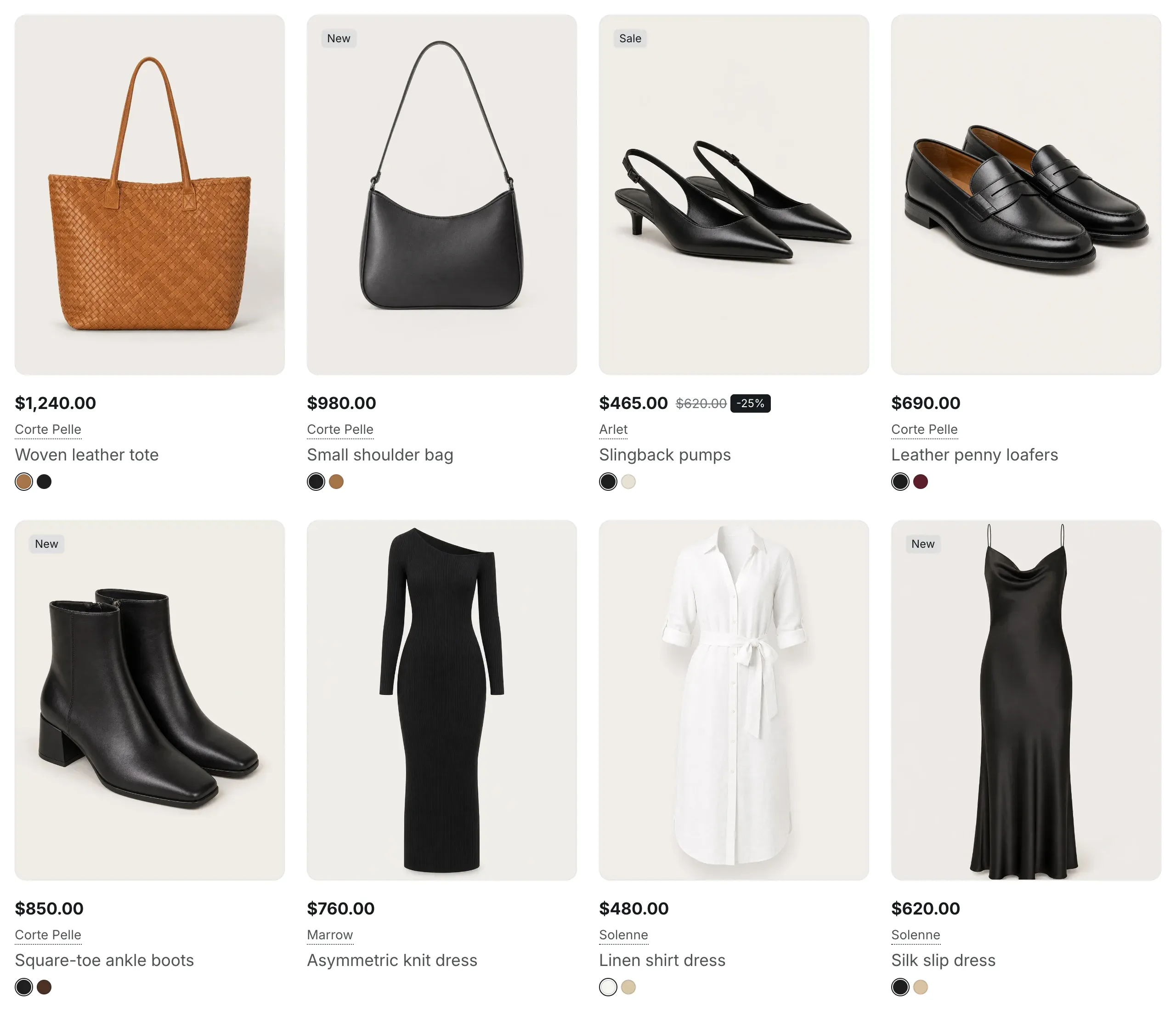
| Setting | What it does | Default |
|---|---|---|
| Corner radius | From 0 to 24px. Info in the editor: “Cards, images, menus, tabs, chips and badges. Set to 0 for square corners. Buttons and inputs have their own settings below.” | 12px |
| Button corner radius | Rounding of buttons, from 0 to 40px. | 8px |
| Input corner radius | Rounding of text fields, such as search and forms, from 0 to 20px. | 8px |