Search results page
The search results page shows everything that matches what a customer searched for. Products come first, in a grid or list with filters and sorting like on a collection page. Matching blog posts and pages follow below the products.
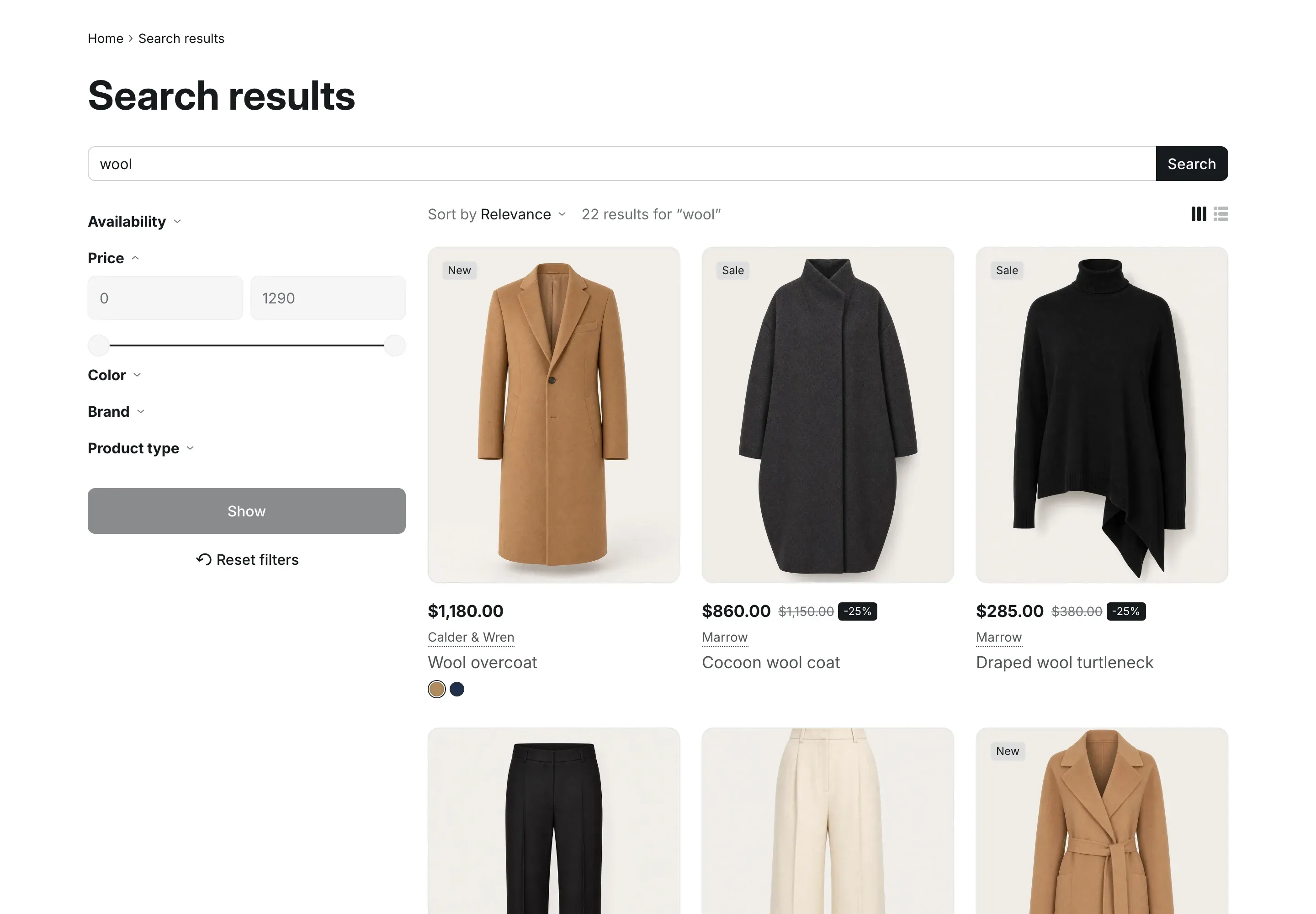
Where to find it: Theme editor → page selector at the top → Search → Search.
Search suggestions and the results page
Section titled “Search suggestions and the results page”Search in Alpha Start works in two steps:
- While a customer types in the header search field, suggestions appear under it: matching search terms, collections and products. This is set in Theme settings → Search. See Search, cart and back to top button.
- When the customer presses Enter or clicks All search results, the search results page opens with the full list.
The search field at the top of the results page lets customers search again. It doesn’t show suggestions.
Search products only in Theme settings → Search decides whether blog posts and pages appear in the results. When it is on, every search form in the store looks for products only. Info in the editor: “Whether search covers blog posts and pages is set in Theme settings > Search.”
What the page shows
Section titled “What the page shows”- The title Search results, or Search before the customer has searched, and the search field.
- The number of results, for example “22 results for “wool””.
- Products as product cards or rows, with filters, sorting and the grid and list switch. They work the same as on a collection page. See Collection page.
- Blog posts and pages as a list under the products, each with its type (Article or Page), title and the first words of its text. Blog posts also show their image.
- Page numbers, and a Show more button that adds the next page of results.
When nothing matches, the page shows “Sorry, nothing was found.” with a Go to catalog button. When products match the search but not the selected filters, it shows “No products match these filters” with a Reset filters button.
Filters on the search page
Section titled “Filters on the search page”Filters on the search page come from the Shopify Search & Discovery app, like on collection pages. See Filters.
The catalog menu, popular searches and collection description are not part of the search page.
App blocks
Section titled “App blocks”Apps that support theme app blocks can add their blocks under the results. Under Search in the left sidebar, click Add block → Apps. The Custom Liquid block adds your own Liquid code in the same place.
Settings reference
Section titled “Settings reference”Search section:
| Setting | What it does | Default |
|---|---|---|
| Products per page | From 8 to 48, in steps of 4. Blog posts and pages count toward this number. | 12 |
| Columns on desktop | Options: 2, 3, 4. | 3 |
| Columns on mobile | Options: 1, 2. | 2 |
| Default view | Options: Grid, List. | Grid |
| Show grid and list switch | Shows buttons that switch between grid and list. | On |
| Enable filtering | Info in the editor: “Customize filters with the Search & Discovery app.” | On |
| Filter layout | Options: Sidebar, Above products. | Sidebar |
| Enable sorting | Shows the Sort by menu. | On |
| Show “Show more” button | Shows the button that adds the next page of results. | On |
| Color scheme | Colors of the section. See Section basics. | Scheme 1 |
Custom Liquid block:
| Setting | What it does | Default |
|---|---|---|
| Liquid code | Info in the editor: “Add app snippets or other Liquid code to create advanced customizations” | Empty |