Product tabs
Product tabs shows products from several collections in one place. Customers switch between collections with a row of tabs, for example Bestsellers, New arrivals and Sale, without leaving the page.
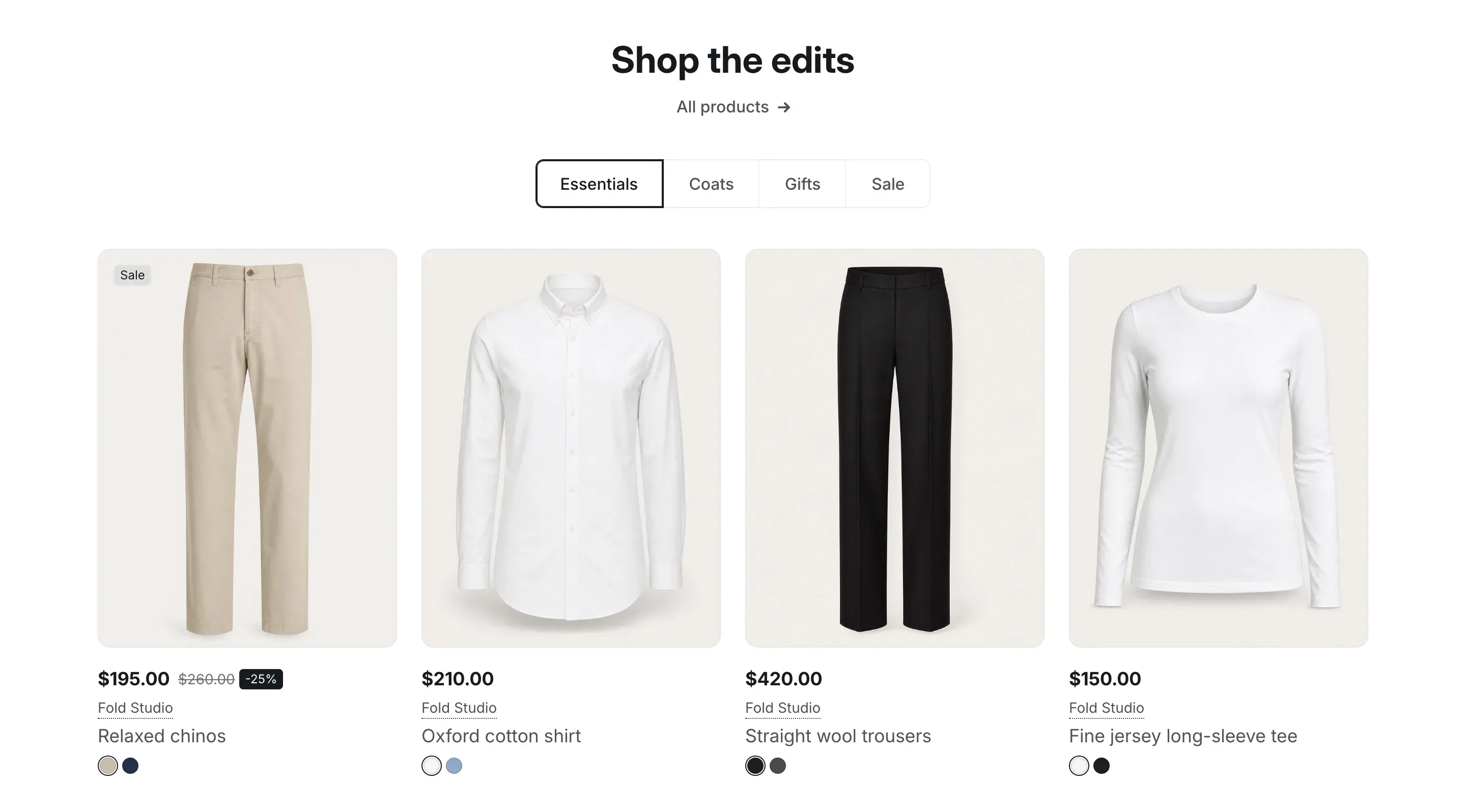
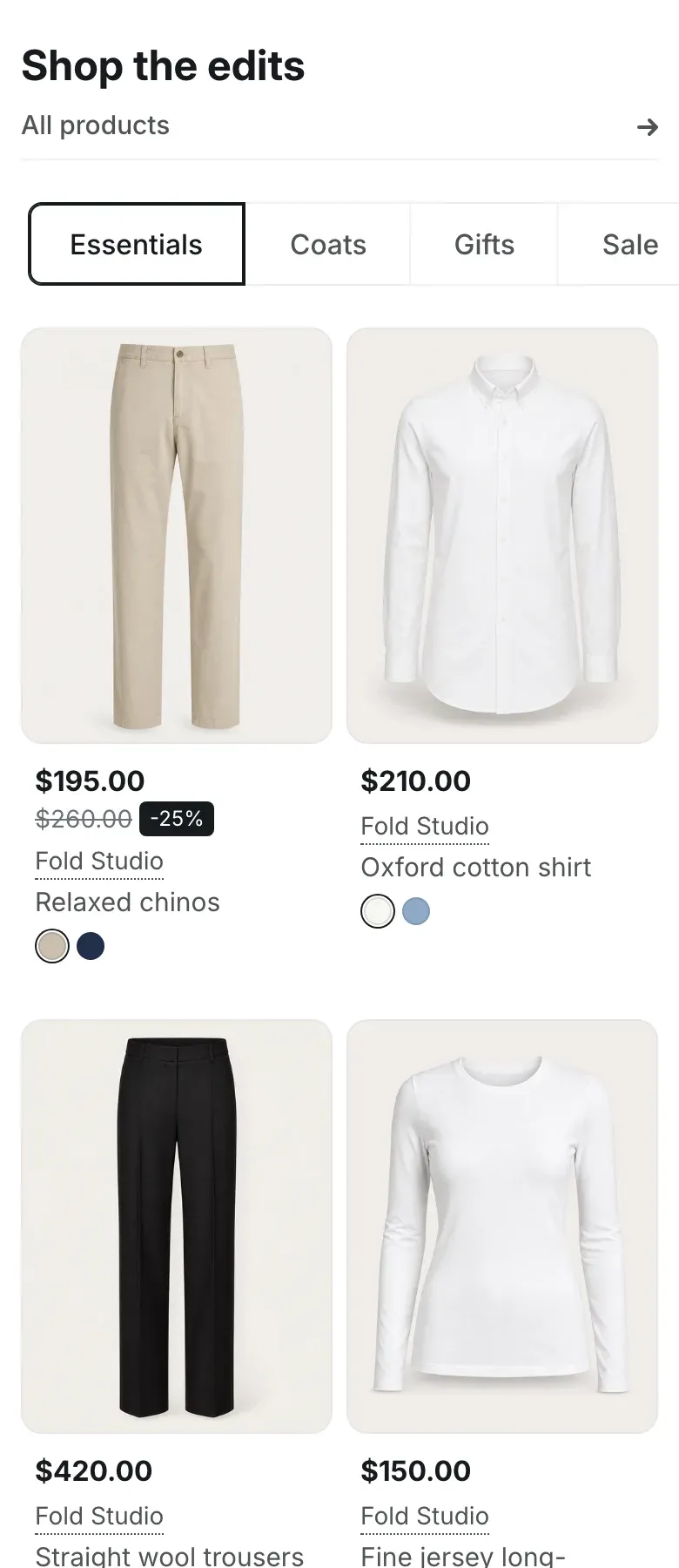
Where to find it: Theme editor → page → Add section → Product tabs
Set up the section
Section titled “Set up the section”- In the theme editor, click Add section and choose Product tabs. The section comes with two tabs.
- Enter a Heading, a Link label and a Link, or clear them.
- Click a Product tab block, choose its Collection and enter a Title.
- To add a tab, click Add block under the section and choose Product tab. A section holds up to four tabs.
- Set Products per tab.
- Click Save.
The first tab is selected when the page opens. To change which tab comes first, drag the blocks in the left sidebar. When you click a tab block in the theme editor, the preview switches to that tab.
How the products are laid out
Section titled “How the products are laid out”The layout depends on Image ratio in Theme settings → Product cards:
- Square (1:1): the first product is a large card on the left half, the next four make a 2 × 2 grid on the right, and the rest follow in rows of four.
- Portrait (3:4): all cards are the same size, four in a row.
A collection with a single product also shows a regular card. On screens up to 767px wide, the products are shown in two columns, and the large card takes the full width above them.
When the tabs don’t fit the screen, customers scroll the tab row sideways. On a keyboard, the arrow keys move between tabs, and Home and End jump to the first and last tab.
The product cards follow Theme settings → Product cards. See Product cards. On screens up to 1280px wide, the quick add bar in this section has no quantity selector.
If a tab has no collection, placeholder cards show the layout. If a tab has no Title, it is named after its collection.
Settings reference
Section titled “Settings reference”| Setting | What it does | Default |
|---|---|---|
| Heading | Heading above the tabs, centered. Supports bold, italic and links. | Best offers |
| Link label | Text of the link under the heading. See Section basics. | View catalog |
| Link | Page the link opens. The link is shown when both the label and the link are set. | /collections/all |
| Products per tab | From 1 to 25. | 13 |
| Color scheme | Colors of the section. See Section basics. | Scheme 1 |
Product tab block:
| Setting | What it does | Default |
|---|---|---|
| Title | Text on the tab. When empty, the collection title is used. | Tab |
| Collection | Collection whose products the tab shows. | Empty |
Related pages
Section titled “Related pages”- Featured collection: one collection as a row of products.
- Product cards