Color swatches
Show each color of a product as a round swatch instead of a word, on the product page, on product cards and in collection filters.
You need: a product category that has a Color attribute, for example clothing or shoes · no app · about 5 minutes per product.
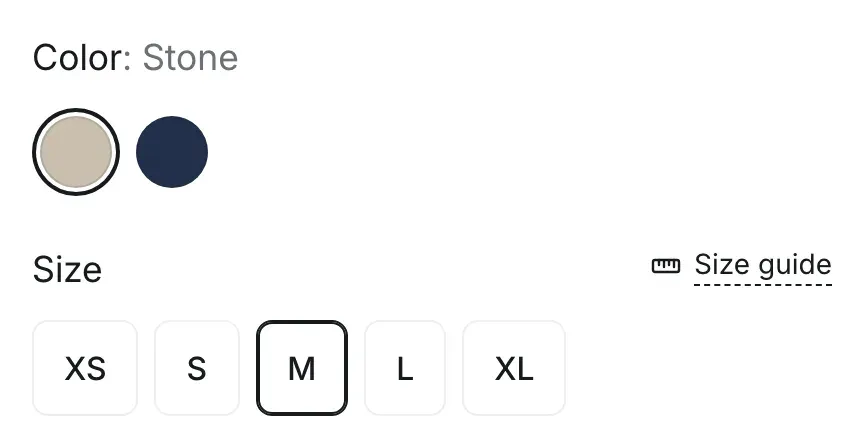
Where swatches appear
Section titled “Where swatches appear”| Place | What customers see |
|---|---|
| Product page | Round swatches instead of buttons, with the chosen color next to the option name, for example Color: Stone. A color that can’t be bought with the chosen size is struck through but stays selectable. |
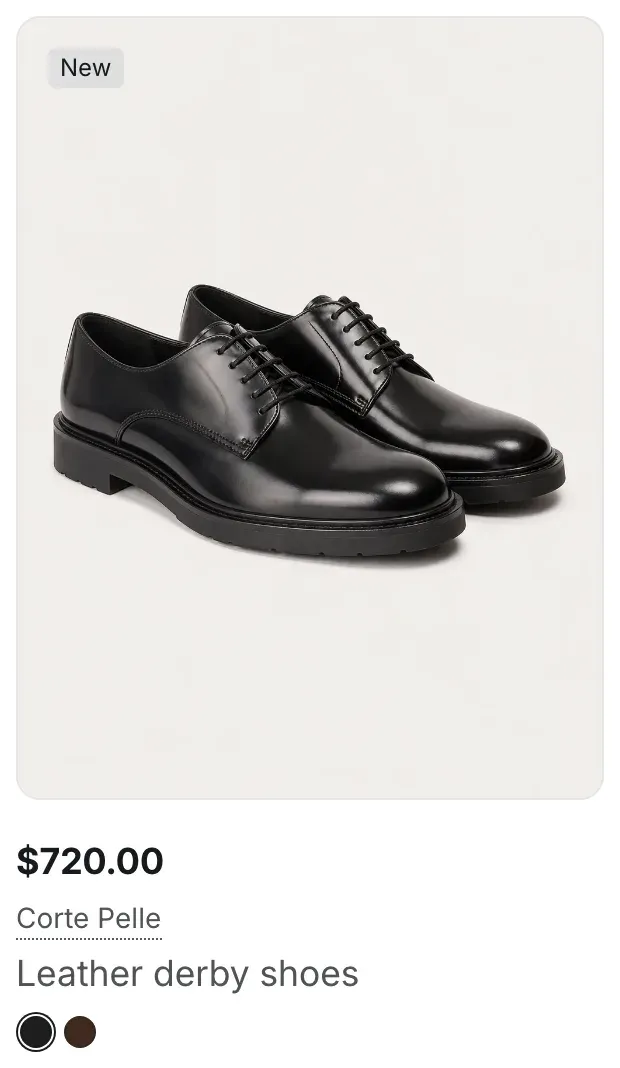
| Product cards | Up to four small swatches under the product title, and +N when there are more. The color of the variant shown on the card is outlined. |
| Collection filters | A swatch next to each color in the filter list. See Collection filters. |
Alpha Start shows swatches for an option only when every value of that option has a swatch. If one color is missing a swatch, the option keeps its text buttons.
Step 1. Connect the color option in Shopify admin
Section titled “Step 1. Connect the color option in Shopify admin”Swatch colors come from Shopify, not from the theme. You connect the product’s color option to the Color category metafield, and each color entry carries its own color or pattern image.
- In your Shopify admin, open Products and open a product.
- In Category, choose a category that has a color attribute, for example Apparel & Accessories → Clothing → Clothing Tops → Shirts.
- In Variants, add an option and choose the Color category metafield. Its entries become the option values. For an existing option, click the option, click the Connect dynamic source icon and choose Color.
- To get a color that isn’t in the list, for example “Camel”, click Edit → Add new entry, enter the name and pick its color. You can also add a pattern image for prints and textures.
- Click Save.
A color entry belongs to your store, so “Camel” with its color is created once and reused for other products. When you change the color of an entry, every product that uses it updates.
Step 2. Check the settings in the theme editor
Section titled “Step 2. Check the settings in the theme editor”Swatches need no extra setup in the theme. On the product page, the Variant picker block of the Product section shows them as soon as the option is connected. Product cards have a setting that turns them off:
- In the theme editor, open Theme settings → Product cards.
- Check that Show color swatches is on. Info in the editor: “Shows the color swatches of a product’s options under its title.”
- Click Save.
Variant images instead of swatches
Section titled “Variant images instead of swatches”Show variant images on option buttons in the Variant picker block is another way to show colors on the product page. Info in the editor: “Used for options where every value has its own variant image.”
With this setting on, an option that has no swatches but where every value has its own variant image shows small product photos instead of names. When two values share the same picture, for example sizes of one color, names are shown. Variant images appear on the product page only, not on product cards.
Check the result
Section titled “Check the result”Open the product on your storefront: the color option shows round swatches, and the chosen color is written next to the option name. Then open a collection with the product: the swatches appear under the product title.
Swatches show on the product page but not on product cards. Why?
Section titled “Swatches show on the product page but not on product cards. Why?”Product cards use only the swatches of connected options. If an option is a plain text option, the product page can still show swatches when the product’s Color category metafield lists entries with exactly the same names as the option values. Connect the option to the Color category metafield (step 1) to get swatches everywhere.
Why does one product show text buttons instead of swatches?
Section titled “Why does one product show text buttons instead of swatches?”At least one color of the option has no swatch. Open the product and check that every value of the option is a Color entry with a color or an image.
Can I use photos of the fabric as swatches?
Section titled “Can I use photos of the fabric as swatches?”Yes. Add an image to the color entry in step 1. The image is cropped to a circle. Use a square image of the texture.
Why does the card show only one option’s swatches?
Section titled “Why does the card show only one option’s swatches?”Cards show swatches of the first option that has at least two values, all with swatches. Products with one color show no swatches on cards.