Shop the look
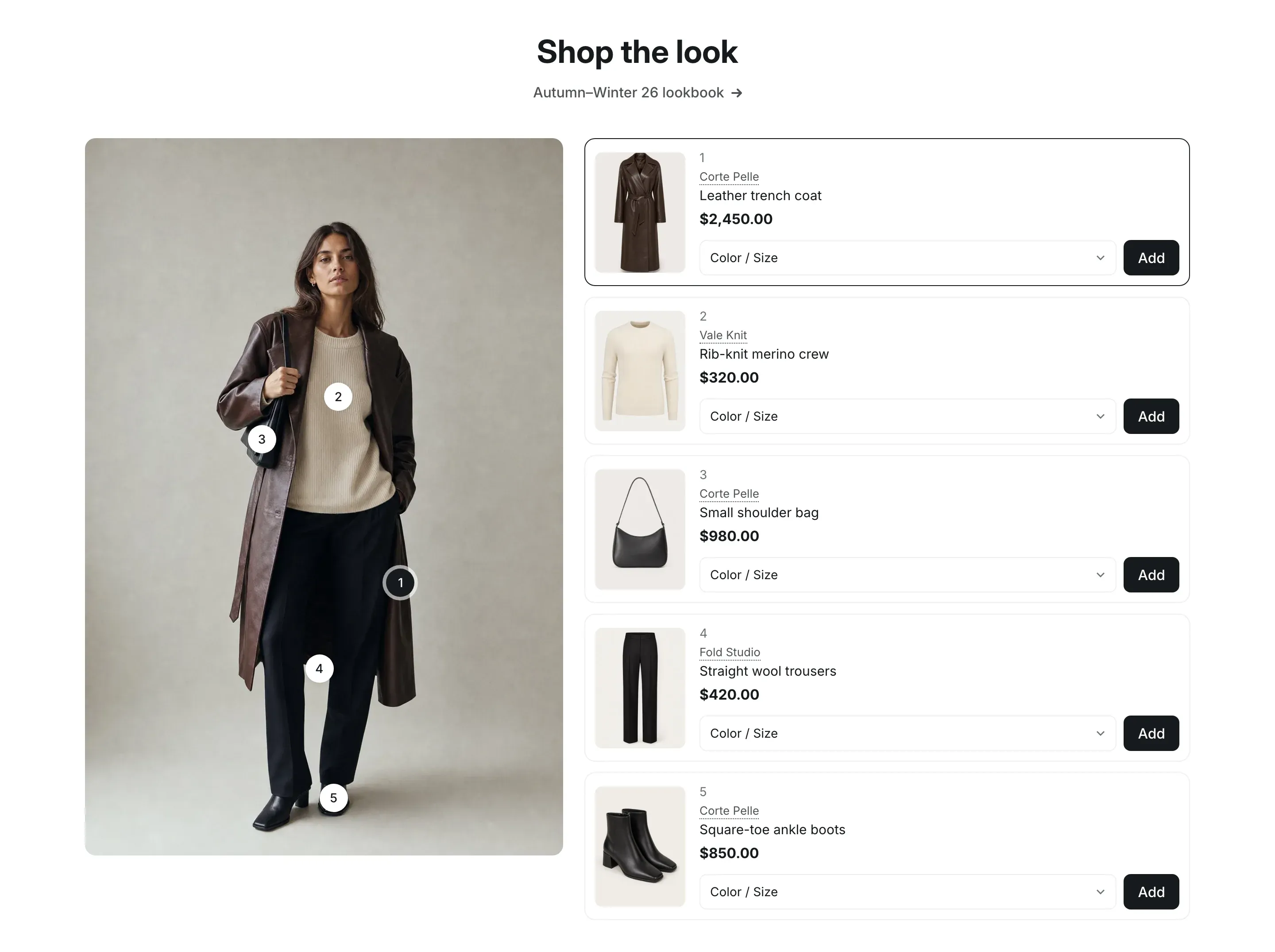
Shop the look shows a photo with numbered dots on the products in it, and a list of those products next to the photo. Customers see what the look is made of and add each item to the cart without leaving the page.
Where to find it
Section titled “Where to find it”Theme editor → page → Add section → Shop the look.
The section comes with three Hotspot blocks and holds up to eight.
Set it up
Section titled “Set it up”- Add the Shop the look section and upload an Image: a portrait photo of the complete look.
- Choose the Image position: the photo on the left or on the right.
- Click a Hotspot block and choose a Product.
- Move the Horizontal position and Vertical position sliders until the dot sits on the product in the photo.
- Repeat for each product. To add one, click Add block under the section and choose Hotspot.
- Click Save.
Position the dots
Section titled “Position the dots”Each dot is placed in percent of the photo’s size, counted from its top-left corner:
- Horizontal position:
0is the left edge,50the middle,100the right edge. - Vertical position:
0is the top edge,50the middle,100the bottom edge.
For example, a bag at about a third of the way across the photo and a little above the middle is around 35 and 40.
In the theme editor, every dot shows its position under it, such as 52 × 92, so you can match the dots to the sliders. The photo is never cropped and keeps its own proportions on every screen, so the dots stay on the same spot of the photo on desktop and on phones.
What customers see
Section titled “What customers see”Each product row shows the product photo, its number, the brand, the title and the price. Products with variants have a list such as Color / Size that starts empty, so customers choose on purpose, and an Add button that adds the product to the cart without leaving the page. Sold-out products show a disabled Sold out button. Products that can only be bought with a subscription or another purchase option show Choose options, which opens the product page.
The first dot and row are highlighted when the page opens. Clicking a dot highlights its row; moving the pointer over a row, or moving to it with the keyboard, highlights its dot.
The brand shows when Show brand is on in Theme settings → Product cards. See Product cards.
On mobile
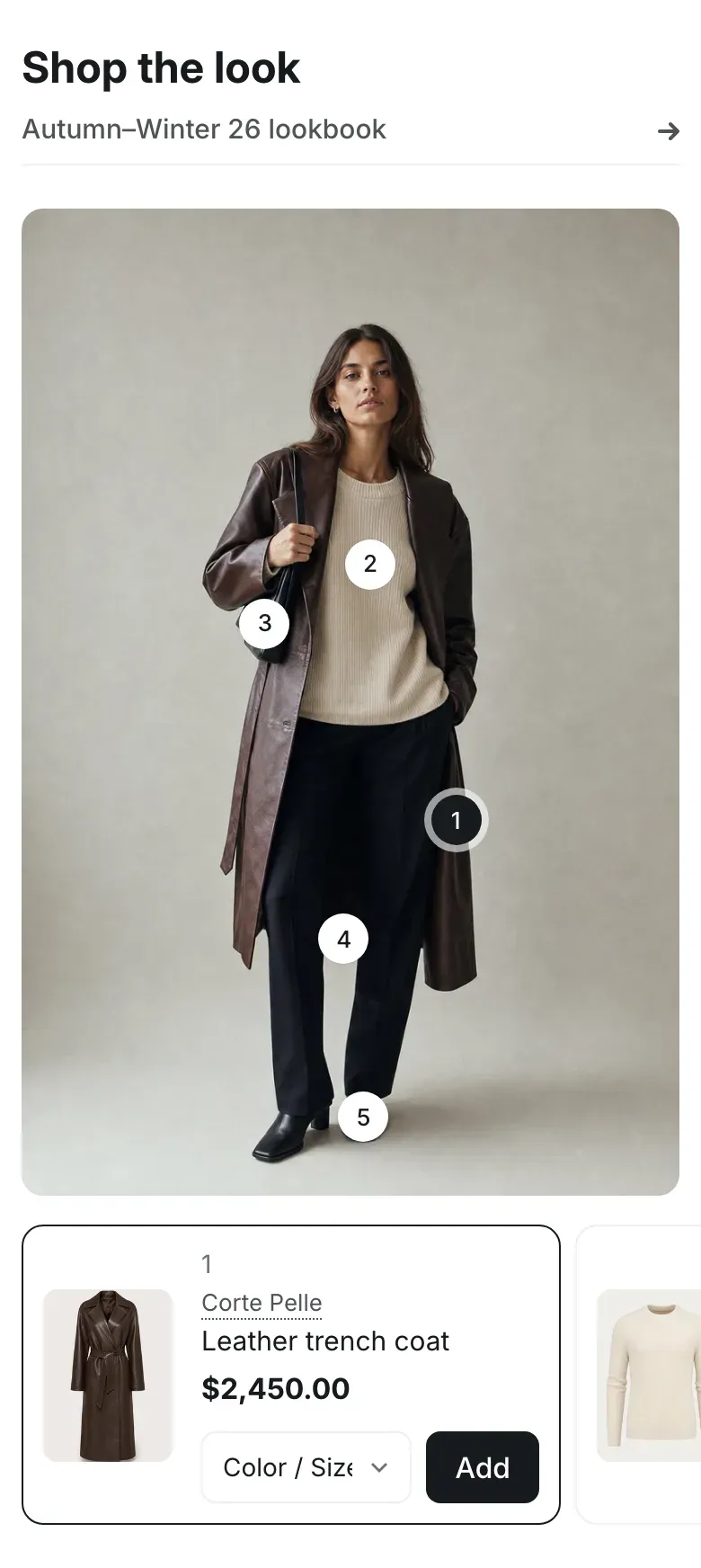
Section titled “On mobile”On screens up to 767px wide, the photo goes on top and the product rows become a strip under it that customers swipe sideways. Tapping a dot scrolls the strip to its product.
Settings reference
Section titled “Settings reference”| Setting | What it does | Default |
|---|---|---|
| Heading | Title above the section. | Shop the look |
| Link label | Text of the link under the heading. See Section basics. | Empty |
| Link | Page the heading link opens. The link shows when both Link label and Link are filled in. | Empty |
| Image | Info in the editor: “Use a portrait photo of a complete look. Hotspot positions are measured on this photo, which is never cropped.” | Empty |
| Image position | Side of the photo on desktop. Options: Left, Right. | Left |
| Color scheme | Colors of the section. See Section basics. | Scheme 1 |
Hotspot block:
| Setting | What it does | Default |
|---|---|---|
| Product | Product the dot points to and the row shows. | Empty |
| Horizontal position | Distance of the dot from the left edge of the photo, 0–100%. | 50% |
| Vertical position | Distance of the dot from the top edge of the photo, 0–100%. | 50% |
Info in the editor under the sliders: “Positions are percentages of the photo width and height, measured from the top left corner. In the theme editor every dot shows its position.”