Size chart
Add a Size guide link next to the size option, so customers can check measurements without leaving the product page.
You need: a page with a size table · no app · about 15 minutes for one chart, plus a product metafield if different products need different charts.
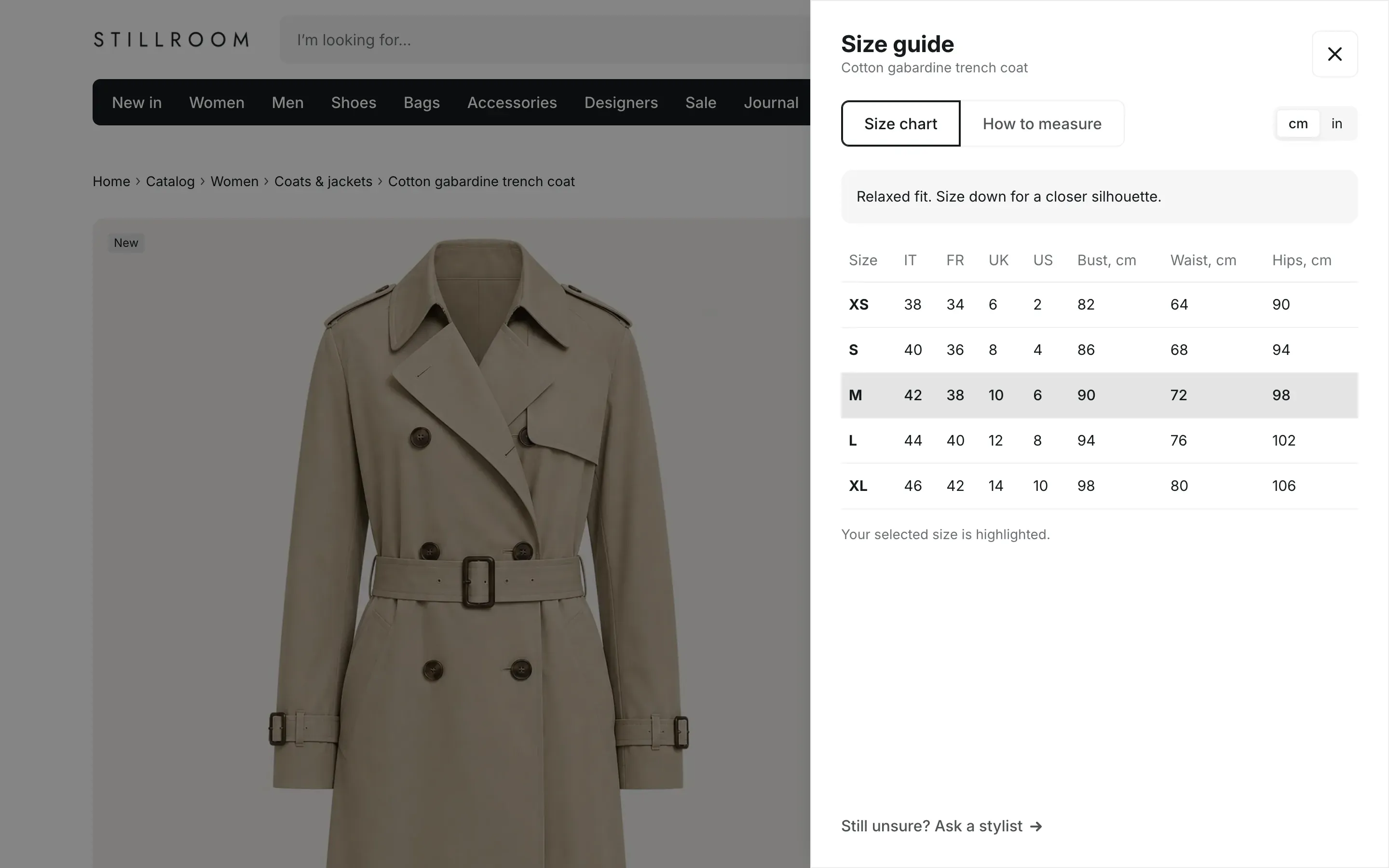
What customers see
Section titled “What customers see”The link opens a panel from the right side of the screen. On phones it slides up from the bottom. The panel shows:
- the product name under the Size guide title;
- your fit note, for example “Relaxed fit. Size down for a closer silhouette.”;
- the size table from your page. The size the customer chose on the product page is highlighted, with the note “Your selected size is highlighted.”;
- a cm / in switch, when the table has columns in centimeters. The customer’s choice is remembered for the next product;
- a How to measure tab, when you add a picture or text for it;
- a help link at the bottom, for example to your contact page.
On narrow screens, the table scrolls sideways and the size column stays in place.
Step 1. Create the size chart page in Shopify admin
Section titled “Step 1. Create the size chart page in Shopify admin”- In your Shopify admin, open Online Store → Pages and click Add page.
- Enter a title, for example “Size guide: women’s clothing”.
- In the content editor, click the Insert table button and build the table:
- put the column names in the first row, for example
Size,UK,US,Bust, cm,Waist, cm; - put the sizes in the first column, written exactly like the values of your size option, for example
XS,S,M.
- put the column names in the first row, for example
- Click Save.
How the theme reads the table:
| What you write | What the theme does |
|---|---|
“cm” in a column name, for example Bust, cm |
The column gets the cm / in switch. In inches, every number in the column is divided by 2.54 and rounded to the nearest half inch, and “cm” in the column name changes to “in”. Columns without “cm” in the name never change. |
| Sizes in the first column | The row whose first cell matches the size chosen on the product page is highlighted. Letter case doesn’t matter, but the text must be the same: M matches the size M, M (38) does not. |
| Anything else in the cells | Shown as you typed it. |
The page is also a normal page of your store with its own address. Leave it out of your menus if you don’t want customers to open it on its own.
Step 2. Add the Size guide block in the theme editor
Section titled “Step 2. Add the Size guide block in the theme editor”- In the theme editor, open a product page from the page selector: Products → Default product.
- Under Product in the left sidebar, click Add block → Size guide.
- In Size chart page, choose the page from step 1.
- Check Size option name. It must match the name of your size option, for example
Size. Info in the editor: “The link appears next to this option.” - Optional: write a Fit note, add an Image and Text under How to measure, and set a Link label and Link under Help link.
- Click Save.
All settings of the block are described on Product page blocks.
Use a different chart for each product
Section titled “Use a different chart for each product”One chart rarely fits shoes and coats. Save the chart page in a product metafield and connect the block to it.
- Create one page for each chart, for example “Size guide: women’s clothing” and “Size guide: women’s shoes”.
- In your Shopify admin, open Settings → Custom data → Products and click Add definition.
- Name it “Size guide”, click Select type, choose Page (one page) and click Save.
- Open each product, find Size guide in the Metafields section at the bottom of the product editor, choose the chart page and save the product.
- In the theme editor, click the Size guide block. Next to Size chart page, click the Connect dynamic source icon and choose the Size guide metafield.
- Optional: create a single line text metafield “Fit note” the same way and connect Fit note to it.
- Click Save.
Products without a chart in the metafield show no Size guide link, so accessories and other products without sizes stay clean.
Check the result
Section titled “Check the result”Open a product on your storefront, choose a size and click Size guide. The panel opens with your table and the chosen size highlighted. Click in to check the converted numbers, then open another product: the panel opens in inches.
Why doesn’t the Size guide link appear?
Section titled “Why doesn’t the Size guide link appear?”Check three things: the block has a page in Size chart page (or the connected metafield is filled in for this product), the page has content, and the product has variants. The link sits in the variant picker, so products without options don’t show it. The Variant picker block must be on the page too.
Why does the link appear under the options instead of next to the size?
Section titled “Why does the link appear under the options instead of next to the size?”No option of the product has the name from Size option name. The link then gets its own row under the variant picker. Change the setting to your option name, for example Taille or Shoe size.
Why isn’t the chosen size highlighted?
Section titled “Why isn’t the chosen size highlighted?”The first cell of the row must have the same text as the size value. Also, highlighting works with option buttons. With Table of variants in Variant selection, the table opens without a highlighted row.
Why don’t the numbers change when customers click “in”?
Section titled “Why don’t the numbers change when customers click “in”?”The column name must contain “cm” as a separate word, for example Waist, cm or Waist (cm). Waistcm doesn’t count. When no column has “cm”, the switch is hidden.