Contact information and social media
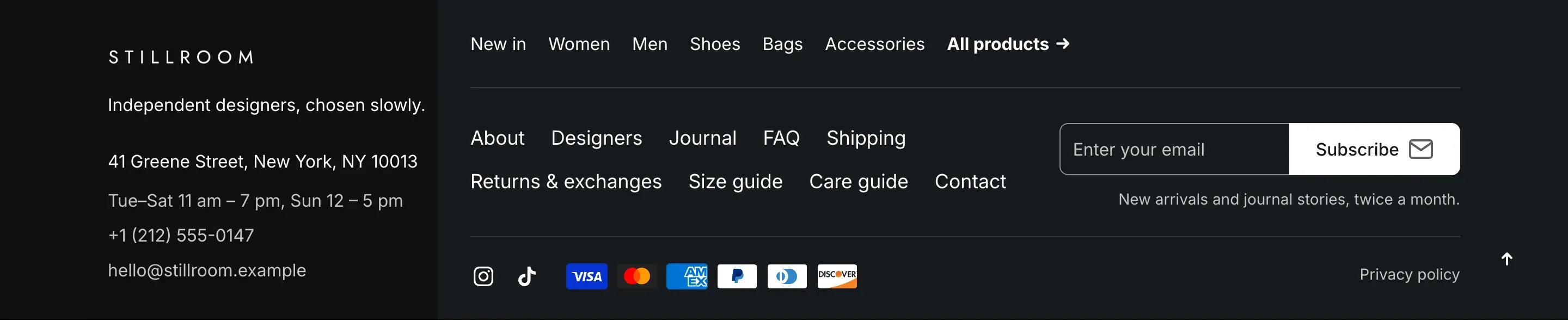
You enter your contact details and social media links once in theme settings. Alpha Start then shows them in the header, the footer, the About us section and on the password page. Empty fields are hidden, so you only fill in what you need.
Add contact information
Section titled “Add contact information”- In the theme editor, open Theme settings → Contact information.
- Fill in Main phone and, optionally, a Phone caption such as “Sales department”.
- Add a second and third phone number if you have them.
- Fill in Email, Address and Business hours.
- Click Save.
Where contact information appears
Section titled “Where contact information appears”| Place | What is shown | How to turn it on |
|---|---|---|
| Header top bar | Address and phone numbers. With several numbers, the main phone opens a list of all numbers with their captions. | Show address and Show phone numbers in the Header section. |
| Footer | Address, business hours, phone numbers and email. | Show contact information in the Footer section. |
| About us section | Address, business hours, phone and email in the contact card. | Shown when the fields are filled in. |
| Map block | The address on the map, when the block’s own address is empty. | Add a Map block. |
| Password page | Email and main phone. | Shown when the fields are filled in. |
| Setting | What it does | Default |
|---|---|---|
| Main phone | First phone number. Customers can tap it to call. | Empty |
| Phone caption | Caption of the number in the list of phone numbers. Info in the editor: “For example, Sales department”. | Empty |
| Second phone, Third phone | Additional numbers, each with its own Phone caption. | Empty |
| Store email address. | Empty | |
| Address | Store address. Use several lines if needed. | Empty |
| Business hours | Opening hours, for example “Mon–Fri 9 am – 6 pm”. | Empty |
Add social media links
Section titled “Add social media links”- Open Theme settings → Social media.
- Paste the full link to your profile into the field of each network, for example
https://instagram.com/yourstore. - Click Save.
Icons appear only for the networks you add a link for. They show in the footer (when Show social media icons is on in the Footer section), in the About us section and on the password page. Each link opens in a new browser tab.
Supported networks: Facebook, Instagram, YouTube, TikTok, X (Twitter), Threads, Pinterest, LinkedIn, Snapchat, Tumblr, Vimeo, WhatsApp, Telegram and Discord.