Logo list
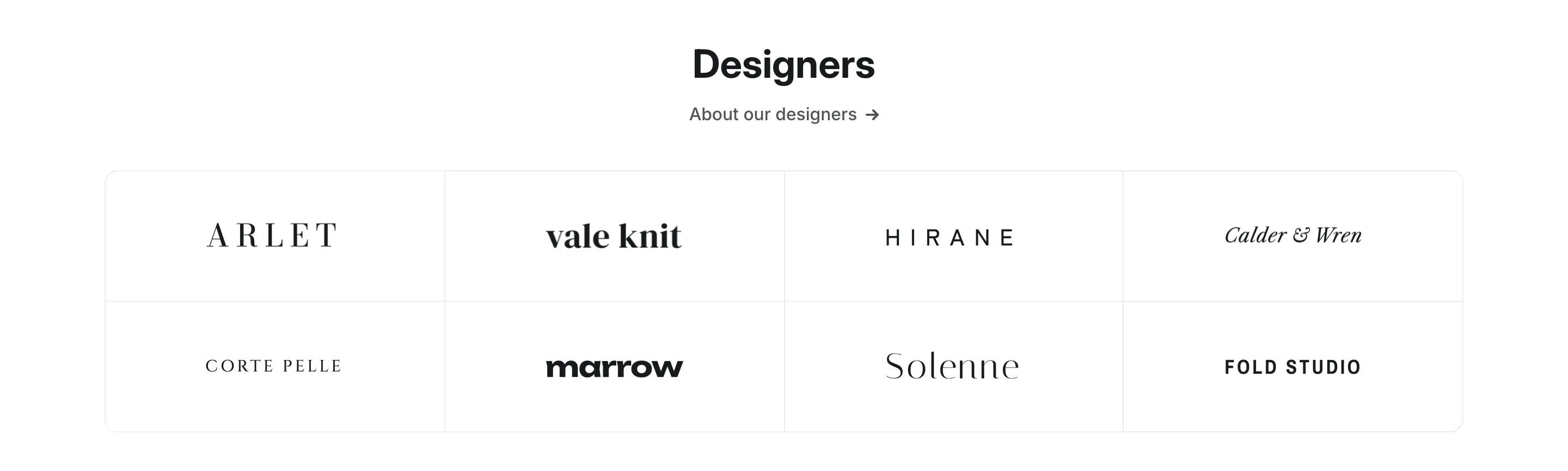
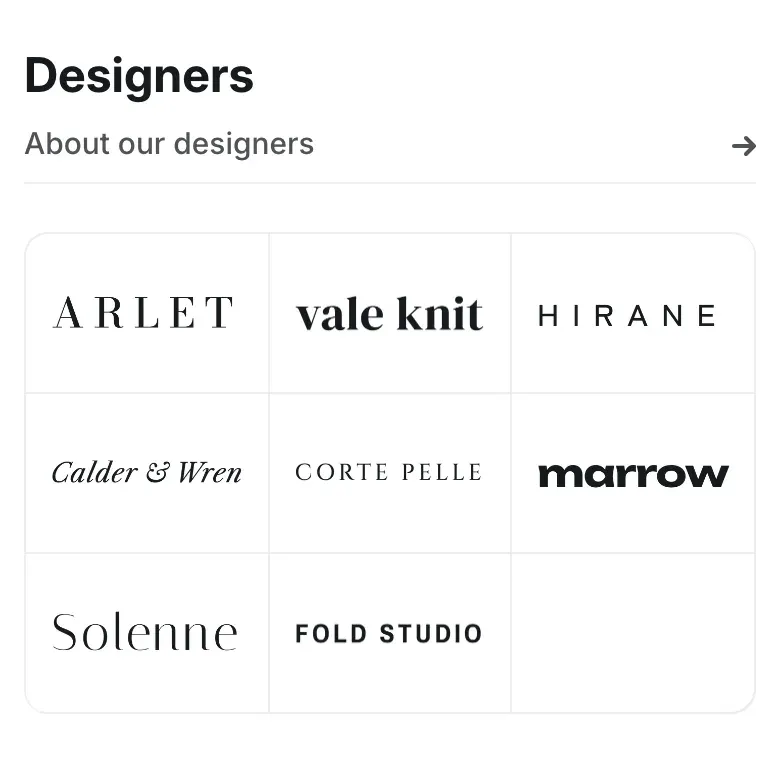
The Logo list section shows logos in a grid of equal cells framed by thin lines, like a table. Use it for the brands you sell, your partners, certificates or “as seen in” press logos. Each logo can link to a page, for example the brand’s collection.
Where to find it: Theme editor → any page → Add section → Logo list.
Set up the section
Section titled “Set up the section”- Click Add section and choose Logo list. The section comes with 12 empty logo blocks.
- Click a Logo block and upload the logo image.
- Enter the brand Name and, optionally, a Link, for example the brand’s collection.
- Repeat for each logo. Remove the blocks you don’t need.
- Set Columns on desktop so the logos fill whole rows, for example 4 columns for 8 logos.
- Click Save.
Empty logo blocks show a placeholder in the theme editor only; customers don’t see them. A section without any logo blocks is hidden from customers too.
Prepare the logos
Section titled “Prepare the logos”Logos are shown up to 128 × 48px (up to 32px tall on phones) and are centered in their cells. For sharp logos on high-resolution screens, upload images at least 256 × 96px. SVG or PNG with a transparent background works best.
On light color schemes, white backgrounds in logo images blend into the cell, so a logo saved on a white backdrop doesn’t show a white box. On dark color schemes, images are shown unchanged: use logos with a transparent background and light lettering there.
Columns
Section titled “Columns”Columns on desktop sets from 3 to 8 columns. Tablets show up to 4 columns, and phones always show 3. When the last row isn’t full, the empty cells stay blank inside the frame.
Settings reference
Section titled “Settings reference”| Setting | What it does | Default |
|---|---|---|
| Heading | Section heading. Supports bold, italic and links. See Section basics. | Brands |
| Link label | Text of the link under the heading. | All brands |
| Link | Page the link opens. The link shows when both the label and the link are filled in. | /collections |
| Columns on desktop | Number of columns, from 3 to 8. Info in the editor: “Tablets show up to 4 columns, phones show 3”. | 6 |
| Color scheme | Colors of the section. See Section basics. | Scheme 1 |
Logo block (up to 24 per section):
| Setting | What it does | Default |
|---|---|---|
| Logo | Logo image. Info in the editor: “Displayed up to 128 × 48px. PNG or SVG with a transparent background works best, especially on dark color schemes.” | Empty |
| Name | Info in the editor: “Used as alt text when the image has none, and shown instead of the logo when there is no image” | Empty |
| Link | Page that opens when customers click the logo. On desktop, a linked cell gets a light background on hover. | Empty |
To show brands in the mega menu of the header instead, see Header.