Collection list
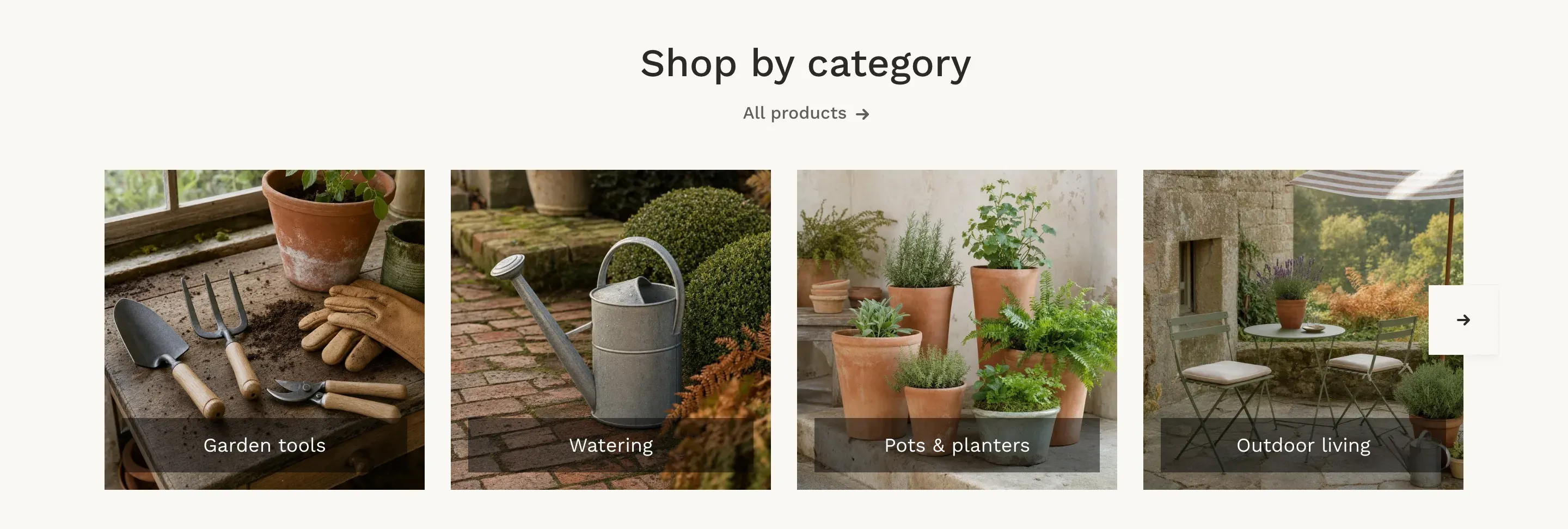
Collection list shows the collections you choose as image cards with their titles. Each card opens its collection, so customers can go straight to the category they are looking for.
Where to find it: Theme editor → page → Add section → Collection list
Set up the section
Section titled “Set up the section”- In the theme editor, click Add section and choose Collection list.
- Under Collections, click Select and choose up to 12 collections. Drag them in the list to change their order.
- Choose a Layout and a Card style.
- Enter a Heading, a Link label and a Link, or clear them.
- Click Save.
Layouts
Section titled “Layouts”| Layout | Desktop | Smaller screens |
|---|---|---|
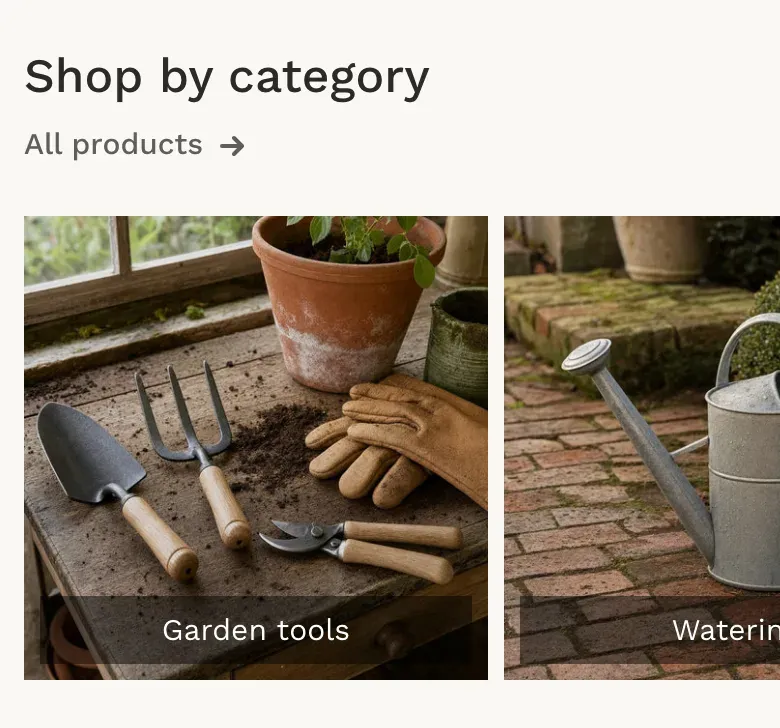
| Slider | Four cards in a row, with arrow buttons to scroll to the rest. | Up to 991px wide, 232px cards that customers swipe sideways. |
| Two columns | Two cards in a row. | One card in a row up to 575px wide. |
| Three columns | Three cards in a row. | Two cards in a row up to 767px wide. |
| Featured | The first collection as a large card on the left half, the next four in a 2 × 2 grid on the right. More collections follow in rows of four. | Two cards in a row up to 767px wide, with the first collection across the full width. |
Card styles
Section titled “Card styles”- Image on gray card: the image sits inside a soft gray card, with the collection title centered at the bottom. When customers point at the card, the title turns into a dark pill. Suits product photos on a white or transparent background.
- Photo with caption: the photo fills a square card, and the collection title sits on a dark plate at the bottom. Suits lifestyle photos.
Where the images come from
Section titled “Where the images come from”Each card shows the collection image, set in the collection editor in your Shopify admin. A collection without an image shows the image of its first product. If you set a focal point on the image in Shopify, the card keeps it in view.
Square images, 700 × 700px or larger, work best in both card styles. With Image on gray card, the whole image is shown inside the card; with Photo with caption, the photo is cropped to a square.
Settings reference
Section titled “Settings reference”| Setting | What it does | Default |
|---|---|---|
| Heading | Heading above the cards, centered. Supports bold, italic and links. | Shop by category |
| Link label | Text of the link under the heading. See Section basics. | Catalog |
| Link | Page the link opens. The link is shown when both the label and the link are set. | /collections |
| Collections | Up to 12 collections, in the order shown. | Empty |
| Layout | Options: Slider, Two columns, Three columns, Featured. Info in the editor: “Featured shows the first collection large” | Slider |
| Card style | Options: Image on gray card, Photo with caption. | Image on gray card |
| Color scheme | Colors of the section. See Section basics. | Scheme 1 |
Related pages
Section titled “Related pages”- Collections list page: the page that lists all your collections.
- Collection with products: one collection with a row of its products.
- Catalog menu