Collage
The collage shows up to four photo tiles in an asymmetric grid under a centered heading: one large tile and smaller ones next to it. Each tile has a title on a dark caption and leads customers to a collection or any page you choose.
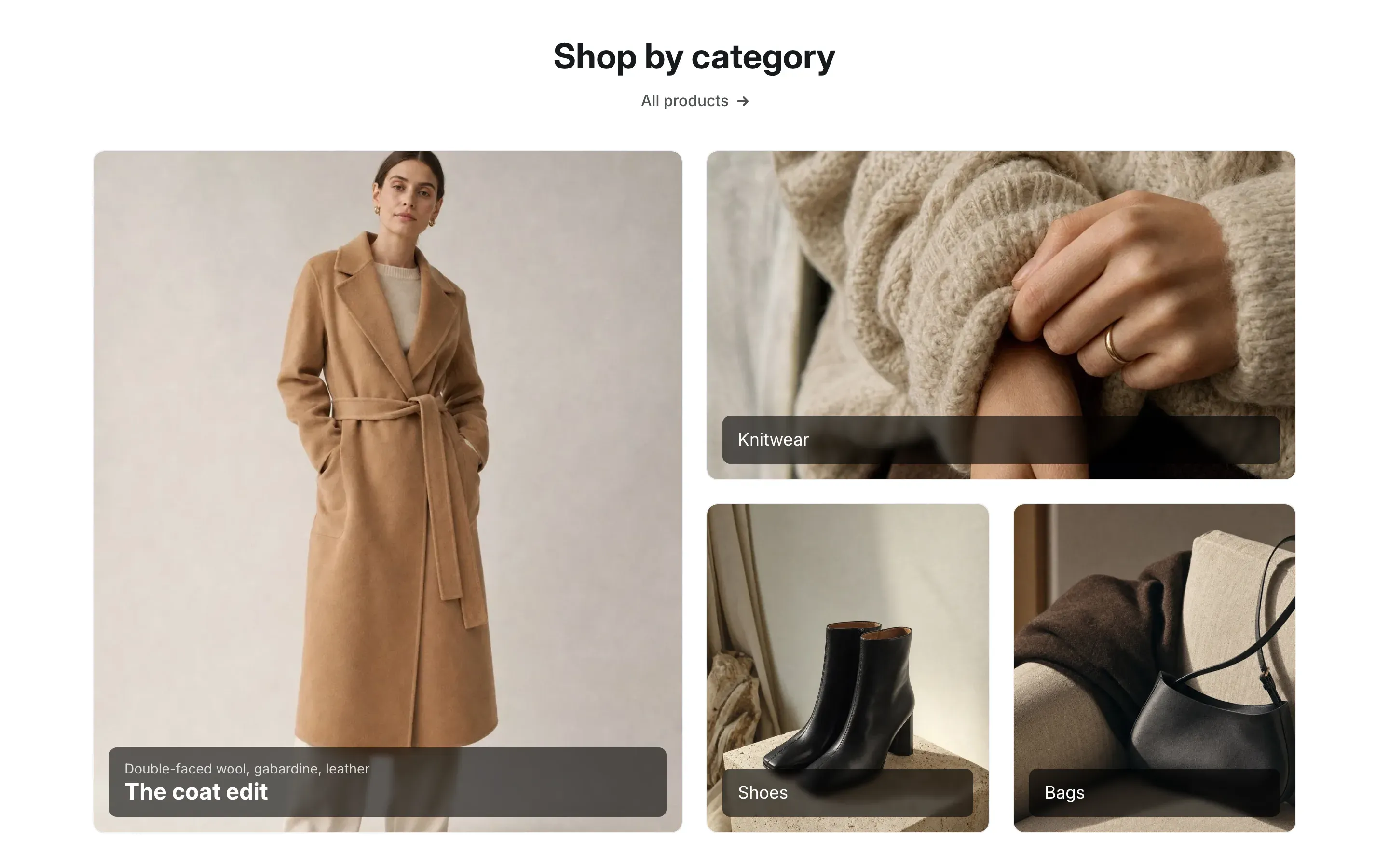
Where to find it
Section titled “Where to find it”Theme editor → page → Add section → Collage.
The section comes with four Collage tile blocks.
Set up the collage
Section titled “Set up the collage”- Add the Collage section and enter the Heading. To show a link under it, fill in Link label and Link.
- Choose the Layout: the large tile on the left or on the right.
- Click a Collage tile block and choose a Collection, or enter a Title and a Link.
- Optional: upload an Image and add a Subtitle.
- Repeat for the other tiles and click Save.
Where tile content comes from
Section titled “Where tile content comes from”| Tile setting | When it’s empty |
|---|---|
| Image | The collection image is used, then the image of the first product in the collection. |
| Title | The collection title is used. |
| Link | The tile links to the collection. |
With a custom Title, the tile links to the Link, or to the collection if there is no link. A tile with neither a title nor a collection shows the placeholder title “Collection title” and is not a link.
How the grid fills
Section titled “How the grid fills”The first tile is always the large one and takes two rows. The other tiles fill the other half of the grid:
| Tiles | Layout |
|---|---|
| 4 | The second tile spans the top row; the third and fourth share the bottom row. |
| 3 | The second tile spans the top row; the third spans the bottom row. |
| 2 | The second tile fills the whole other half. |
| 1 | The tile fills the whole width. |
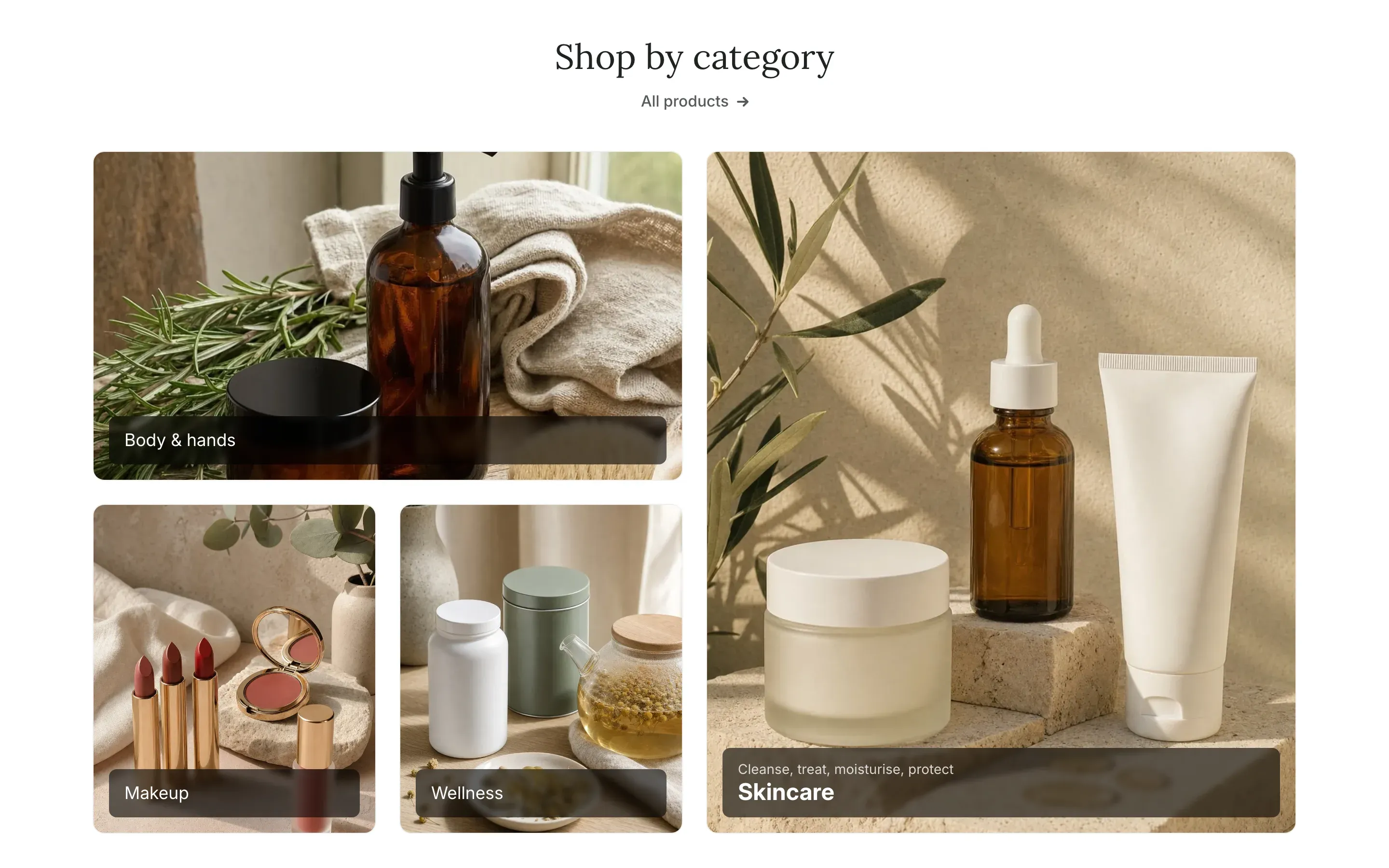
On desktop, moving the pointer over a tile that is a link zooms the photo and opens the caption with a link line, Shop collection by default. When the tile takes its title from the collection, the caption also shows the start of the collection description.
On mobile
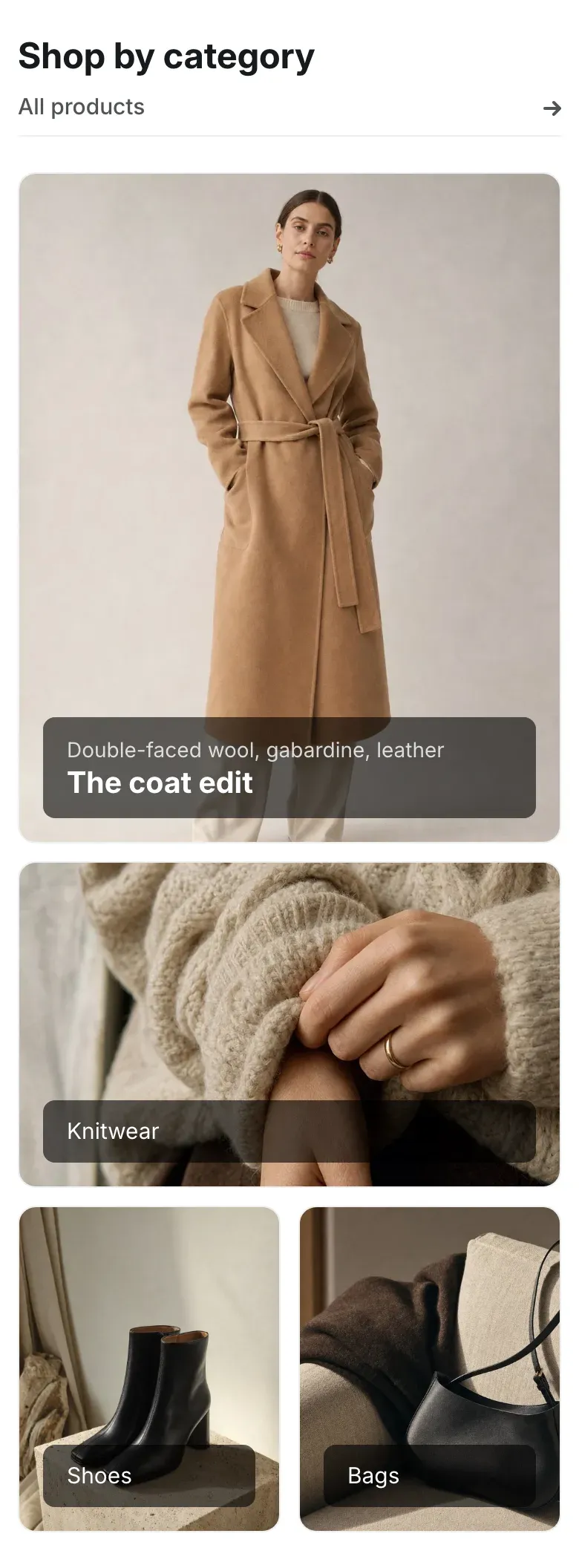
Section titled “On mobile”On screens up to 767px wide, the large tile spans the full width. The second tile spans the full width too when there are two or four tiles; the rest go two in a row. The heading aligns left, and the link stretches to the full width above a thin line.
Settings reference
Section titled “Settings reference”| Setting | What it does | Default |
|---|---|---|
| Heading | Title above the tiles. | Collage |
| Link label | Text of the link under the heading. See Section basics. | Empty |
| Link | Page the heading link opens. The link shows when both Link label and Link are filled in. | Empty |
| Layout | Options: Large tile on the left, Large tile on the right. | Large tile on the left |
| Color scheme | Colors of the section. See Section basics. | Scheme 1 |
Collage tile block:
| Setting | What it does | Default |
|---|---|---|
| Image | Photo of the tile. Info in the editor: “Uses the collection image when empty.” | Empty |
| Collection | Info in the editor: “The tile links to the collection and takes its title when the title is empty.” | Empty |
| Title | Text on the caption. | Empty |
| Subtitle | Small text above the title. | Empty |
| Link | Page the tile opens. When empty, the tile links to the collection. | Empty |
| Link label | Info in the editor: “Shown when the tile is hovered. Defaults to “Shop collection”.” | Empty |