Footer
The footer closes every page of your store. It helps customers find your contact details, the main catalog categories and pages such as Shipping or Returns, and lets them subscribe to your newsletter, follow you on social media and switch country or language. To edit it, open the theme editor and click Footer in the left sidebar.
Choose a layout
Section titled “Choose a layout”The Layout setting offers two designs:
| Layout | What it looks like |
|---|---|
| Classic | A contacts column on the left with the logo, tagline, address, business hours, phone numbers and email. On the right: the first links of the catalog menu, the footer menu next to a newsletter sign-up form, and a bottom row with social icons, payment icons and the privacy policy link. |
| Compact | Two rows. The first has the logo with the tagline and the footer menu. The second has social icons, the copyright line, the privacy policy link and the other extras. No contact details, catalog links or newsletter. |
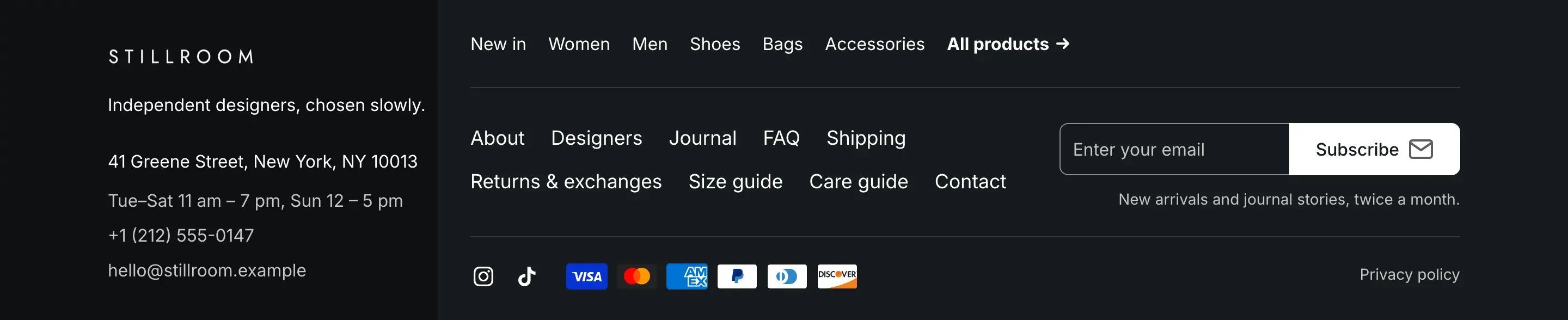
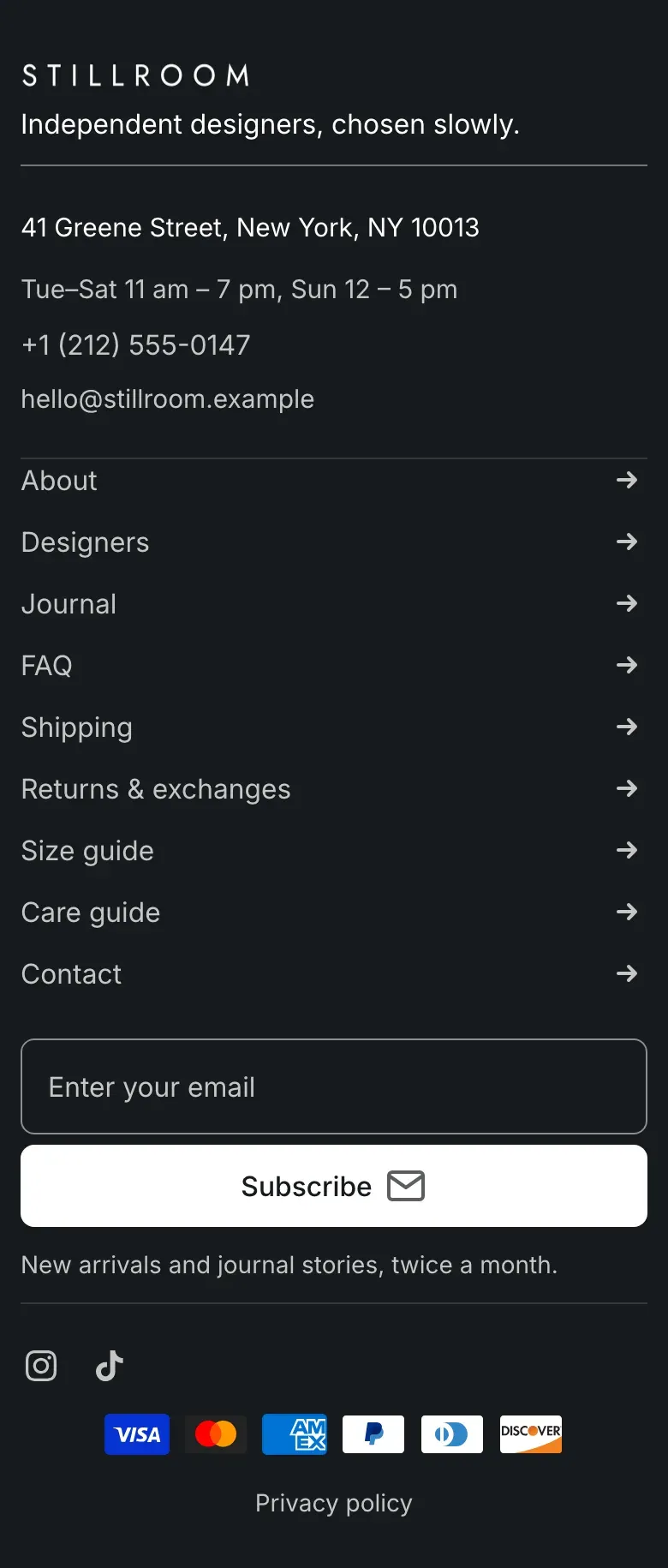
The Compact layout:

On screens up to 1024px wide, both layouts become one column. The catalog links are hidden, and footer menu links take the full width with an arrow on the right.
Footer and Compact footer
Section titled “Footer and Compact footer”The footer is a section of the footer area, so you can also add it with Add section under Footer in the left sidebar. It comes in two versions: Footer starts with the Classic layout on Scheme 3, and Compact footer starts with the Compact layout on Scheme 5. Both are the same section, so you can switch the layout later.
Colors and logo
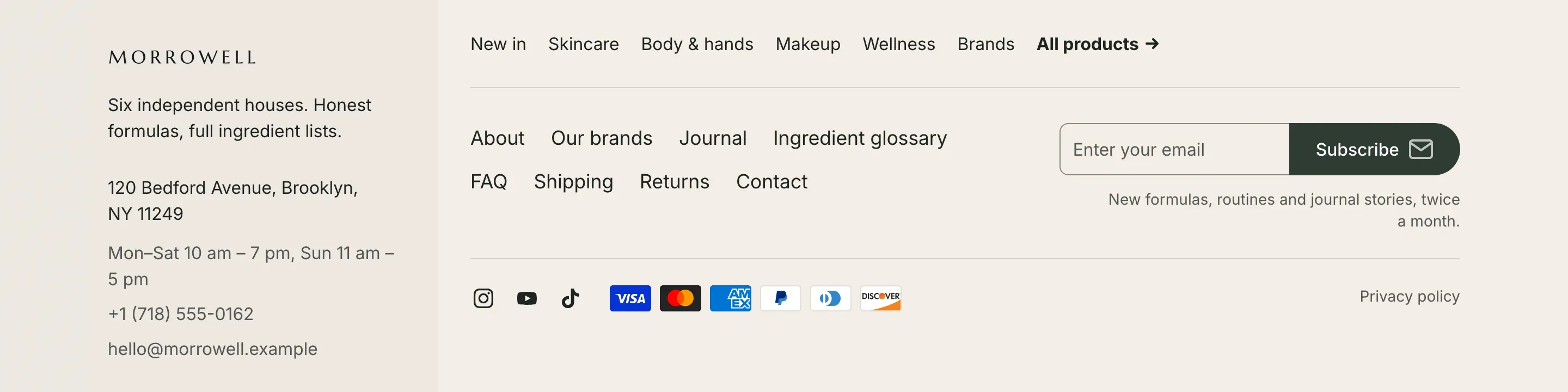
Section titled “Colors and logo”Color scheme sets the colors of the footer. In the Classic layout, Highlight contacts column adds a slightly darker background to the contacts column, running to the left edge of the screen. On a light color scheme the column is slightly darker than the footer, as in this example:
The footer shows the Logo from Logo and favicon, up to 140px wide. On a dark color scheme it uses the Logo for dark backgrounds when you’ve uploaded one. Without a logo, the store name is shown.
Tagline is a short line of text under the logo, in both layouts.
Contact information
Section titled “Contact information”In the Classic layout, Show contact information shows the address, business hours, phone numbers and email from Theme settings → Contact information. With more than one phone number, the main number opens a list of all numbers with their captions. Empty fields are hidden. See Contact information and social media.
Menu is the footer menu with links to your pages, for example About us, Shipping, Returns and Contact. Only the top-level items of the menu are shown. You create menus in your Shopify admin under Content → Menus.
In the Classic layout, the footer also shows catalog links above the footer menu:
- Catalog menu: the menu to take the links from. Info in the editor: “Leave empty to use the catalog menu from Theme settings”.
- Catalog links to show: how many top-level items to show, from 1 to 12. When the menu has more items, an All products link with an arrow follows them and opens the page with all your collections.
Newsletter sign-up
Section titled “Newsletter sign-up”In the Classic layout, Show newsletter sign-up adds an email field with a Subscribe button next to the footer menu, with your Text under it, for example a promise about how often you send emails.
Info in the editor: “Subscribers are added to Customers with email marketing consent”
Subscribers are added to Customers in your Shopify admin with the tag newsletter. After signing up, customers see “Thanks for subscribing”. See Forms and messages.
Bottom row
Section titled “Bottom row”The settings under Bottom row add these items:
| Item | Where it comes from |
|---|---|
| Copyright text | Compact layout only. Your text, or “© year store name” when the field is empty. You can add bold, italic and links. |
| Social media icons | Links from Theme settings → Social media. Icons appear only for the networks you add a link for. |
| Privacy policy link | Your privacy policy from Settings → Policies in your Shopify admin. Hidden when the policy is empty. |
| Country/region selector | Shown when your store sells to more than one country or region in Settings → Markets. It shows the country with its currency. |
| Language selector | Shown when your store has more than one published language in Settings → Languages. |
| Follow on Shop | A button that lets customers follow your store in the Shop app. Shown when the store uses Shop Pay. Not shown on the password page. |
| Payment icons | Icons of the payment methods your store accepts. |
The country and language lists open upwards, above the selectors. See Languages and markets.
Settings reference
Section titled “Settings reference”| Setting | What it does | Default |
|---|---|---|
| Layout | Options: Classic, Compact. | Classic |
| Color scheme | Colors of the footer. See Color scheme. | Scheme 3 |
| Highlight contacts column | Info in the editor: “Adds a slightly darker background to the contacts column on desktop”. Classic layout only. | On |
| Tagline | Short text under the logo. | Empty |
| Show contact information | Info in the editor: “Edit details in Theme settings > Contact information”. Classic layout only. | On |
| Catalog menu | Info in the editor: “Leave empty to use the catalog menu from Theme settings”. Classic layout only. | Main menu |
| Catalog links to show | Number of catalog links, from 1 to 12. Classic layout only. | 5 |
| Menu | Footer menu. | Footer menu |
| Show newsletter sign-up | Info in the editor: “Subscribers are added to Customers with email marketing consent”. Classic layout only. | On |
| Text | Text under the newsletter form. Shown when Show newsletter sign-up is on. | We send news and offers. No ads or spam. |
| Copyright text | Info in the editor: “Leave empty to show the year and store name”. Compact layout only. | Empty |
| Show social media icons | Info in the editor: “Edit links in Theme settings > Social media” | On |
| Show privacy policy link | Info in the editor: “Edit the policy in Settings > Policies” | On |
| Show country/region selector | Info in the editor: “Shown when the store sells to more than one country/region. To add one, go to Settings > Markets” | On |
| Show language selector | Info in the editor: “Shown when the store has more than one language. To add one, go to Settings > Languages” | On |
| Show Follow on Shop | Info in the editor: “Lets customers follow the store in the Shop app. Requires Shop Pay” | On |
| Show payment icons | Shows the icons of your payment methods. | Off |
Settings marked Classic or Compact layout only are hidden in the editor for the other layout.
Why doesn’t the footer show my address or phone number?
Section titled “Why doesn’t the footer show my address or phone number?”Contact details are shown in the Classic layout only. Fill in the fields in Theme settings → Contact information and turn on Show contact information.
Where do I change the copyright text?
Section titled “Where do I change the copyright text?”Switch to the Compact layout and fill in Copyright text. The Classic layout has no copyright line.
Why doesn’t the country or language selector appear?
Section titled “Why doesn’t the country or language selector appear?”The country selector needs more than one country or region in your markets, and the language selector needs more than one published language.