About us
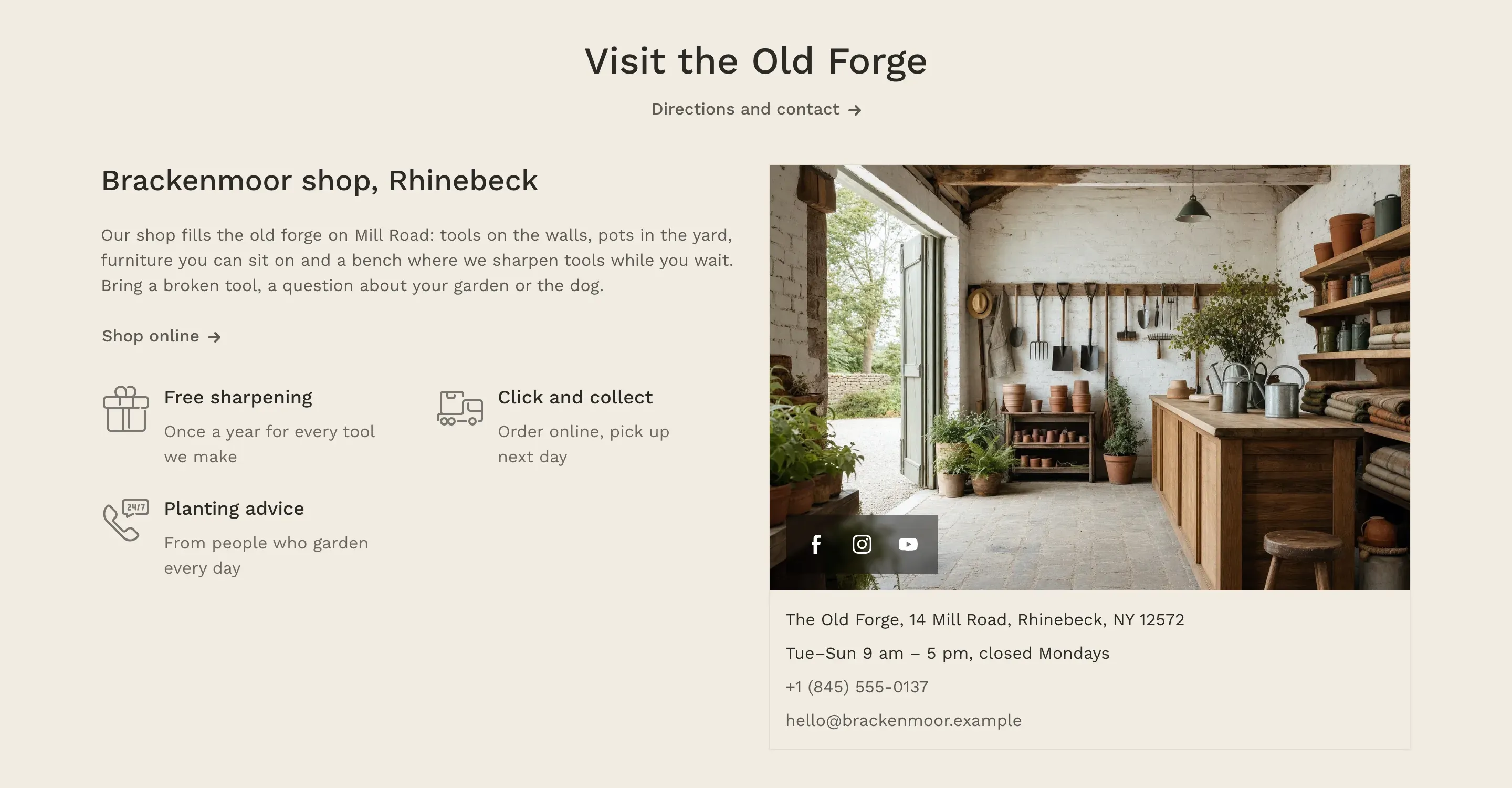
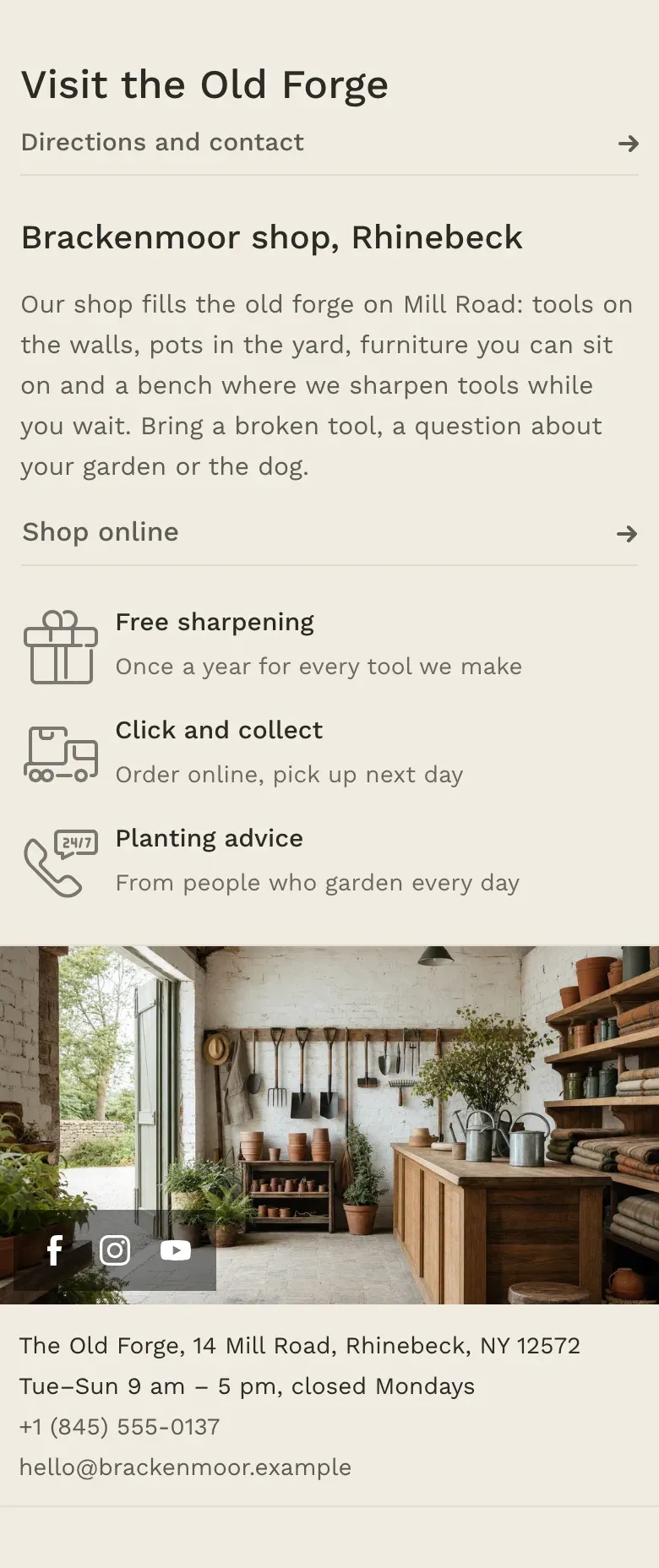
The About us section introduces your store in one block: a short story about your brand on the left, with a link and a few store advantages, and a contact card on the right with a photo, social media icons and your address, business hours, phone and email. It suits an about page, a store location page or the bottom of the home page.
Where to find it: Theme editor → any page → Add section → About us.
What the section shows
Section titled “What the section shows”- Heading and an optional link, centered above the content.
- Left column: a Subheading, the Text, a Content link with an arrow and up to eight Advantage blocks, two per row, each with an icon on the left.
- Right column, the contact card: the Image with your social media icons on top of it, and under it the address, business hours, phone and email.
On screens up to 1024px wide, the advantages are shown one per row. On screens up to 768px wide, the contact card moves under the text, and on phones it spans the full width of the screen.
When the section has no contact card, the left column takes the full width and, on desktop, the advantages are shown four per row.
Set up the section
Section titled “Set up the section”- Fill in your contact details in Theme settings → Contact information and your profile links in Theme settings → Social media. See Contact information and social media.
- Click Add section and choose About us. The section comes with four sample advantages.
- Enter the Heading, the Subheading and the Text about your store.
- Set the Content link label and Content link, for example “Shop online” and your catalog.
- Under Contact card, upload an Image of your store, team or products.
- Edit the Advantage blocks or remove the ones you don’t need.
- Click Save.
Where the contact details come from
Section titled “Where the contact details come from”The contact card doesn’t have its own contact fields. It shows:
- Address, Business hours and Email from Theme settings → Contact information;
- the first filled-in phone number from the same group, usually Main phone. Customers can tap it to call, and tap the email to write to you;
- the social media icons from Theme settings → Social media, when Show social media icons is on.
Empty fields are hidden. When you change your contact details in theme settings, the card updates everywhere at once.
Advantages
Section titled “Advantages”The Advantage blocks are the same as in the Advantages section: an icon or a custom icon, a heading and a short text. Use them for things that matter to visitors of your store, such as parking, pickup or free services.
Settings reference
Section titled “Settings reference”| Setting | What it does | Default |
|---|---|---|
| Heading | Section heading. Supports bold, italic and links. See Section basics. | About us |
| Link label | Text of the link under the heading. | More about the company |
| Link | Info in the editor: “The link shows when both the label and the link are filled in” | Empty |
| Subheading | Heading of the left column. Supports bold, italic and links. | ALPHA online store |
| Text | Story about your store, with formatting. | Introduce your brand: what you sell, what you stand for and what makes your products special. |
| Content link label | Text of the link under the story. | Product catalog |
| Content link | Page the content link opens. The link shows when both fields are filled in. | /collections/all |
| Image | Info in the editor: “Shown at the top of the contact card. 1440 × 810px or larger works best.” | Empty |
| Show social media icons | Shows your social media icons on the image. Info in the editor: “Links come from Theme settings → Social media” | On |
| Color scheme | Colors of the section. See Section basics. | Scheme 1 |
The image is cropped to fill an area half the page wide and 405px tall (212px on phones), so keep the subject in the middle or set a focal point on the image in Shopify.
Advantage block (up to 8 per section):
| Setting | What it does | Default |
|---|---|---|
| Icon | Built-in icon. Options: None, Delivery truck, Support phone, Gift, Price tag. | Delivery truck |
| Custom icon | Info in the editor: “Replaces the icon above. Displayed at 48 × 48px, square SVG or PNG works best.” | Empty |
| Heading | Short title of the advantage. | Free delivery |
| Text | One line that explains the advantage. | Tell customers why this matters to them |